Feature Summary
Range Permission is a data protection feature in WPS Sheets collaboration mode, allowing the spreadsheet creator to set independent view/edit permissions for specified cell ranges, preventing others from accidentally modifying or viewing sensitive data.
Feature Description
| Feature Dimension | Description |
|---|---|
| Membership Restriction | No membership restriction |
| Version Restriction | No version restriction |
Operation Steps
Accessing Range Permission
Feature Entry
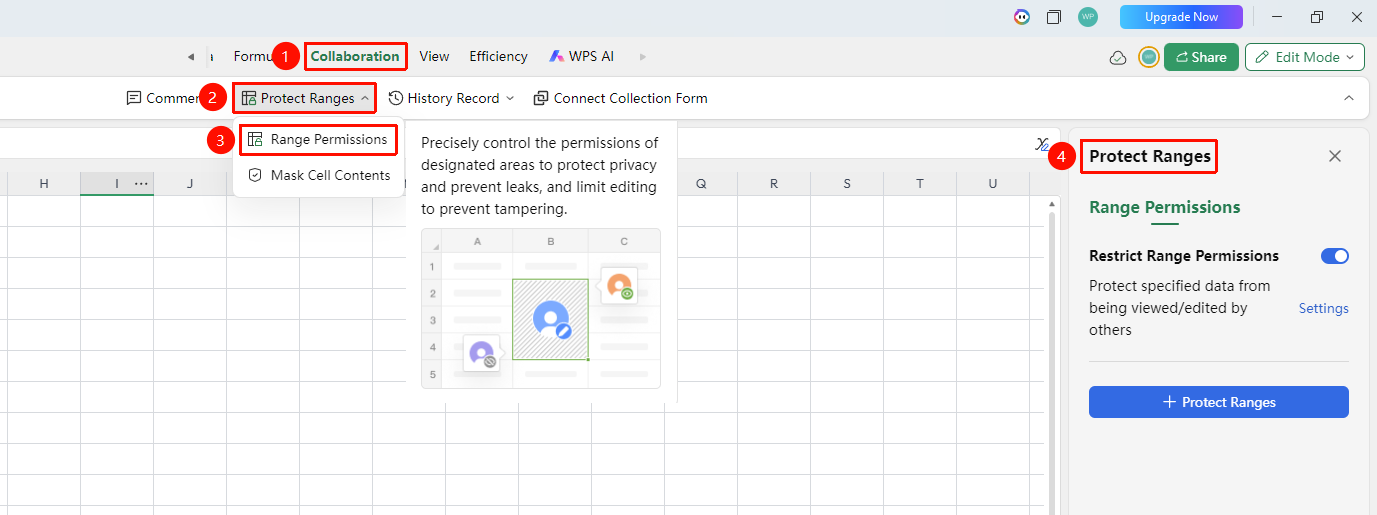
"Collaboration" tab → "Protect Range" button
- Click the top "Collaboration" tab
- Click the "Protect Range" button in the toolbar
- A dropdown menu appears, containing two options: "Range Permission" and "Auto-Hide Content"
- Select "Range Permission", and the "Protect Range" panel will appear on the right side
Enabling Range Permission
Feature Entry
Right-side "Protect Range" panel
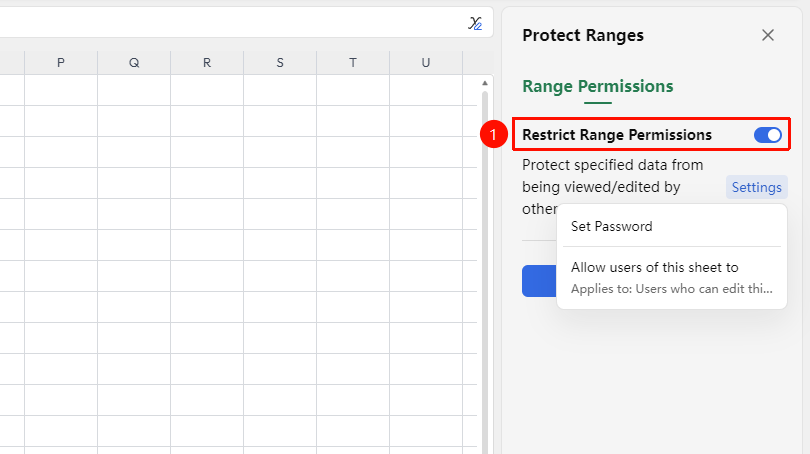
- Click the "Enable Range Permission" toggle (a blue toggle indicates it is enabled)
- After enabling, the panel displays the description: "Protect specified data from being viewed/edited by others"
- Click the "Settings" link in the upper right corner to configure passwords
Selecting a Password Setting Method
Feature Entry
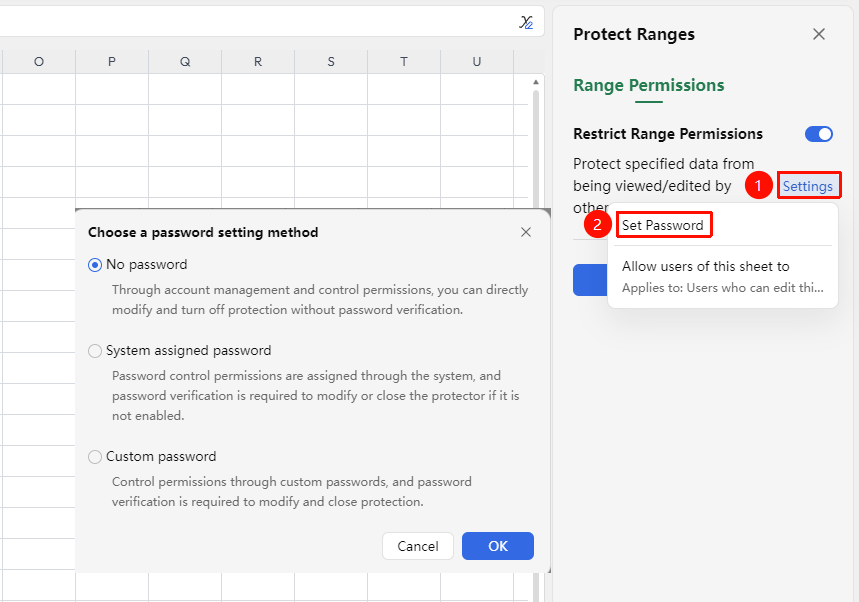
Right-side "Protect Range" panel → "Settings" → "Set Password"
In the right-side "Protect Range" panel, click "Settings" → "Set Password" in sequence to open the password setting dialog, which provides three options:
- No Password (default): Permissions are managed via account; protection can be modified or disabled directly without password verification
- System-Assigned Password: Permissions are managed via a system-assigned password; non-creators need password verification to modify or disable protection
- Custom Password: Permissions are managed via a custom password; password verification is required to modify or disable protection
After selecting an option, click "OK" to complete the setup, or click "Cancel" to discard.
Adding a Protected Range and Setting Permissions
Feature Entry
"Protect Range (xxx)" dialog
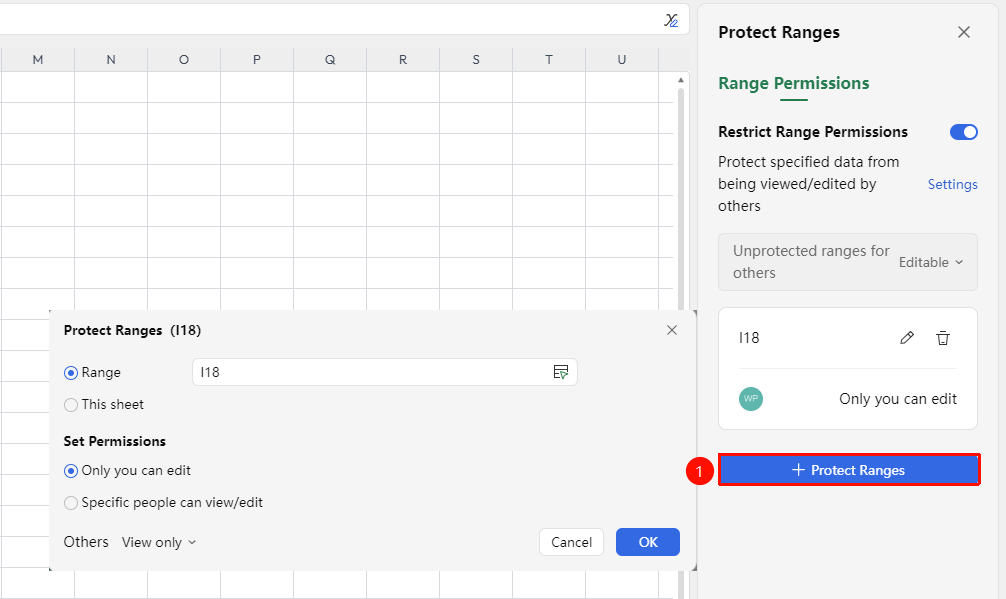
- Click the "+ Add Protected Range" button at the bottom of the right-side panel
- The "Protect Range" dialog appears, with the currently selected cell range identifier displayed at the top
- Specify Protection Scope:
- Specified Range (checked by default): Enter or select the cell range address to protect
- Current Worksheet: Protect the entire current worksheet
- Set Permissions:
- Editable by Me Only (checked by default): Only the creator can edit this range
- Designated Persons Can View/Edit: Add specific collaborators and set view or edit permissions
- At the bottom, the "Others" dropdown allows selecting a permission level: "View Only" / Others
- Click "OK" to save, or click "Cancel" to discard
Managing Protected Ranges
Feature Entry
Right-side "Protect Range" panel → Added ranges list
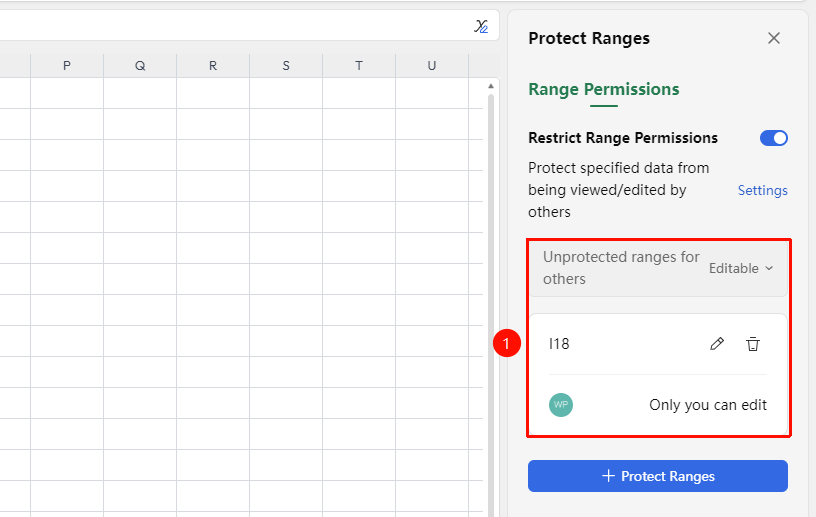
After enabling range permissions and adding protection, the right-side panel displays a list of protected ranges. Each range can be managed independently:
- "Remaining Ranges for Others" : Choose "Editable" or "View Only" to control permissions for non-protected ranges for other collaborators
- To the right of each protected range, there is an "Edit" (pencil icon) button; click to modify the permission settings for that range
- To the right of each protected range, there is a "Delete" (trash can icon) button; click to remove protection for that range
- Below a protected range with set permissions, the current permission level is displayed (e.g., "Editable by Me Only" )
FAQ
Q1: Can the spreadsheet creator manage all range permissions?- Solution: Table creators and table managers can manage all range permission settings in the table.
Question 2: How to remove protection from a range?
- Solution: In the list of protected ranges on the right panel, click the "Delete" (trash can icon) button to the right of the range to remove its protection. To disable all protection, you can turn off the "Enable range permissions" master switch.
Notes
- A worksheet can have multiple protected ranges added, and the permissions for each range are independent and do not affect each other.
- The permissions in the "Actions allowed in the worksheet" list are global settings that apply to all collaborators and complement the permission settings of individual protected ranges.
- You can right-click the cells or worksheet where you want to enable range permissions and quickly enable range permissions from the right-click menu.