Feature Summary
The cell format feature is used to set cell properties such as number format, font style, borders, and fill, enabling team members to standardize data presentation in collaboration mode.
Feature Description
| Feature Dimension | Description |
|---|---|
| Membership Restriction | No membership restriction |
| Version Restriction | No version restriction |
Operation Steps
Quickly Set Number Format
Feature Entry
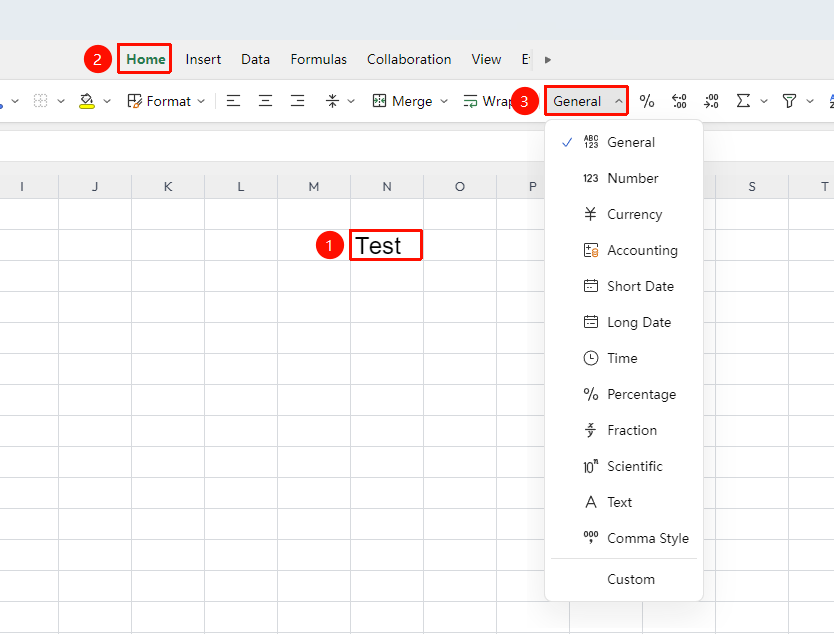
"Home" tab → "Number Format" dropdown list
- Select the cell range to be formatted
- Click the "Number Format" dropdown button in the Home tab
- Choose a preset format: General, Number, Currency, Percentage, Date, etc.
Set Custom Format
Feature Entry
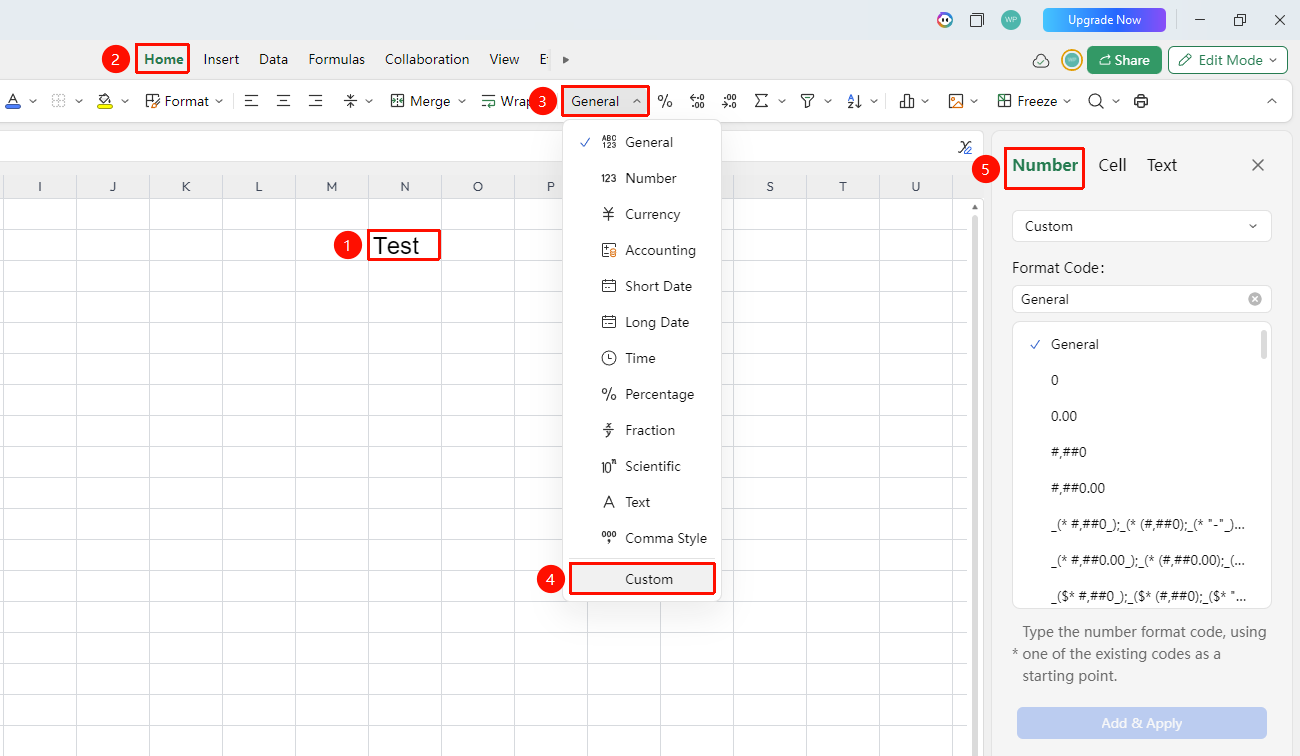
"Home" tab → "Number Format" dropdown list → "More Number Formats"
- Select the target cell range
- Click the "Number Format" dropdown button in the Home tab
- Select "Custom"
- Enter the custom format code in the type input box, such as
0.00"yuan"oryyyy-mm-dd - Click Add and apply to confirm the format
Set Cell Borders and Fill
Feature Entry
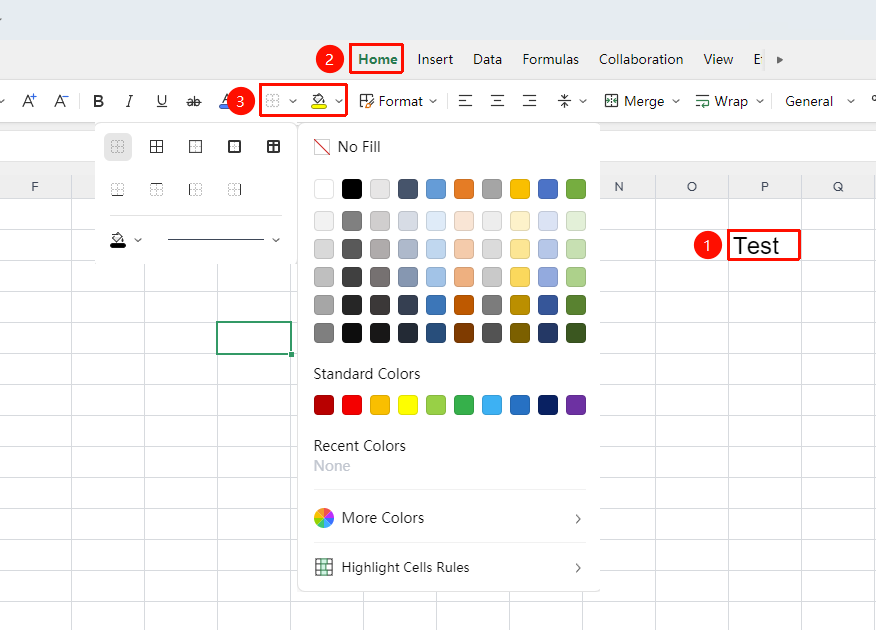
"Home" tab → "Borders" button / "Fill Color" button
- Select the cells for which you want to set borders or background color
- Click the "Borders" button to choose border style and line type
- Click the "Fill Color" button to choose a background fill color
- You can also right-click the context menu → "Format Cells" → "Cell" tab for more detailed settings
Set Cell Font
Feature Entry
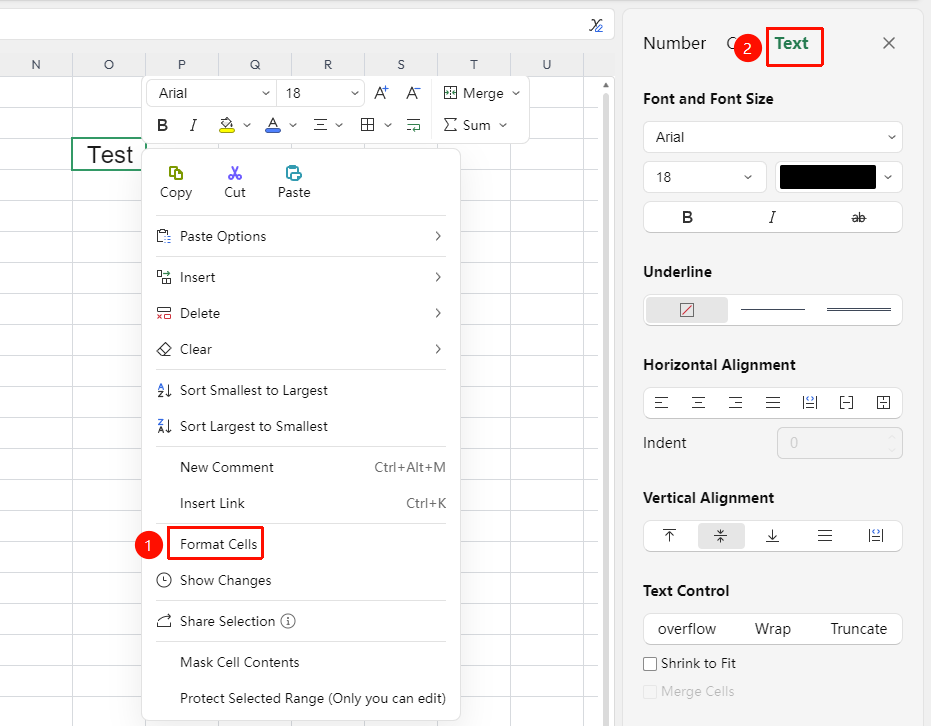
Right-click cell/range → Format Cells → Text
- Select the cells for which you want to set borders or background color
- Right-click to open the context menu → "Format Cells" → "Text" option
- You can set cell font, font size, color, underline, alignment, and so on.
FAQ
Q1: What should I do if formulas do not calculate after setting the cell format to Text?
- Solution: Change the cell format to "Number" or "General", then double-click the cell and press Enter to re-confirm the formula, or use the "Data" → "Text to Columns" feature to convert text-formatted numbers to number format.
Q2: In collaboration mode, can others see the cell format changes I make?
- Solution: Yes, format changes are synchronized in real time. If other collaborators do not see the update, please refresh the page or confirm that the document has been successfully synced to the cloud.
Q3: How can I quickly add a unified unit suffix to multiple cells?
- Solution: Select the target cells → right-click "Format Cells" → "Custom" → enter a format like
0"pcs"or0.00"ten thousand"in the type field, and the unit will be displayed uniformly without changing the actual values.
Notes
- Cells in text format may prevent formulas from calculating and need to be switched to number format
- Custom formats only affect the display appearance and do not affect the actual stored value of the cell
- Format changes are synchronized in real time in collaboration mode; it is recommended that the team agree on a unified format standard in advance