Feature Summary
Save As and Export are used to save a collaborative spreadsheet as a local file or export it to other formats (such as multi-dimensional table, PDF, CSV, and so on), meeting the needs for offline viewing, archiving, or sharing.
Feature Description
| Feature Dimension | Description |
|---|---|
| Membership Restriction | No membership restriction |
| Version Restriction | No version restriction |
Operation Steps
Save As Local File
Feature Entry
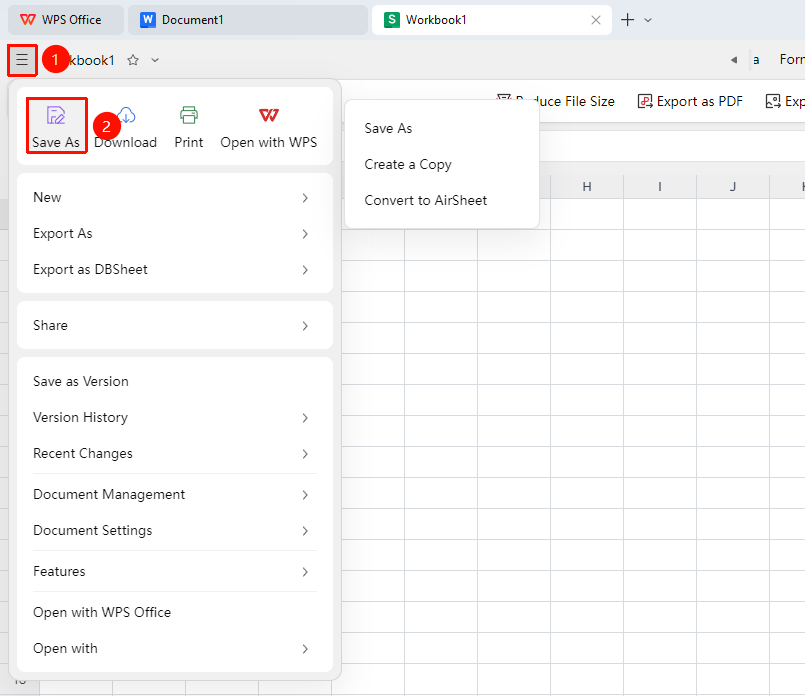
File Operations (☰) icon → "Save As"
- Click the File Operations (☰) icon in the upper left corner
- Select "Save As" in the menu
- Choose the save operation: "Save As" / "Create a Copy" / "Convert to Smart Table"
- Select the save path
- Click "Save and Open" to complete the save
Export to Other Formats
Feature Entry
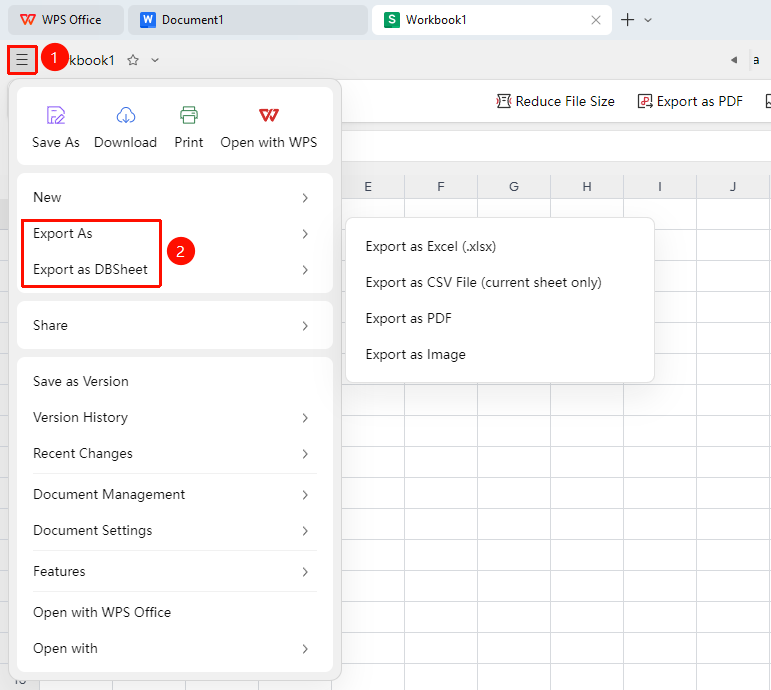
File Operations (☰) icon → "Export" / "Export to Multi-dimensional Table"
- Click the File Operations (☰) icon in the upper left corner
- Select "Export" in the menu
- Select the export format:
- Export as PDF: Suitable for sharing or printing
- Export as CSV: Suitable for importing into other databases
- Export as Excel: Suitable for sharing with non-WPS users
- Export as Image: Suitable for sharing with users who do not need to edit
- Export to Multi-dimensional Table: You can choose to export the entire sheet or the current worksheet as a multi-dimensional table
FAQ
Q1: Can the exported file retain the original formatting?
- Solution: Exporting to the corresponding format (such as xlsx) can completely retain all formatting, formulas, and styles. When exporting to other formats (such as multi-dimensional table), some formulas may need to be reset. It is recommended to check the formula settings after export.
Q2: Is an internet connection required for export?
- Solution: Yes. Since collaborative spreadsheet data is stored in the cloud, the export operation requires a network connection to obtain the latest data. Ensure the network is normal before performing the export operation.
Q3: Are formulas retained after exporting to PDF?
- Solution: No. PDF exports the calculation results (static values) of the formulas, not the formulas themselves. If you need to retain the formulas, please export to xlsx format.
Notes
- Exporting generates a copy and will not affect the cloud collaborative file
- Frequent exporting may cause delays in cloud saving. It is recommended to confirm that the file has been updated before exporting.
- The "Efficiency" tab at the top of the page allows you to choose to export to PDF, image, and multi-dimensional table