Feature Summary
The fill feature is used to quickly copy or fill cell data following a pattern in collaborative spreadsheets, improving team data entry efficiency and reducing repetitive manual input.
Feature Description
| Feature Dimension | Description |
|---|---|
| Membership Restriction | No membership restriction |
| Version Restriction | No version restriction |
Operation Steps
Using Drag to Fill
Feature Entry
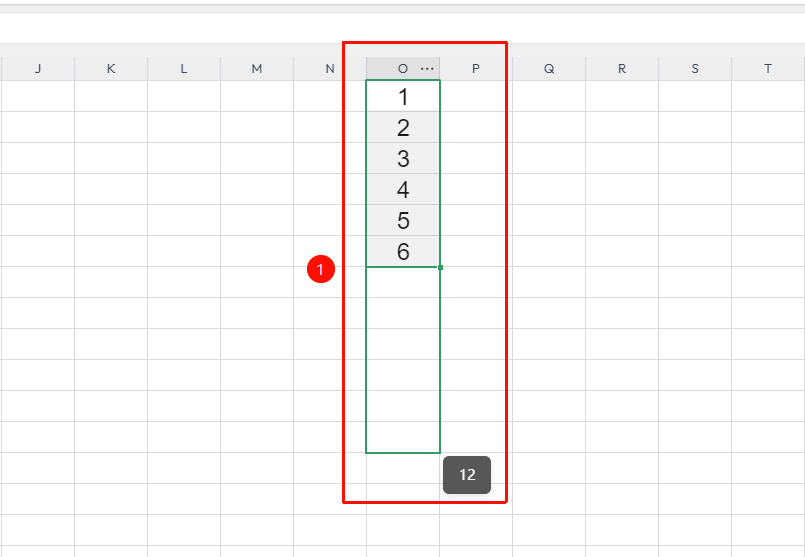
Select a cell and drag the fill handle (the small square at the bottom-right corner of the cell)
- Enter data or a formula in the starting cell
- Select the cell and move the mouse cursor to the bottom-right corner of the cell
- When the cursor changes to a cross-shaped fill handle, hold down the left mouse button and drag downward or rightward
- After releasing the mouse, the system will automatically fill based on the data pattern:
- Numbers: Auto-increment (1,2,3...)
- Dates: Auto-increment dates
- Formulas: Relative references adjust automatically
Setting Series Fill
Feature Entry
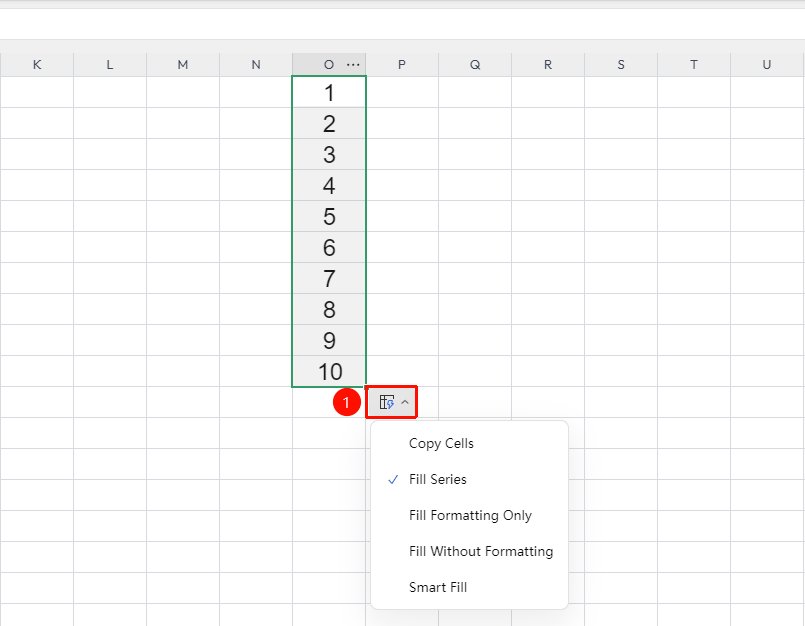
Drag the fill handle → Pop-up menu → "Auto Fill Options"
- After dragging the fill handle and releasing, click the quick menu button at the bottom-right corner of the fill area
- In the dropdown menu, select the "Auto Fill Options" option to open the series fill settings
- Select "Auto Fill Options" to complete the series fill
- In the dropdown menu, you can select options such as "Copy Cells" or "Fill Formatting Only" to perform non-series fills
Frequently Asked Questions
Q1: How to prevent auto-incrementing serial numbers when filling?
- Solution: Hold down the Ctrl key while dragging to keep the original content copied without auto-incrementing; or after dragging the fill handle, click the quick menu icon and select "Copy Cells" instead of "Fill Series".
Q2: What should I do if the formula result is incorrect after filling?
- Solution: Check whether the cell references in the formula need to be fixed (use the $ symbol to set absolute references). When dragging to fill, relative references will adjust automatically. If you need to fix rows or columns, use $ to lock the references.
Q3: Will fill operations sync in real time in collaboration mode?
- Solution: Yes, after the fill operation is completed, the data will be saved to the cloud in real time. Other collaborators can refresh the page to see the latest fill results.
Notes
- Fill operations will overwrite the original data in the target area. Please confirm that the data in the target area does not need to be retained
- Right-click dragging the fill handle will bring up a context menu with more fill options
- When filling formulas, pay attention to the difference between relative references and absolute references