Feature Summary
WPS Sheets collaboration mode supports setting background fill colors for cells, used for data category labeling, visual distinction, or spreadsheet beautification.
Feature Description
| Feature Dimension | Description |
|---|---|
| Membership Restriction | No membership restriction |
| Version Restriction | No version restriction |
Operation Steps
Setting Fill Color
Feature Entry
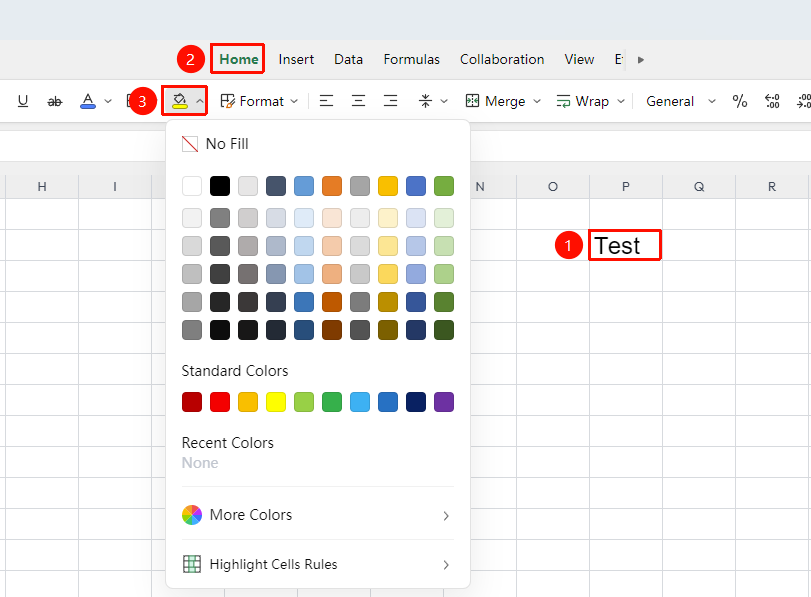
"Home" tab → "Fill Color" button
- Select the cell(s) for which you want to set the background color
- Click the drop-down arrow of the "Fill Color" (paint bucket icon) in the "Home" tab
- Choose the desired color from the color palette and click to apply
Custom Fill Color
Feature Entry
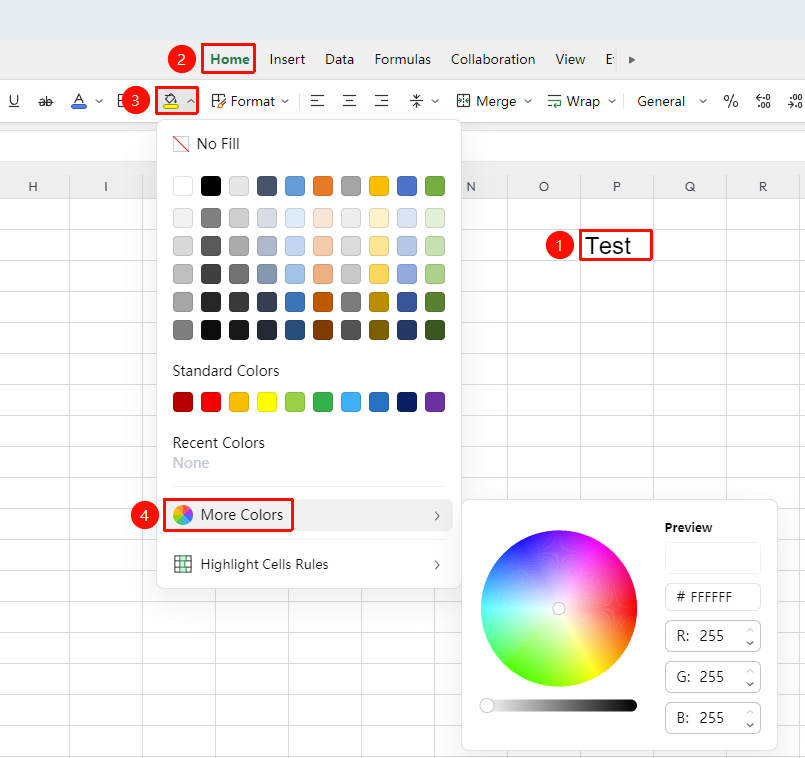
"Fill Color" → "More Colors"
- Click the drop-down arrow of "Fill Color" and select "More Colors"
- Enter RGB values in the custom color panel or pick a color from the color wheel
- Click "OK" to apply the custom color
Clearing Fill Color
Feature Entry
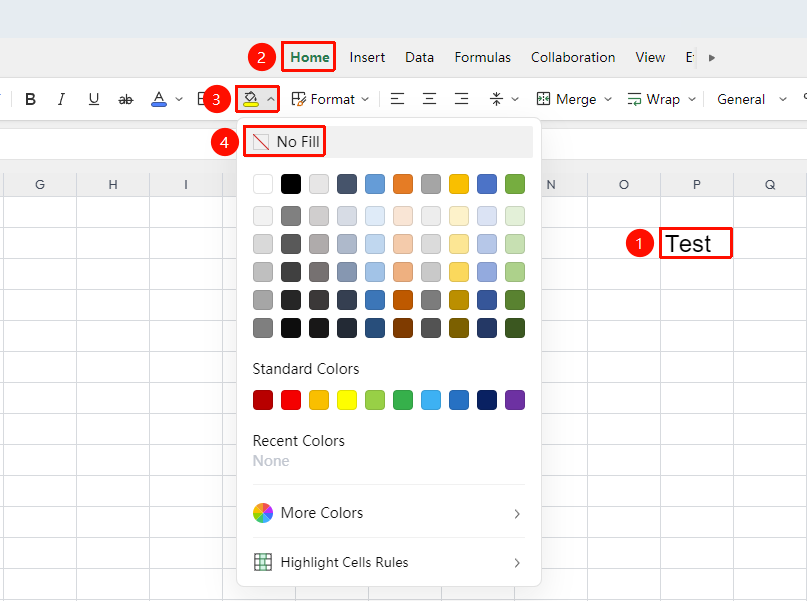
"Home" tab → "Fill Color" → "No Fill"
- Select the cell(s) for which you want to clear the background color
- Click the drop-down arrow of "Fill Color"
- Select "No Fill" to clear the background color
Frequently Asked Questions
Question 1: Will modifying the fill color in collaboration mode affect others?
- Solution: Yes, fill color modifications are synchronized in real time to all online collaborators.
Question 2: Will the fill color be displayed when printing?
- Solution: By default, the fill color will be printed with the document. To cancel printing the fill color, go to "Page Layout" → "Sheet" and uncheck the "Draft Quality" option.
Question 3: What should I do if the text is hard to read after applying a fill color?
- Solution: After setting a darker background color, it is recommended to simultaneously change the font color to white or a light color to ensure sufficient contrast between the text and the background. Generally, a dark background pairs with light text, and a light background pairs with dark text.
Notes
- In collaboration mode, all operations are synchronized in real time; please maintain communication with team members
- If you encounter restricted operations, check whether there is an editing lock or area permission restriction
- Before printing, it is recommended to preview and confirm that the fill color effect meets expectations