Feature Summary
The font and font size feature is used to set the font type and text size of cell content. It supports precise numerical settings and quick adjustments, making spreadsheet text display clearer, more aesthetically pleasing, and well-structured.
Feature Description
| Feature Dimension | Description |
|---|---|
| Membership Restriction | Some cloud fonts require a membership to use |
| Version Restriction | No version restrictions |
Operation Steps
Setting Font and Font Size via the Ribbon
Feature Entry
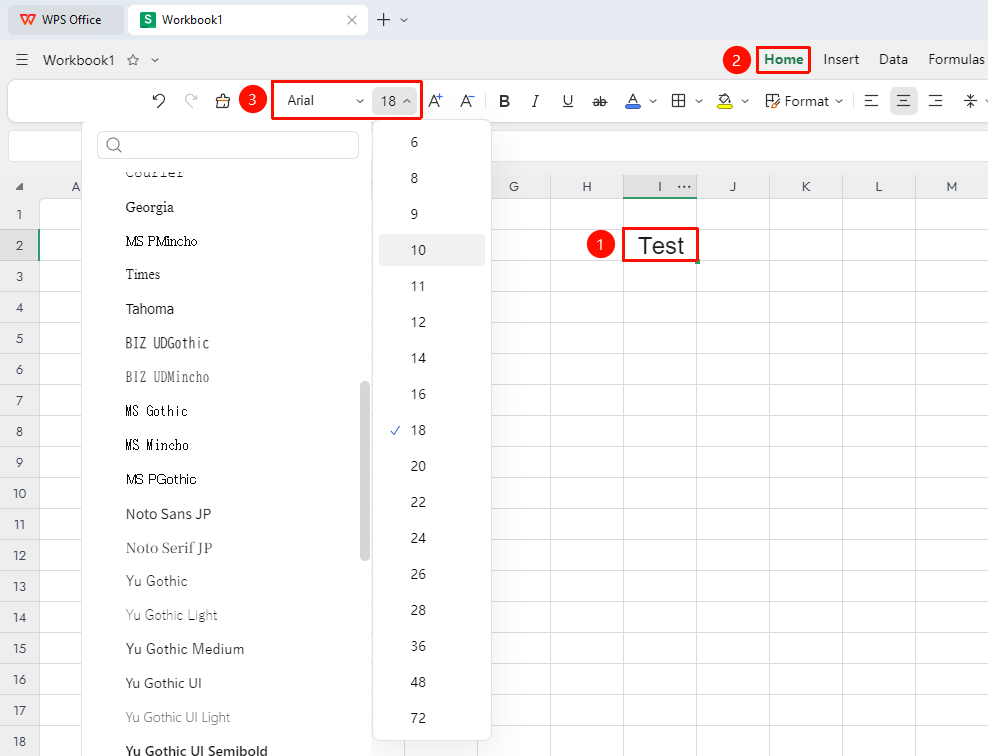
"Home" tab → "Font" / "Font Size"
- Select the cell or range you want to set (click the Select All square in the upper-left corner to set the entire sheet)
- Click the Home tab and locate the "Font" tool group
- Set Font: Click the dropdown arrow of the font box and select the desired font from the list
- Set Font Size: Click the dropdown arrow of the font size box and select a preset font size
Quick Setting via the Floating Toolbar
Feature Entry
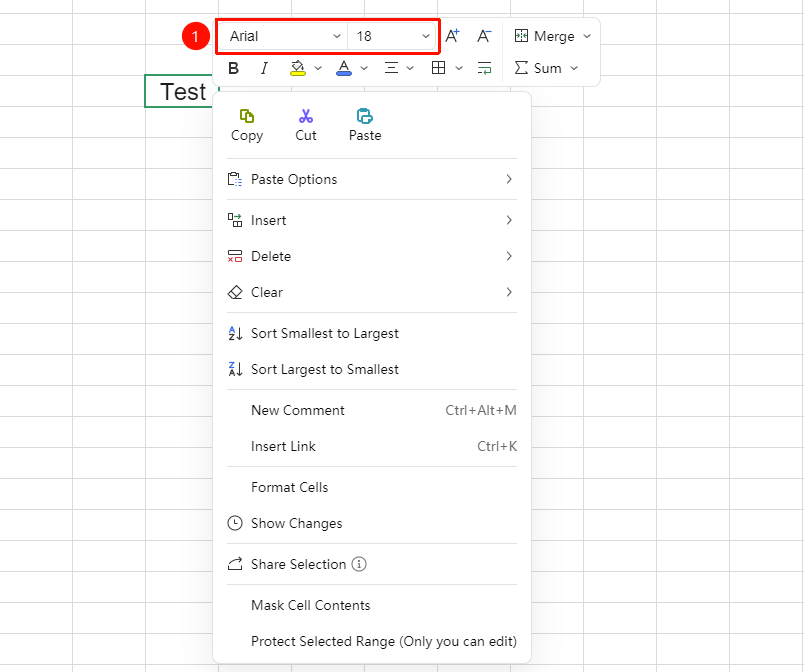
Right-click floating toolbar after selecting content
- Select the text content within a cell and right-click
- The floating mini toolbar will automatically pop up
- Directly click the font and font size dropdown options in the toolbar to complete the setting
- Suitable for quick local adjustments without switching to the top menu
Precise Setting via Format Cells
Feature Entry
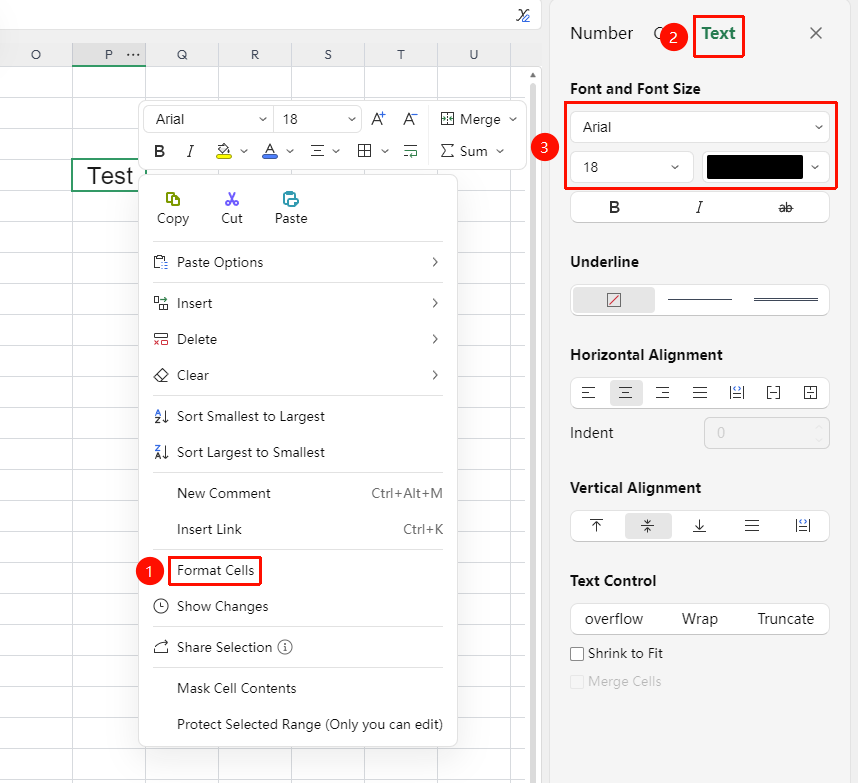
Right-click → "Format Cells" → "Text"
- Select the target cell range
- Right-click and select "Format Cells" (or press the shortcut key
Ctrl + 1) - In the pop-up window on the right, switch to the "Text" tab
- Select the font and font size respectively. You can also set the font style, color, effects, etc. at the same time
- Click "OK" to apply the settings
Frequently Asked Questions
Question 1: How to quickly apply the same font formatting?
- Solution: Use the Format Painter feature. Select the text with the already set formatting, click the 「Format Painter」 button, and then brush over the text where you want to apply the formatting.
Question 2: The required font is not in the font list
- Solution: The font list displays fonts installed on the system. If you need other fonts, you must first install the corresponding font file in the operating system. After installation, restart WPS to see it in the list.
Notes
- In online collaboration mode, font and font size settings are synchronized in real-time to all collaborators
- Some special fonts may not display correctly on other devices; it is recommended to use common fonts
- The Increase/Decrease Font Size buttons (A+/A-) adjust by 1 point each time
- You must select the target cell or range before setting the font and font size