Feature Summary
WPS Sheets collaboration mode supports changing the color of text within cells for data categorization, labeling, or highlighting.
Feature Description
| Feature Dimension | Description |
|---|---|
| Membership Restriction | No membership restriction |
| Version Restriction | No version restriction |
Operation Steps
Setting Font Color
Feature Entry
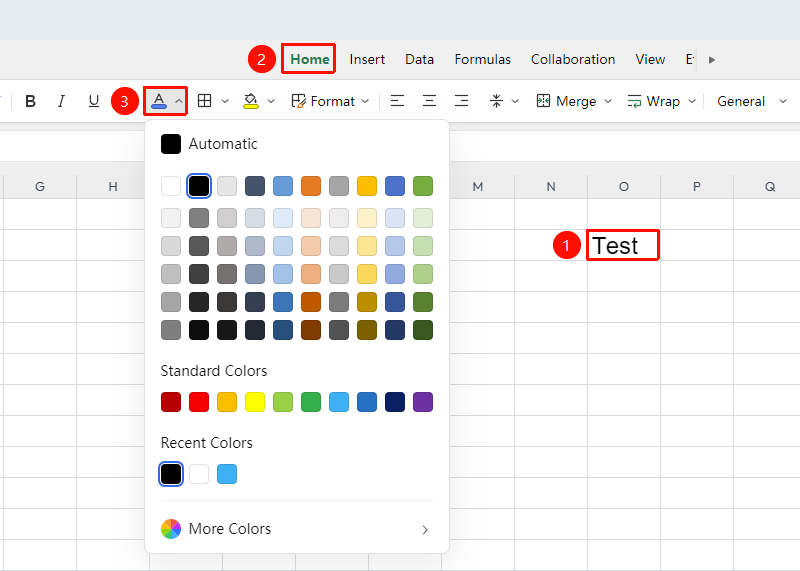
"Home" tab → "Font Color" button
- Select the cell(s) whose color you want to change
- Click the drop-down arrow of "Font Color" (the icon with a colored underline below the letter A) in the "Home" tab
- Choose the desired color from the color palette and click to apply it
Using the Floating Toolbar to Set
Feature Entry
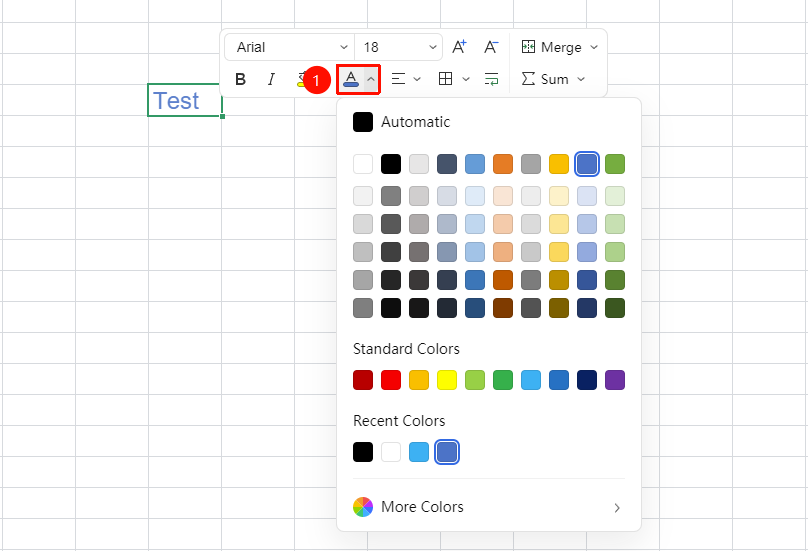
Select the cell(s) whose color you want to change → "Floating Toolbar" menu → "Font Color" drop-down menu
- After selecting the cell(s), right-click the mouse
- In the pop-up Floating Toolbar menu, click the "Font Color" drop-down menu
- Select the desired color
Setting Font Color via Right-Click Menu
Feature Entry
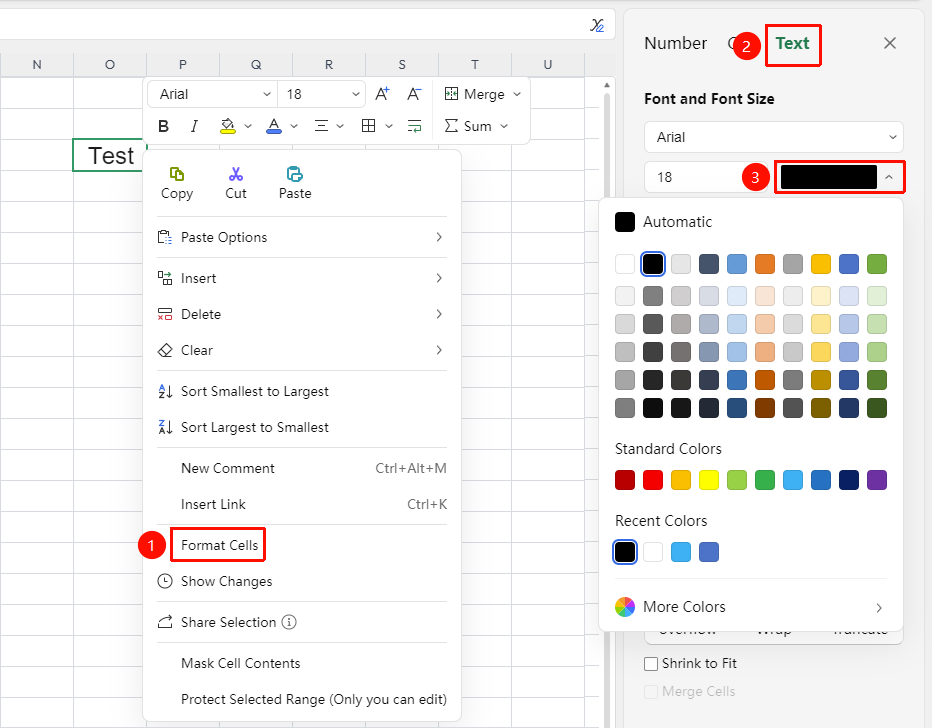
Select the cell(s) for which you want to set the color → "Right-Click Menu" → "Format Cells" → "Text"
- After selecting the cell(s), right-click
- Select "Format Cells"
- Switch to the "Text" tab
- Select the desired background color
Custom Color
Feature Entry
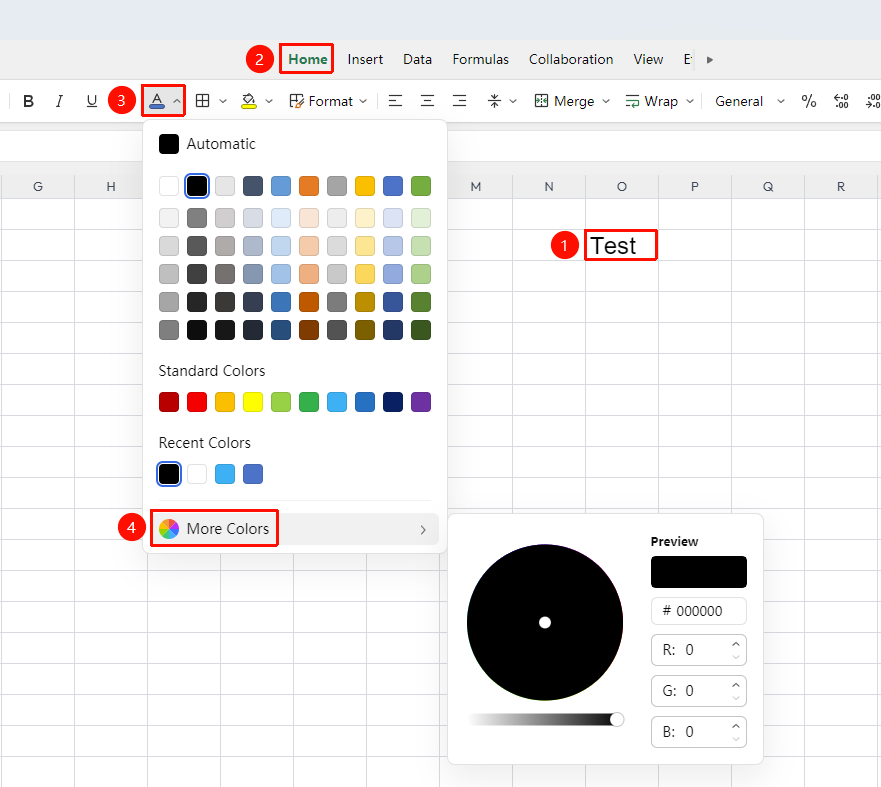
"Font Color" → "More Colors"
- Click the drop-down arrow of "Font Color" and select "More Colors"
- In the custom color panel, enter RGB values or pick a color from the color wheel
- Click "OK" to apply the custom color
FAQ
Will changing the font color in collaboration mode affect others?
- Solution: Yes, font color changes are synchronized in real time to all online collaborators.
How to quickly restore the default font color?
- Solution: Select the cell(s) and click "Automatic" in the "Font Color" drop-down menu to restore the default black color.
Notes
- All operations in collaboration mode are synchronized in real time; please maintain communication with team members
- If you encounter restricted operations, check whether there is an editing lock or area permission restriction
- It is recommended to regularly back up important content via "Version History" to prevent accidental operations