Feature Summary
WPS Sheets collaboration mode supports setting horizontal and vertical alignment for cell content, ensuring data is arranged neatly and consistently.
Feature Description
| Feature Dimension | Description |
|---|---|
| Membership Restriction | No membership restriction |
| Version Restriction | No version restriction |
Operation Steps
Set Horizontal Alignment
Feature Entry
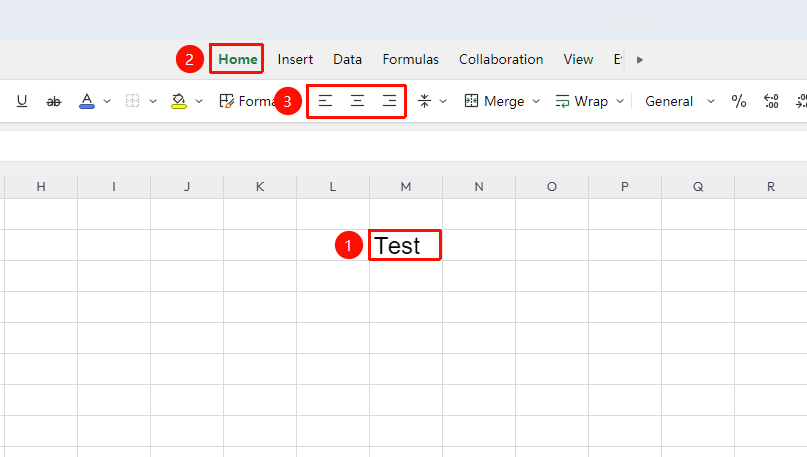
"Home" tab → "Alignment" group
- Select the cell or range you want to align
- In the "Home" tab, within the "Alignment" function group, click the corresponding horizontal alignment button
- Options: Align Left, Center Horizontally, Align Right
Set Vertical Alignment
Feature Entry
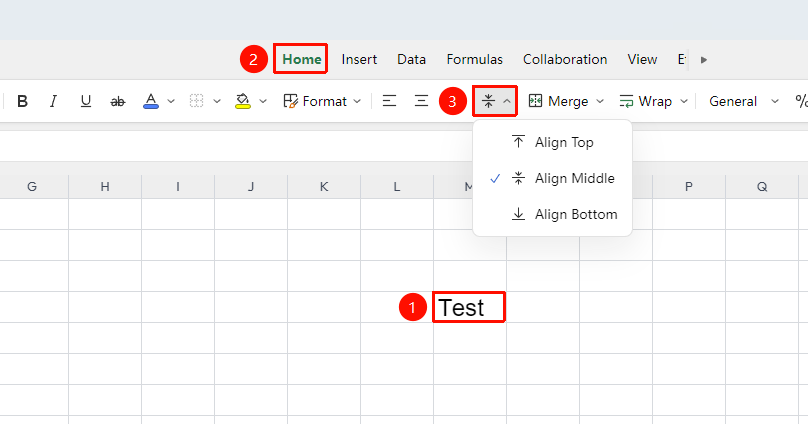
"Home" tab → "Alignment" group
- Select the cell range you want to set
- In the "Alignment" function group, click the vertical alignment button
- Options: Align Top, Center Vertically, Align Bottom. Vertical centering is recommended when the cell height is large
More Alignment Settings
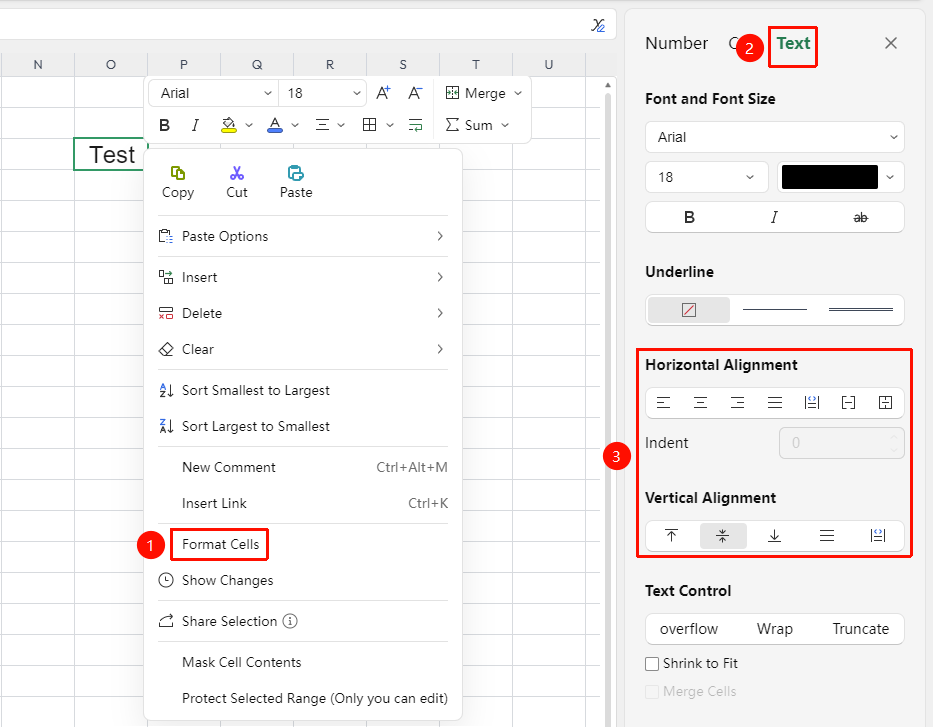
Right-click → "Format Cells" → "Font"
- Select the target cell range, right-click to bring up the context menu
- In the context menu, select "Format Cells" to open the panel on the right side of the screen
- Switch to the "Text" tab, and choose the desired alignment under "Horizontal Alignment" and "Vertical Alignment"
- "Horizontal Alignment" : Options: Align Left, Center Horizontally, Align Right, Justify, Distributed, Fill, Center Across Selection. Set text indentation in Indent.
- "Vertical Alignment" : Options: Top, Center Vertically, Bottom, Justify, Distributed.
- Preview the effect in real time in the spreadsheet, and click the editing area to apply
Frequently Asked Questions
Question 1: What is the difference between Justify and Distributed alignment?
- Solution: Justify automatically adjusts word spacing to align both left and right edges; Distributed forcibly stretches text to fill the entire line.
Question 2: Why is the text not centered after setting centering?
- Solution: Check if there is a paragraph indentation setting, as indentation can affect the alignment effect.
Notes
- Number cells are right-aligned by default for easier value comparison; text is left-aligned by default
- Alignment of merged cells will simultaneously affect all merged areas
- Alignment settings do not affect the actual content of the cell, only the display position