Feature Summary
WPS Sheets supports inserting line charts in collaborative mode, which display the changing trends and overall distribution of numerical data using line graphs, helping users intuitively identify data peaks, troughs, and outliers.
Feature Description
| Feature Dimension | Description |
|---|---|
| Membership Restrictions | No membership restrictions |
| Version Restrictions | No version restrictions |
Step-by-Step Instructions
Inserting a Line Chart
Function Entry Point
"Insert" tab → "Chart" → "Line Chart"
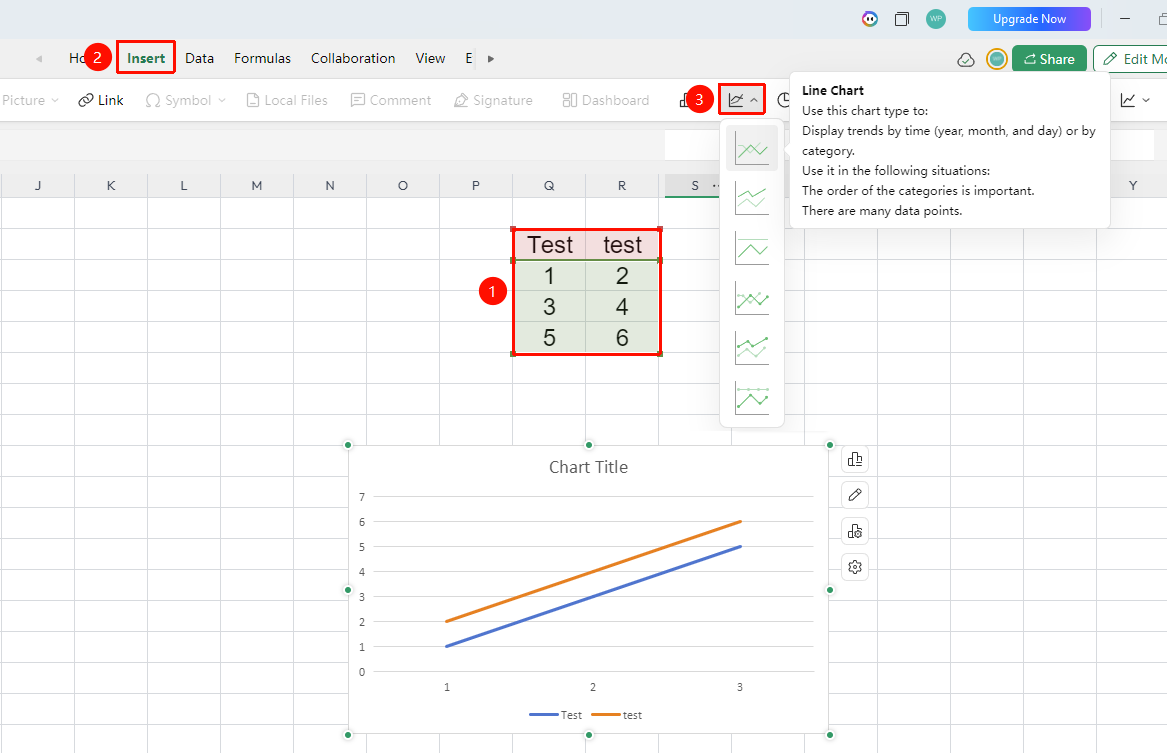
- Select the cell range containing the data (ensure it includes both category labels and numerical values).
- Click the "Insert" tab and select "Line Chart".
- Then, choose a specific subtype (e.g., Line Chart, Stacked Line Chart, Percentage Stacked Line Chart, and so on).
- A line chart will be automatically generated; you can drag and drop to adjust its position and size.
Frequently Asked Questions
Question 1: For which data analysis scenarios are line charts suitable?
- Solution: Line charts are suitable for displaying trends in numerical data over time or across categories, helping to identify data peaks and troughs. They are commonly used in scenarios such as sales trend analysis and academic performance fluctuation monitoring.
Question 2: How can I remove a specific data series from a line chart?
- Solution: Select the chart, click "Edit Chart," locate the unwanted series in the series list, right-click it, and choose "Delete" or uncheck it.
Important Notes
- Line charts are ideal for showing data trends but are not suitable for comparing absolute values across different categories.
- At least two columns of data (a category column and a numerical value column) must be selected before insertion.
- Multi-series line charts are supported for comparing trends across different data series.