Feature Summary
The Split Sheet feature is used to split data in a workbook into multiple independent sheets or documents, making it easier for collaborators to view and edit their own assigned data independently.
Feature Description
| Feature Dimension | Description |
|---|---|
| Membership Restriction | No membership restriction |
| Version Restriction | No version restriction |
Operation Steps
Split Sheet Feature Entry
Feature Entry
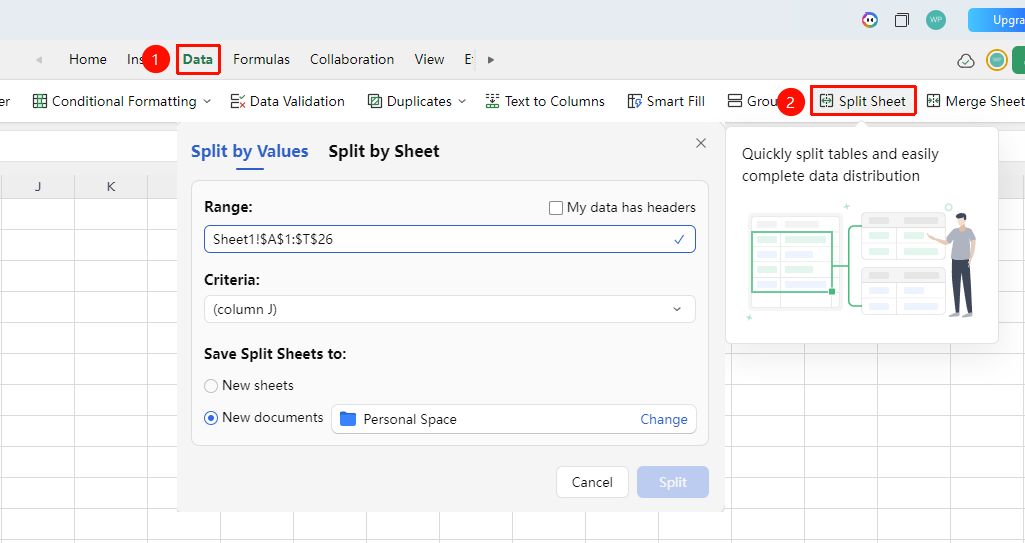
"Data" tab → "Split Sheet" button
- Open a WPS Spreadsheet online collaboration document
- Click the top "Data" tab
- Find the "Split Sheet" button in the toolbar
- After clicking, a dialog box pops up with two tabs at the top: "Split by Content" and "Split by Sheet"
Split by Content
Feature Entry
"Data" tab → "Split Sheet" button → "Split by Content" tab
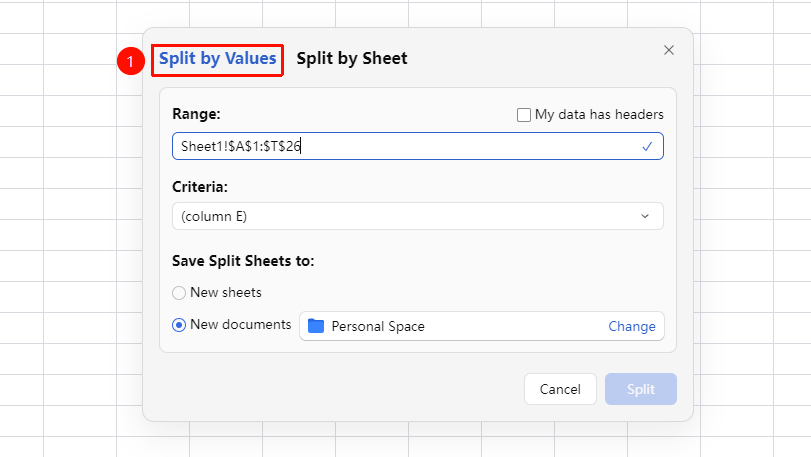
- The "Split by Content" tab is selected by default, used to split data into multiple groups based on the values of a certain column
- Click the "Split Range" input box, drag to select the data range to be split in the spreadsheet, or directly enter the cell range address
- Check or uncheck the "Data contains headers" checkbox as needed (when checked, the first row is retained as the header row in each split result)
- Click the "Split By" dropdown arrow, select the column to use as the split condition, and the system will automatically group and split based on the different values in that column
- Select the save method for the split results:
- Different new sheets: The split data is saved to new sheets within the current document (multiple sheets in one file)
- Different new documents: The split data is saved as multiple independent cloud document files, with the default storage location being "My Cloud Documents". Click "Change" to adjust the save path
- Click "Split Now" to execute the split operation
Split by Sheet
Feature Entry
"Data" tab → "Split Sheet" button → "Split by Sheet" tab
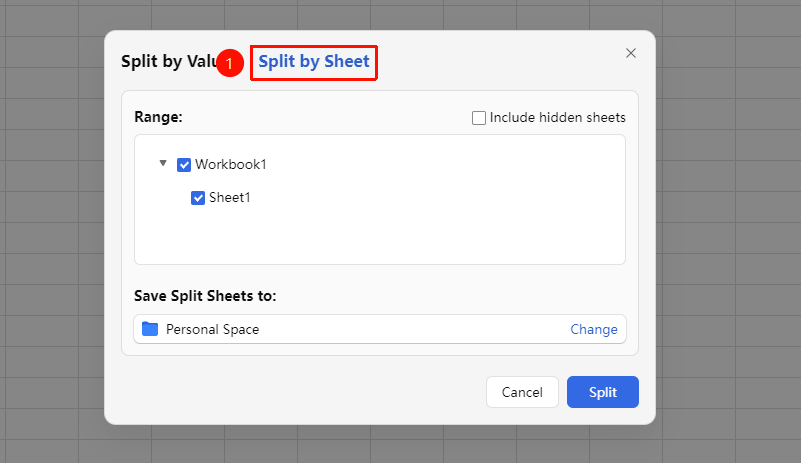
- Switch to the "Split by Sheet" tab to split multiple sheets in the current document into independent cloud documents
- In the tree area, check the sheets you want to split into independent documents (e.g., Sheet1, Sheet2). The system selects all by default
- If you need to split hidden sheets, check "Include hidden sheets
- Confirm the path for "Save split sheets to", which defaults to "My Cloud Documents". Click "Change" to switch the save path
- Click "Split Now" to execute the split operation
Example Scenario: A workbook contains Sheet1 (Sales Data) and Sheet2 (Inventory Data). After splitting by sheet, two independent cloud documents are generated, each containing its respective complete content.
FAQ
Q1: What should I do if the "Split By" dropdown list is empty when splitting by content?
- Solution: First check if the "Split Range" is set correctly—it must include the column of data you want to base the split on. Ensure the first row of the data range is a header (check "Data contains headers" ), and the dropdown list will automatically read the column headers for selection. If the data range is empty or the selected range does not contain actual data columns, the dropdown list will have no options to select.
Q2: Is the split data still linked to the source table?
- Solution: The split operation generates independent copies. There is no real-time linkage between the split data and the source table. If the source table data is updated, the split results will not sync automatically. If you need the latest data, you must re-execute the split operation.
Q3: When executing a split sheet in collaboration mode, will other collaborators see the changes?- Solution: Yes. The split operation will actually modify the document content (by adding new worksheets or generating new documents). It is recommended to communicate with your team before execution to avoid affecting other collaborators who are editing. If you choose the "Different new document" save method, the newly generated document will not affect the original collaborative document.
Notes
- The split operation is an irreversible bulk data operation. It is recommended to save the current working state before execution.
- When choosing the "Different new document" save method, the collaborator permissions for the generated independent cloud documents need to be set separately.
- "Split by content" requires the data area to have a clear header row; otherwise, the split basis cannot be correctly identified.