Feature Summary
The text wrapping feature is used to automatically wrap text or manually force line breaks within a cell, making it convenient to maintain a clean layout when displaying long content in collaborative documents.
Feature Description
| Feature Dimension | Description |
|---|---|
| Membership Restriction | No membership restriction |
| Version Restriction | No version restriction |
Operation Steps
Automatic Text Wrapping (Auto-Adjust Row Height)
Feature Entry
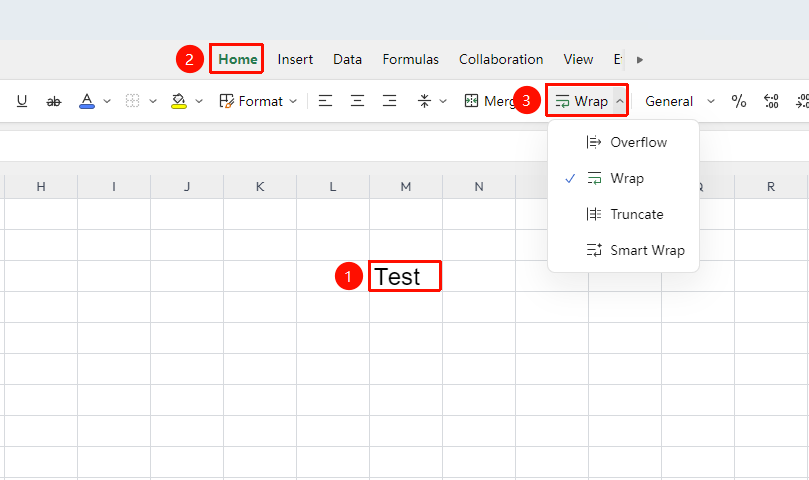
"Home" tab → "Wrap Text" button
- Select the cell(s) where you want to set automatic text wrapping
- Click the Wrap Text button in the Home tab
- The text within the cell will automatically wrap based on the column width
- Click the dropdown menu on the right to set the following wrapping options:
- Overflow: Allows the cell content to extend and display to the right
- Wrap Text: When the cell content is too long, it automatically displays in multiple lines to show all the content within the cell
- Clip: When the cell content exceeds the width, it remains displayed in a single line and truncates the excess portion
Manual Line Break (Force Line Break)
Feature Entry
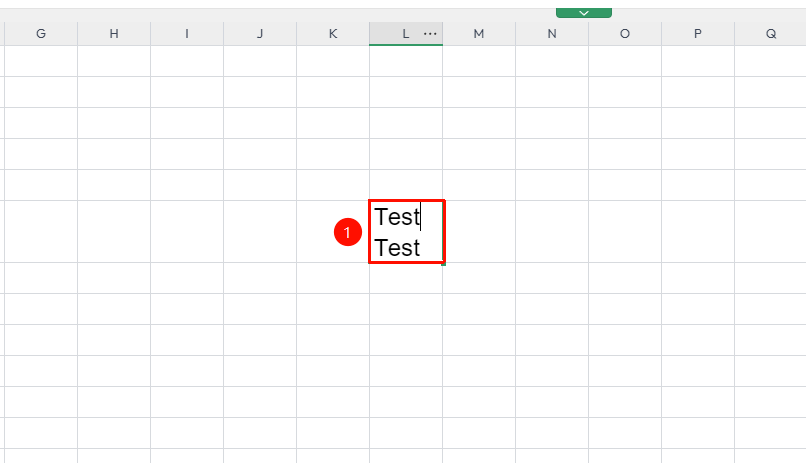
Double-click a cell to enter edit mode
- Double-click the cell where you need a line break to enter edit mode
- Position the cursor at the location where you want the line break
- Press Alt + Enter
- A line break will be inserted at the specified position
Batch Set Automatic Text Wrapping
Feature Entry
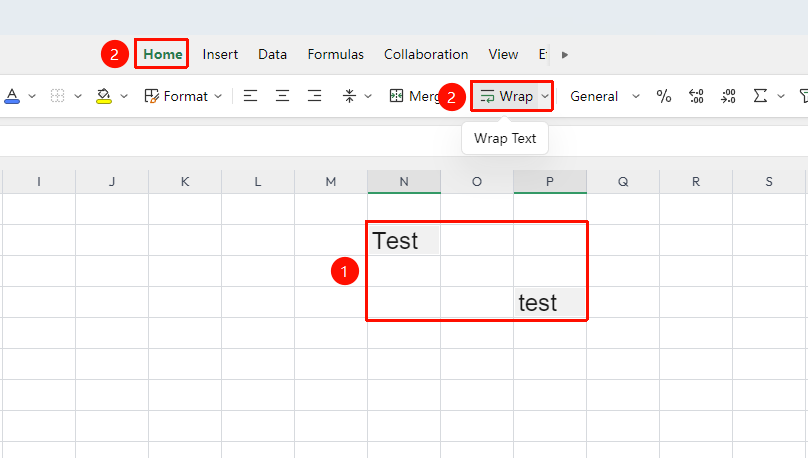
"Home" tab → "Wrap Text" button
- Select the range of cells where you want to set automatic text wrapping
- Click the Wrap Text button in the Home tab
- All selected cells will uniformly apply the automatic text wrapping setting
Frequently Asked Questions
Question 1: Automatic text wrapping is set, but the cell content does not display on multiple lines?
- Solution: Check if the cell is in text format; if it is in number or date format, automatic text wrapping may not take effect. Please verify the format type in "Format" → "Cells" and manually adjust the column width to trigger wrapping.
Question 2: Can other collaborators see the text wrapping effect I set in collaboration mode?
- Solution: Yes, text wrapping settings are synchronized in real-time to all collaborating members. If others do not see the effect, please refresh the page.
Question 3: If I save a document online after using Alt+Enter to break lines, will the line breaks be preserved?
- Solution: Yes, they are preserved. Line breaks inserted via Alt+Enter are saved to the cloud along with the document, and other collaborating members will also see the correct line break effect when they open it.
Notes
- Automatic text wrapping and manual line breaks can be used simultaneously; manual line breaks have higher priority
- Automatic text wrapping depends on the cell column width; the line break position will automatically change when the column width is adjusted
- In collaboration mode, all text wrapping settings are synchronized in real-time to other collaborators