Feature Summary
A dashboard is an interactive dynamic data board that combines multiple charts with slicers/filters to enable dynamic data updates, suitable for business reporting and operational data monitoring.
Feature Description
| Feature Dimension | Description |
|---|---|
| Membership Restriction | No membership restriction |
| Version Restriction | No version restriction |
Operation Steps
Creating a Data Dashboard
Feature Entry
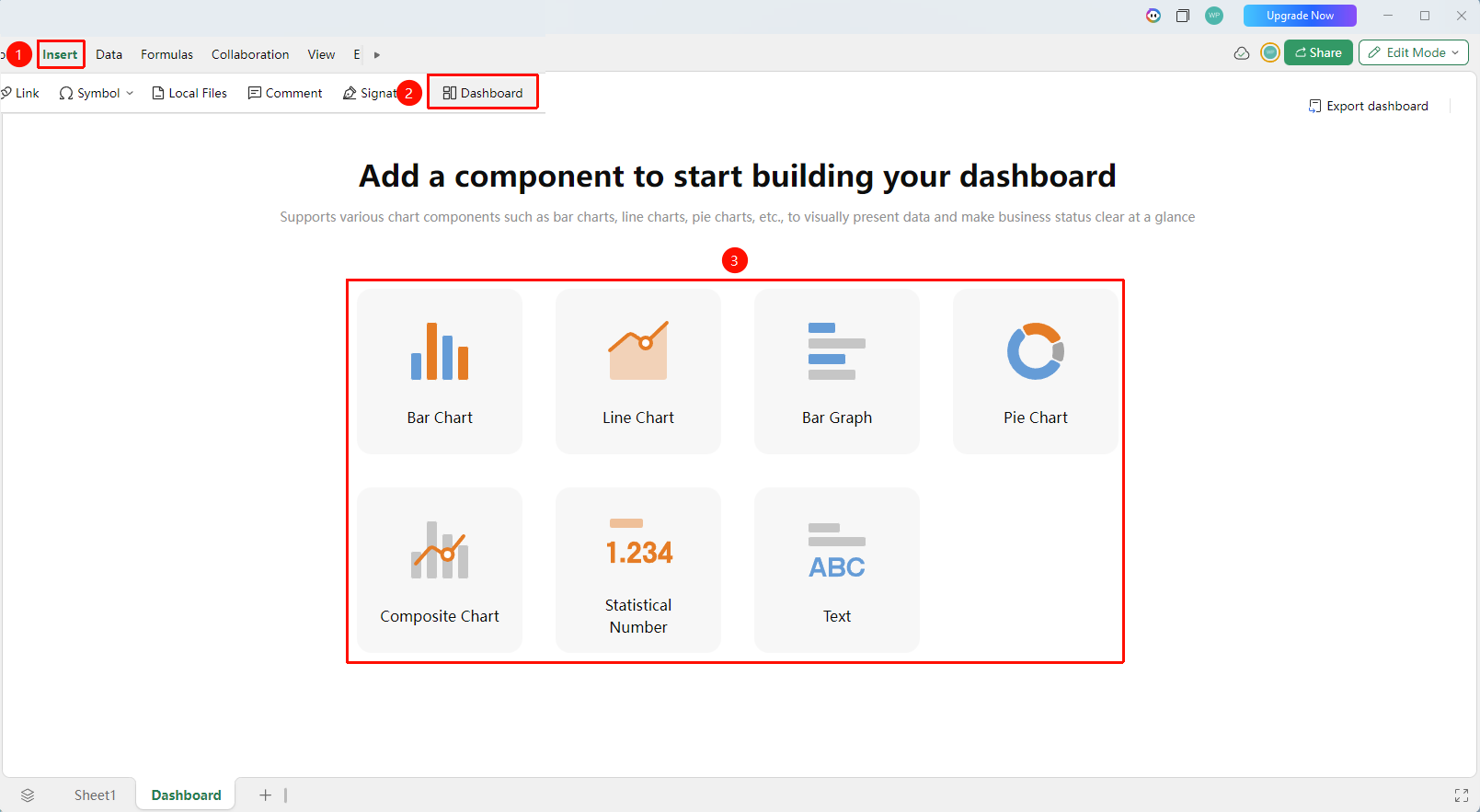
"Insert" tab → "Dashboard" button
- Prepare the data source and organize the data to be visualized
- Click the "Insert" tab → "Dashboard" to enter the dashboard editing interface
- On the component selection page, click the desired chart type to start building. The following 7 component types are supported:
- Column Chart: Suitable for comparing data across different categories
- Line Chart: Suitable for displaying data change trends
- Bar Chart: Suitable for displaying rankings or comparing lengths
- Pie Chart: Suitable for displaying proportion composition
- Combo Chart: Suitable for displaying multiple data dimensions simultaneously
- Statistics Number: Suitable for displaying key metric values
- Text: Suitable for adding descriptive text
- After clicking the corresponding component, select the data source and chart configuration options to complete component creation
- Drag component borders to resize, drag component areas to reposition, and arrange them into a satisfactory layout
Dashboard Advanced Settings
Feature Entry
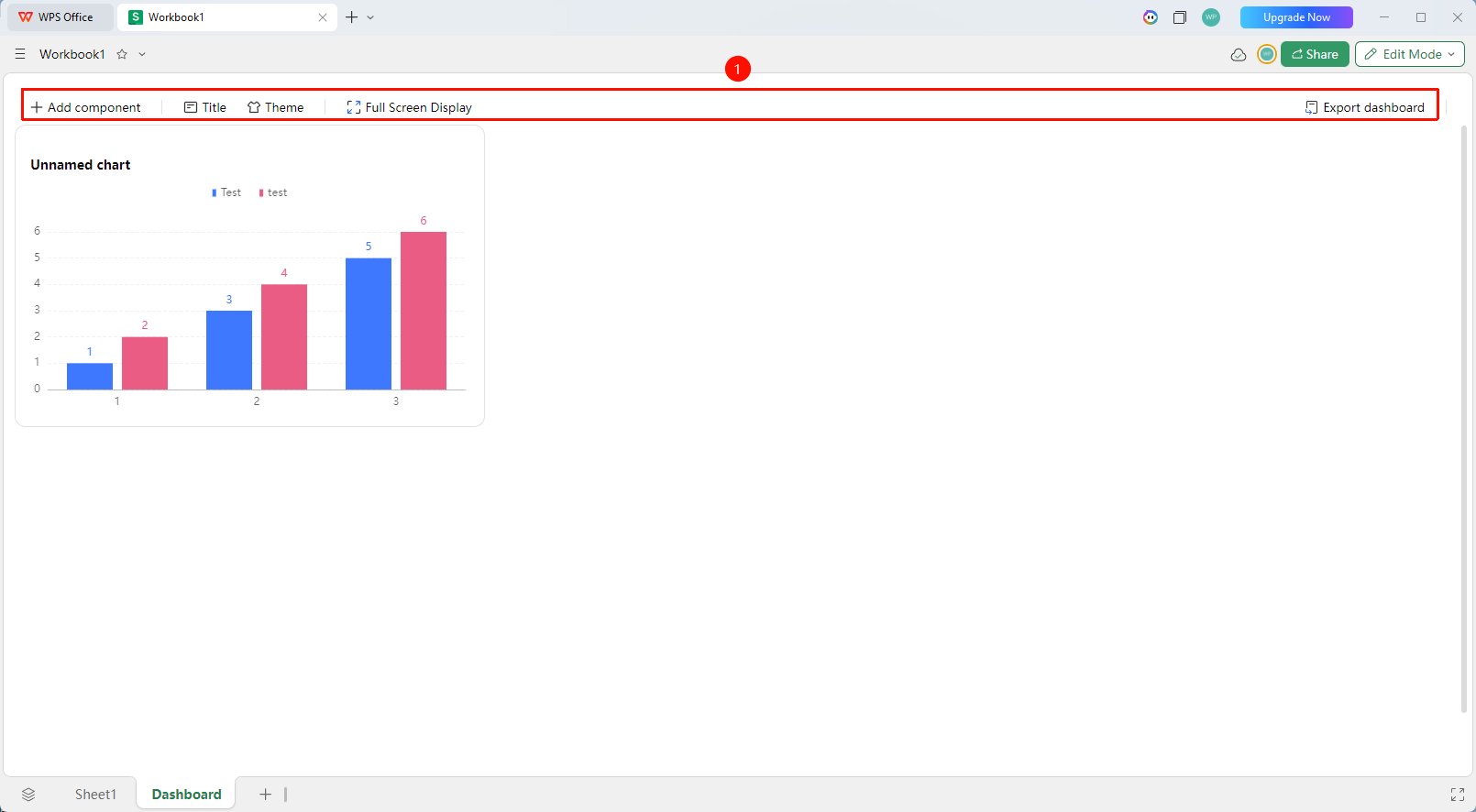
Top toolbar of the dashboard editing page
In the dashboard editing interface, the top toolbar provides the following settings:
- "+ Add Component": Add a new chart or text component to the dashboard
- "Title": Set or edit the dashboard title
- "Theme": Switch the overall color scheme and theme style of the dashboard
- "Full Screen Display": Enter full-screen mode to view the dashboard, suitable for presentation and reporting
- "Export Dashboard": Export the dashboard as an image for easy sharing
Frequently Asked Questions
Question 1: What should I do if the component data in the dashboard is not updated?
- Solution: Ensure that the data source associated with the component is the correct table range. If the number of rows and columns in the data source has changed, you need to reselect the data source range.
Question 2: What should I do if too many dashboard charts make the interface crowded?
- Solution: Click "+ Add Component" to create new components to replace excessive content, or adjust the size and position of each component to optimize the layout. Click "Full Screen Display" to view the complete dashboard in full-screen mode.
Question 3: How do I share the dashboard with others for viewing?
- Solution: Click "Export Dashboard" in the top toolbar to export the dashboard as an image. The image can be shared directly via chat tools or email.
Notes
- You can customize the display style of the dashboard through "Title" and "Theme" in the top toolbar
- It is recommended to place the dashboard in a separate view for easier management and display
- Click "Full Screen Display" to enter full-screen mode, suitable for meeting and reporting scenarios