Feature Summary
Insert/Delete rows and columns allows you to quickly add or remove rows and columns in a spreadsheet. It can be accessed via the right-click menu, the menu bar, or keyboard shortcuts, and supports batch processing.
Feature Description
| Feature Dimension | Description |
|---|---|
| Membership Restrictions | No membership restrictions |
| Version Restrictions | No version restrictions |
Operation Steps
Right-Click Menu Operation
Feature Entry Point
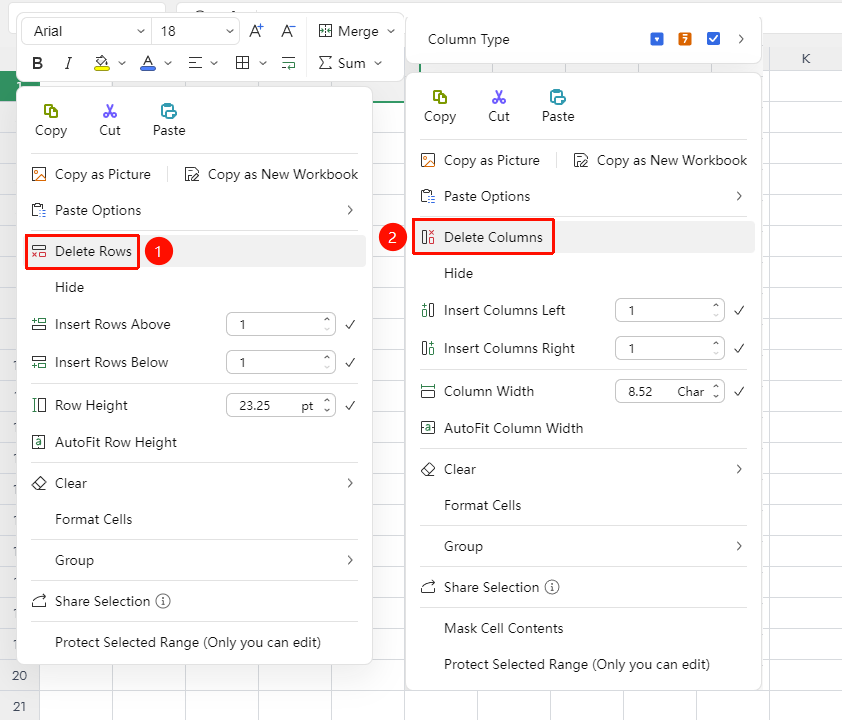
Select row number/column letter → Right-click → Insert Row/Column
- Click a row number to select the entire row, or click a column letter to select the entire column
- Right-click on the selected row number or column letter, and choose from the pop-up menu:
- "Insert Rows Above" / "Insert Rows Below": Add a specified number of new rows above or below the selected row
- "Insert Columns Left" / "Insert Columns Right": Add a specified number of new columns to the left or right of the selected column
- "Delete Rows" / "Delete Columns": Directly delete the selected rows/columns
- Select multiple rows/columns to batch delete rows/columns
Menu Bar Operation
Feature Entry Point
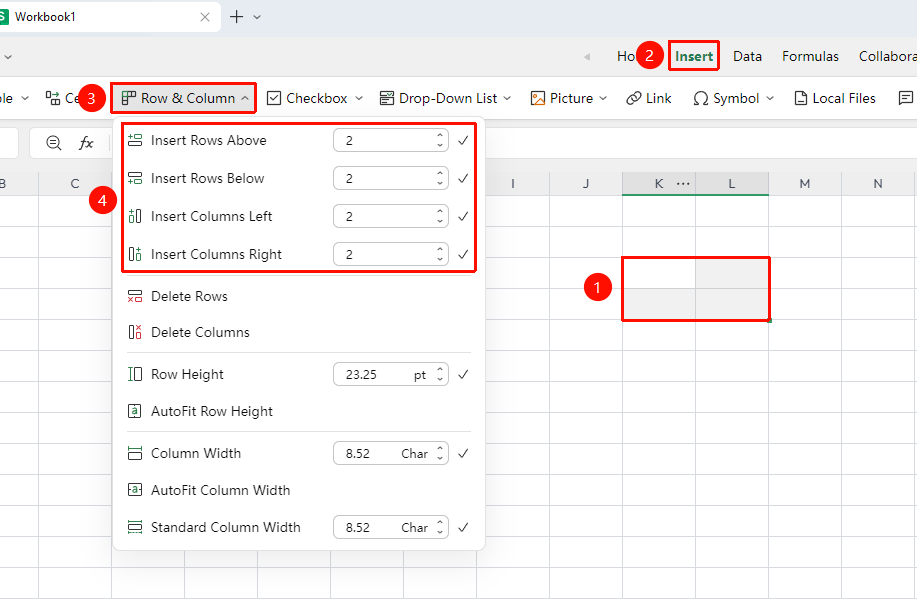
"Insert" tab → "Rows & Columns" button
- Click the target location in the spreadsheet (e.g., the reference position for inserting rows/columns)
- Switch to the "Insert" tab
- Click the "Rows & Columns" button to expand the drop-down menu
- Select the corresponding operation:
- "Insert Rows Above" / "Insert Rows Below": Add a specified number of new rows above or below the selected position
- "Insert Columns Left" / "Insert Columns Right": Add a specified number of new columns to the left or right of the selected position
- "Delete Rows" / "Delete Columns": Directly delete the current row/column
Frequently Asked Questions
Q1: How to insert multiple rows/columns at a specific position?
- Solution: First select the reference position where you want to insert rows/columns (for example, to insert 2 rows after row 3, first select row 3), then use the right-click menu or the "Rows & Columns" feature under the "Insert" tab, enter the desired number in the input box, and confirm.
Q2: Can data be recovered after deleting rows/columns?
- Solution: You can press
Ctrl+Zto undo the deletion.
Q3: Will adjacent data be affected after adding rows/columns?
- Solution: Added rows/columns are inserted at the specified position, and the original data in that position and subsequent rows/columns will automatically shift down/to the right. The original data content and formatting will be preserved and will not be lost.
Notes
- The undo operation cannot recover deleted data; please back up important data in advance
- After adding rows/columns, the data originally in that position will automatically shift down/to the right, and both content and formatting will be preserved