Feature Summary
The insert picture feature is used to insert floating pictures or cell pictures in collaborative spreadsheets, making it convenient for team members to visually display image content in the spreadsheet and enhance data visualization.
Feature Description
| Feature Dimension | Description |
|---|---|
| Membership Restriction | No membership restriction |
| Version Restriction | No version restriction |
Operation Steps
Insert Floating Picture
Feature Entry
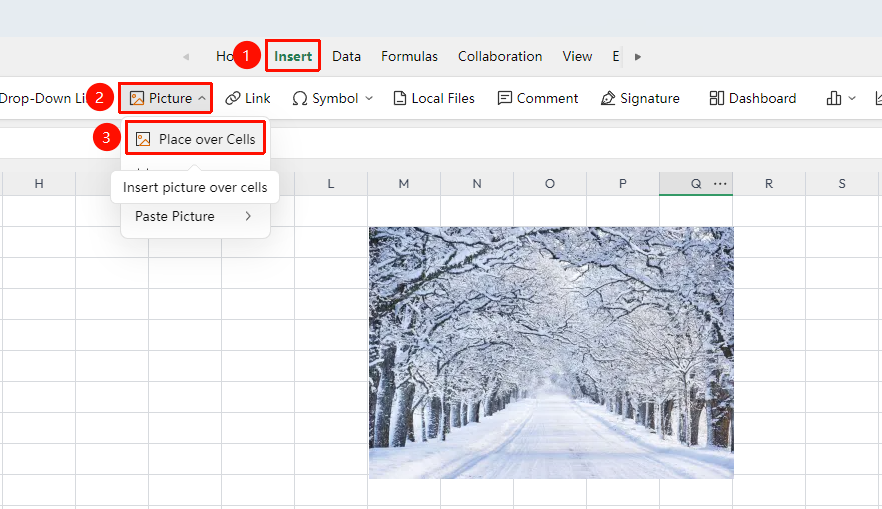
"Insert" tab → "Picture" → "Floating Picture"
- Select the cell at the target location
- Click the "Picture" button in the Insert tab, and select "Floating Picture"
- Select a local picture file in the pop-up selection box
- The picture will be inserted above the spreadsheet, and its position and size can be freely adjusted
Insert Cell Picture
Feature Entry
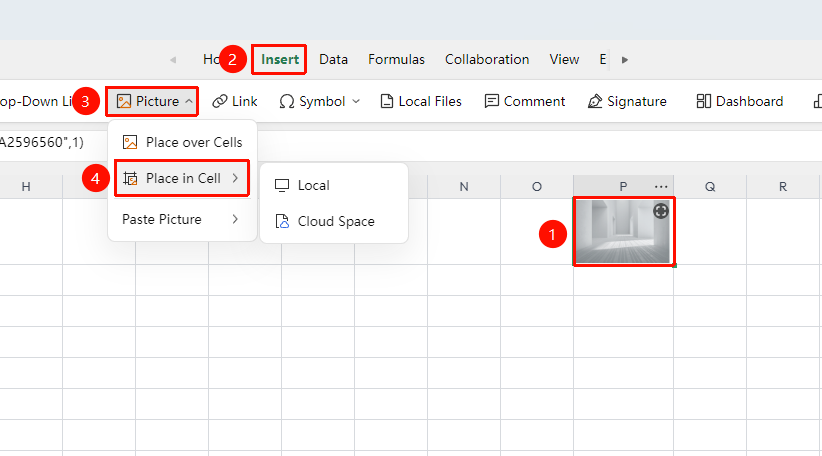
"Insert" tab → "Picture" → "Cell Picture"
- Select the target cell
- Click the "Picture" button in the Insert tab, and select "Cell Picture"
- You can select a picture from "Local" or "Cloud Space"
- The picture will be embedded in the cell, and its size will automatically adjust with the cell
Change Paste Picture Settings
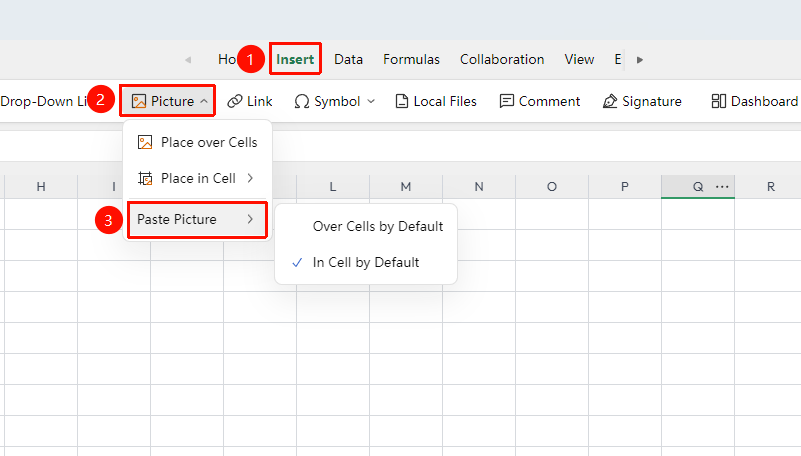
"Insert" tab → "Picture" → "Cell Picture"
- Click the "Picture" button in the Insert tab, and select "When Pasting Picture from External Source"
- You can select "Default to Floating Picture" / "Default to Cell Picture"
Frequently Asked Questions
Question 1: Can other collaborators see the inserted picture in real time in collaboration mode?
- Solution: Yes, the inserted picture will be synced to the cloud in real time, and other online collaborators can see the update immediately. If it does not display, please refresh the page.
Question 2: What is the difference between a floating picture and a cell picture?
- Solution: A floating picture hovers above the cell, and its size and position can be freely adjusted without affecting the cell content; a cell picture is embedded inside the cell, its size changes with the cell, and text can no longer be entered in the cell.
Question 3: What should I do if the spreadsheet loads slowly after inserting a large number of pictures?
- Solution: It is recommended to control the number of pictures and the size of individual pictures, prioritize using cloud space pictures (link references reduce data volume), or use a cropping tool to compress pictures before inserting them.
Notes
- Only one cell picture can be inserted per cell, and text can no longer be entered
- Cell pictures support local and cloud space picture sources
- In collaboration mode, pictures are stored in the cloud