Feature Summary
Inserting a checkbox adds an interactive tick control in a cell, supporting state toggling and data-linked statistics, suitable for task lists, data collection, and similar scenarios.
Feature Description
| Feature Dimension | Description |
|---|---|
| Membership Restriction | No membership restriction |
| Version Restriction | No version restriction |
Operation Steps
Insert Checkbox
Feature Entry
"Insert" tab → Dropdown menu next to the "Checkbox" button
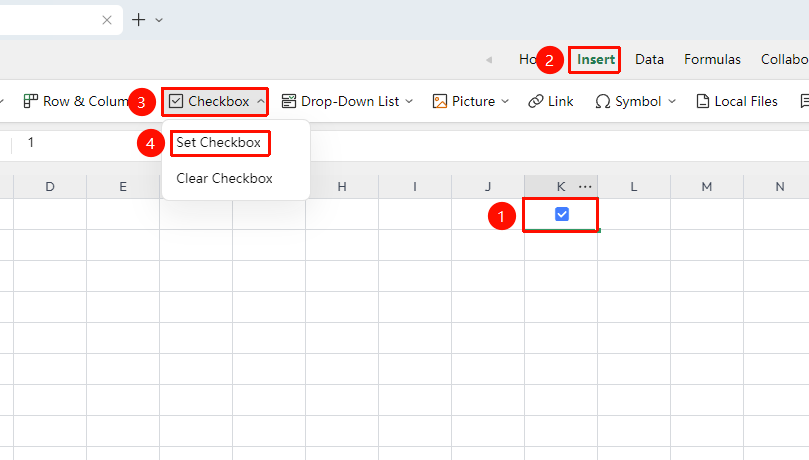
- Select the cell where you want to set the checkbox
- Click the "Insert" tab
- Click the dropdown menu next to the "Checkbox" button
- Select the Set Checkbox button
Clear Checkbox
Feature Entry
"Insert" tab → Dropdown menu next to the "Checkbox" button
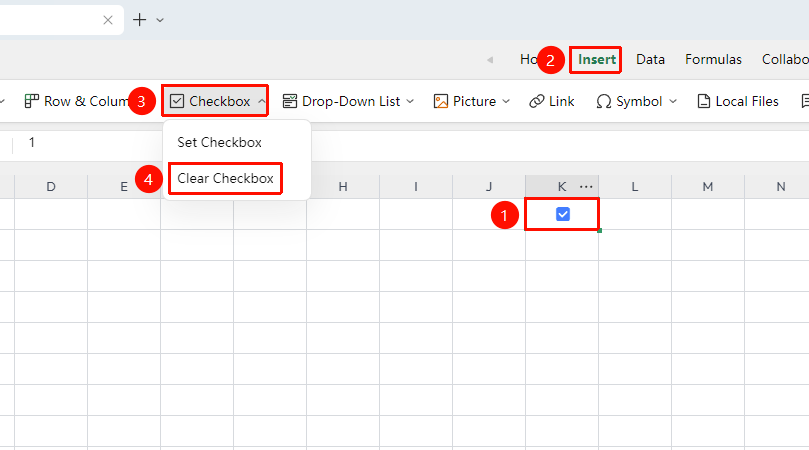
- Select the cell where you want to clear the checkbox
- Click the "Insert" tab
- Click the dropdown menu next to the "Checkbox" button
- Select the Clear Checkbox button
Set Cell Column Type to Checkbox
Feature Entry
Click the "…" icon next to the column header → "Column Type" dropdown menu → "Checkbox" option
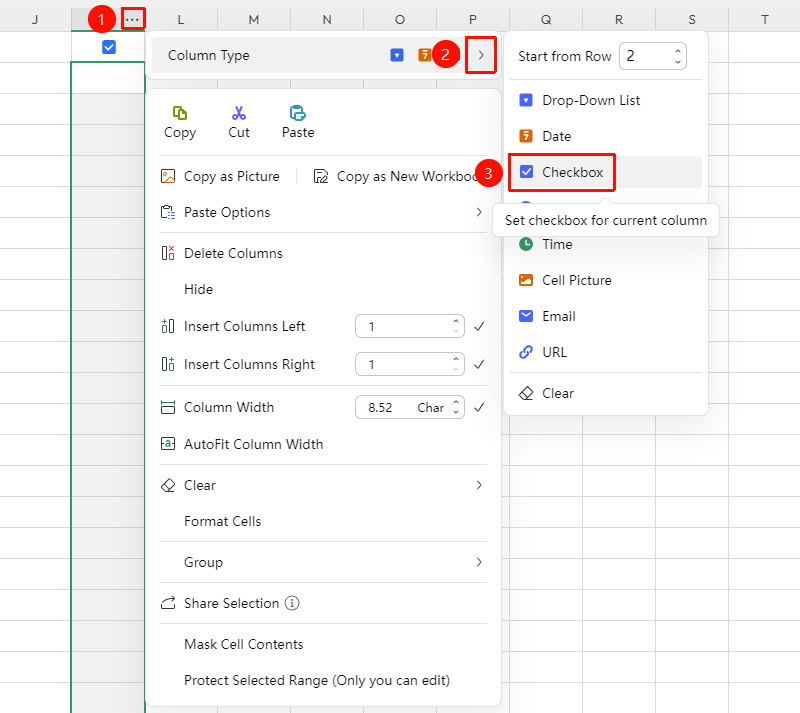
- Click the "…" icon next to the column header
- Select the "Column Type" dropdown menu
- Click the "Checkbox" option
- After clicking, the entire column of cells will be set to checkbox content
FAQ
Question 1: What should I do if I cannot find the "Checkbox" button?
- Solution: WPS Online Spreadsheet supports direct insertion of checkboxes. Please ensure you are currently using an online spreadsheet.