Feature Summary
Insert Local File allows you to embed files such as PDFs, Word documents, Excel spreadsheets, and images into a sheet. Embedded files can be opened by double-clicking, making this feature suitable for attachment management and document consolidation scenarios.
Feature Description
| Feature Dimension | Description |
|---|---|
| Membership Restriction | No membership restriction |
| Version Restriction | No version restriction |
Operation Steps
Insert via "Object"
Feature Entry
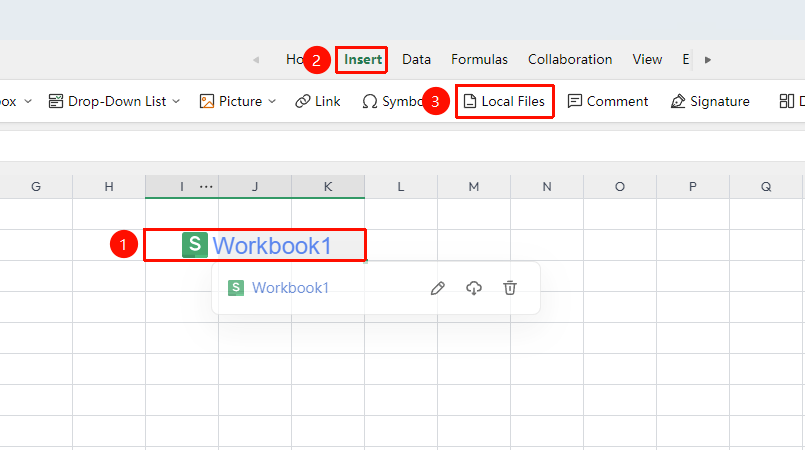
"Insert" tab → "Local File" button
- Select the cell where you want to insert the attachment
- Click the "Local File" button in the "Insert" tab
- In the pop-up window, select the local file you want to insert
- Click "OK" to complete the insertion. You can drag the icon to adjust its position.
Frequently Asked Questions
Q1: What should I do if double-clicking the inserted file icon does not open it?
- Solution: Ensure that the corresponding program for the file is installed locally.
Q2: How do I replace an already inserted attachment file?
- Solution: WPS does not support direct replacement. You need to delete the existing file first and then insert the new file again.
Q3: What should I do if the spreadsheet becomes very laggy after inserting a large file?
- Solution: Try to insert smaller files whenever possible. For large files, it is recommended to insert a hyperlink instead of embedding the file itself to prevent the spreadsheet file size from becoming too large.
Precautions
- Checking "Display as icon" is the recommended practice, as it prevents the file content from being displayed directly in the sheet.
- Embedded files are saved along with the spreadsheet, so pay attention to the spreadsheet file size.