Feature Summary
Insert Comment (annotation) allows you to add supplementary notes or discussion content within a cell. It supports show/hide toggling and threaded replies, making it suitable for collaborative review scenarios.
Feature Description
| Feature Dimension | Description |
|---|---|
| Membership Restriction | No membership restriction |
| Version Restriction | No version restriction |
Operation Steps
Insert Comment via Right-Click Menu
Feature Entry
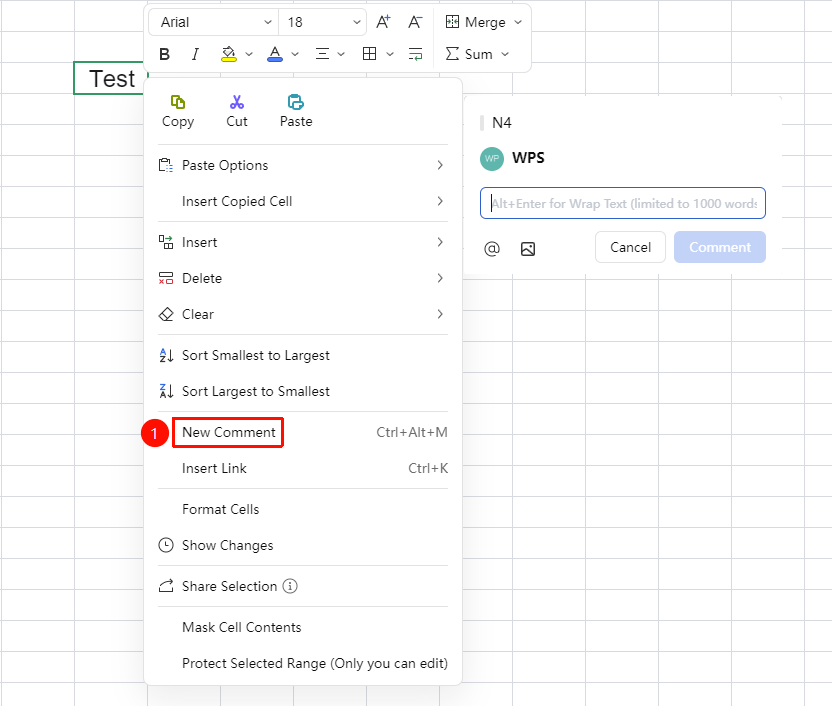
Select cell → Right-click menu → "Insert Comment" button
- Select the target cell where you want to add a comment
- Right-click the cell and select "Insert Comment"
- Enter the comment content in the pop-up comment input box
- Click any area outside the input box to save
- A small red triangle marker appears in the upper right corner of the cell. Hover the mouse over it to display the annotation.
Insert Comment via Menu Bar
Feature Entry
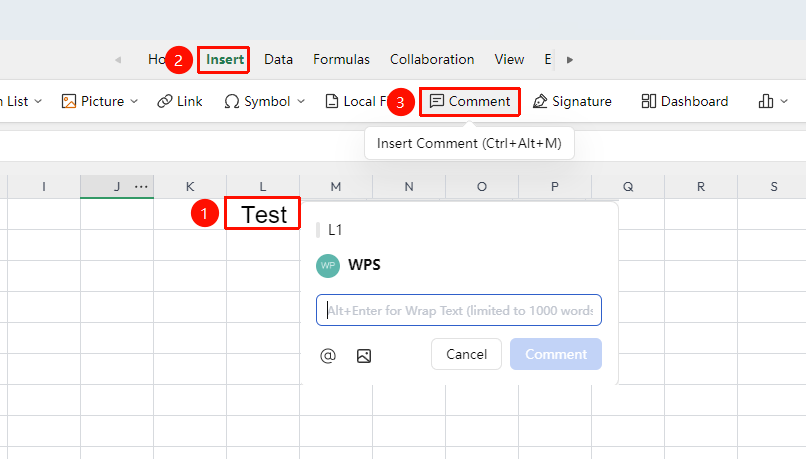
"Insert" tab → "Comment" button
- Select the target cell
- Click the "Comment" button in the "Insert" tab
- Enter content in the pop-up comment input box, then click a blank area to complete the insertion
Delete Comment
Feature Entry
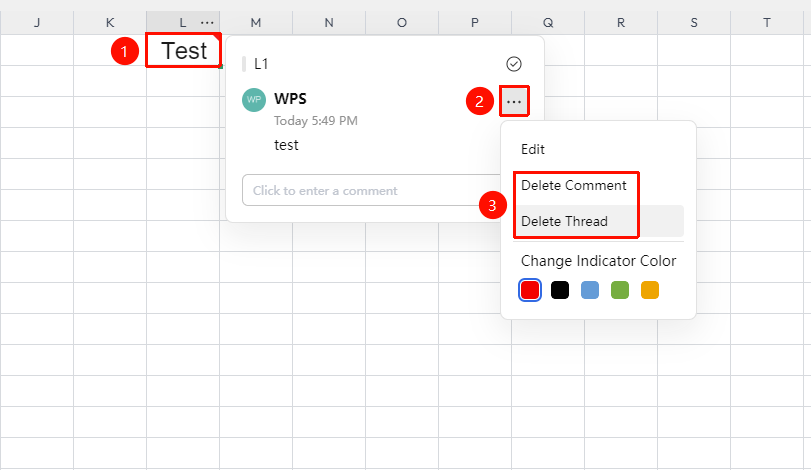
Select cell with comment → "…" icon → "Delete Comment" button
- Select the cell containing the comment
- Click the "…" icon in the upper right corner of the comment interface
- Click the "Delete Comment" button
Frequently Asked Questions
Question 1: How to modify the font and color style of a comment?
- Solution: Double-click to enter the annotation editing state, select all annotation text, then right-click and select "Format Annotation" to adjust font, font size, color, border, and other styles.
Question 3: How to delete unwanted comments?
- Solution: Click the cell containing the comment, select the "…" icon in the upper right corner, and choose delete.
Notes
- In online collaboration scenarios, comments support online replies, allowing team members to discuss data content directly.
- Deleting cell content will not automatically delete the associated comment; the comment must be deleted manually.