Feature Summary
Insert Link allows you to add clickable links in cells, supporting various link types such as web pages, cells, worksheets, dashboards, defined names, and AirScript scripts.
Feature Description
| Feature Dimension | Description |
|---|---|
| Membership Restriction | No membership restriction |
| Version Restriction | No version restriction |
Operation Steps
Insert Hyperlink
Feature Entry
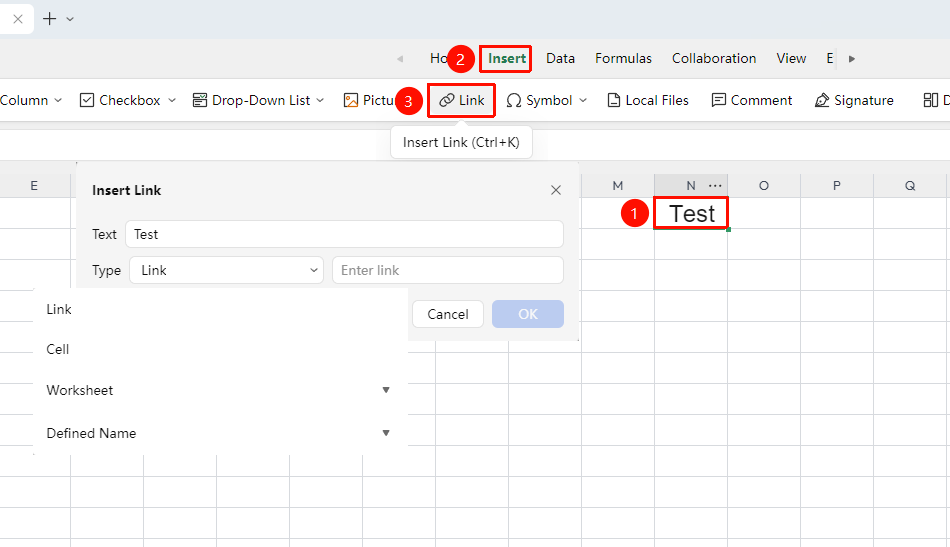
"Insert" tab → "Link" button
- Select the cell where you want to add a link
- Click the "Link" button in the "Insert" tab, or press
Ctrl+K(mac:Cmd+K) - Set the link information in the pop-up window:
- "Text": Enter the text content displayed for the link
- "Type": Select the link type from the dropdown box
- "Link/Address": Enter the corresponding address or select the target based on the chosen type
- Click "OK" to complete the insertion
Edit/Delete Existing Link
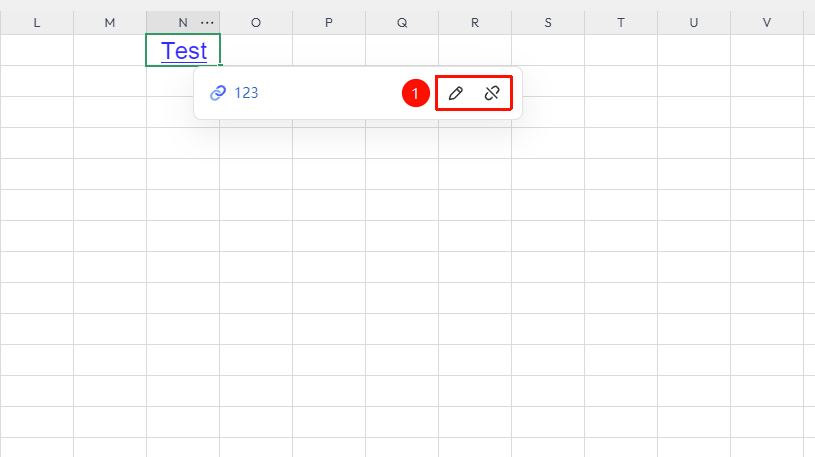
- Move the mouse to the object with the inserted link
- Select "Edit Link" to modify the target address
- Select "Remove Link" to delete the link and keep the original content
FAQ
Q1: What should I do if clicking the link does nothing?
- Solution: Check if the link address is complete (web links must include the
https://prefix). Some link types require holding down theCtrlkey while clicking to jump.
Q2: How to batch add links with the same prefix?
- Solution: Use the formula
=HYPERLINK()to insert hyperlinks.
Q3: What should I do if the inserted link address is displayed as code instead of text?
- Solution: Right-click the cell → "Format Cells" → "Number" tab → Select "General" or "Text", then re-enter.
Notes
- The selectable link types in the "Type" dropdown box include: Link, Cell, Worksheet, Dashboard, Defined Name, AirScript Script
- Hover the mouse to view the link address for easy confirmation of the target