Feature Summary
WPS Sheets supports inserting scatter charts in collaboration mode, displaying data as points on a coordinate plane to visually show the distribution relationship and correlation between two variables, making it suitable for scenarios involving large amounts of data.
Feature Description
| Feature Dimension | Description |
|---|---|
| Membership Restriction | No version restriction |
| Version Restriction | No version restriction |
Operation Steps
Inserting a Scatter Chart
Feature Entry
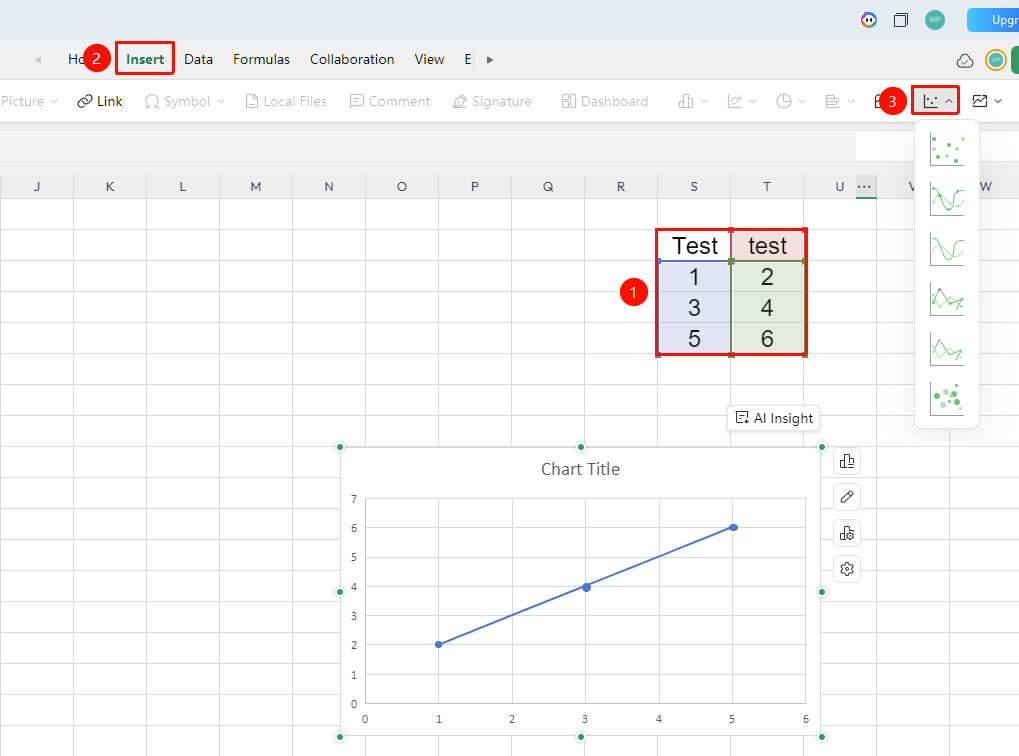
"Insert" tab → "Chart" → "Scatter Chart"
- Select the cell range containing data (ensure it includes category headers and values)
- Click the "Insert" tab, then select "Scatter Chart"
- Choose a specific subtype (Scatter, Scatter with Smooth Lines, Scatter with Straight Lines, and so on.)
- A scatter chart will be automatically generated; you can drag to adjust its position and size
Frequently Asked Questions
Q1: What scenarios are scatter charts suitable for?
- Solution: Scatter charts are suitable for analyzing the correlation and distribution between two variables, commonly used in scenarios such as the relationship between advertising spend and sales volume, height and weight distribution, and experimental data analysis.
Q2: What format does the data for a scatter chart need to meet?
- Solution: A scatter chart requires two columns of numerical data corresponding to the X-axis and Y-axis respectively; non-numerical data cannot be included. The more data there is, the more meaningful the distribution analysis becomes.
Notes
- Scatter charts are suitable for correlation analysis of large datasets
- The sparseness or density of point distribution can intuitively reflect the clustering and dispersion characteristics of the data
- Modifications in collaboration mode are visible to all collaborators in real time
- Scatter charts are not suitable for time-series data arranged in a fixed order