Feature Summary
The Data Validation feature is used to set data entry rules for cells in a collaborative spreadsheet (such as drop-down lists, numerical range limits, etc.), standardizing data entry for team members and ensuring data accuracy.
Feature Description
| Feature Dimension | Description |
|---|---|
| Membership Restriction | No membership restriction |
| Version Restriction | No version restriction |
Operation Steps
Setting Up a Drop-down List
Feature Entry
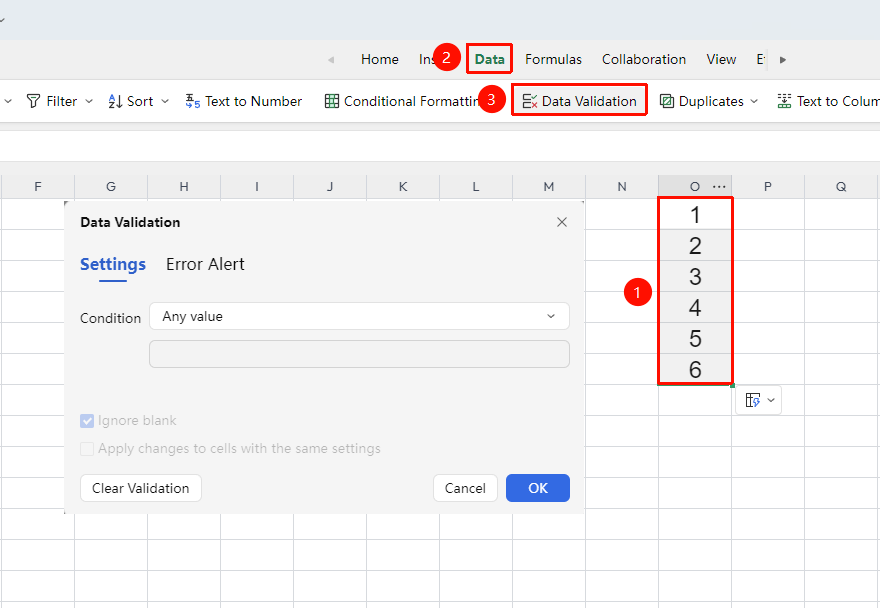
"Data" tab → "Data Validation" button
- Select the cell range where you want to set up the drop-down list
- Click the "Data Validation" button in the Data tab
- Set the "Criteria" for data validation
- Check whether to "Ignore blank" and "Apply these changes to all other cells with the same settings"
- Click OK, and a drop-down arrow will appear when the cell is selected
Setting Numerical Range Limits
Feature Entry
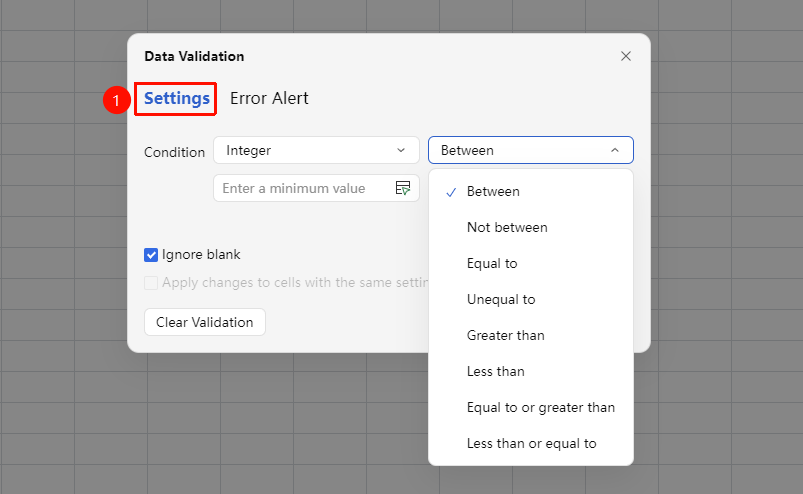
"Data" tab → "Data Validation" button
- Select the cell range you want to restrict
- Open the "Data Validation" dialog box
- Select the numerical type in the 'Allow' drop-down box: Integer, Decimal, Date, Time, and so on.
- Set the minimum and maximum value range for the data
- Set the prompt message for rule violations in the 'Error Alert' tab
Setting Input Message and Error Alert
Feature Entry
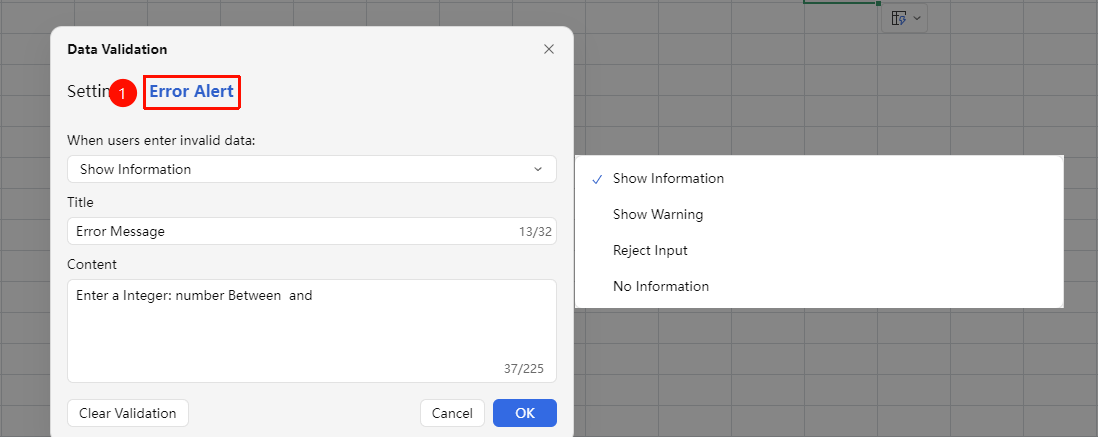
Data Validation dialog box → "Error Alert" tab
- Open the "Data Validation" dialog box
- Switch to the "Error Alert" tab: Set the warning style (Stop/Warning/Information) and prompt content when invalid data is entered
- Click OK to save the settings
Frequently Asked Questions
Q1: Do the data validation settings in collaboration mode take effect for all collaborators?
- Solution: Yes, data validation rules are saved in the document, and all collaborators are subject to the same rule constraints when entering data.
Q2: How to batch modify the source of already set data validation?
- Solution: Select the range with data validation set → Open the Data Validation dialog box → Modify the 'Source' content → Check 'Apply these changes to all other cells with the same settings' and click OK to batch update.
Notes
- Data validation rules are saved with the document and are effective for the input behavior of all collaborators
- Setting the error alert style to 'Stop' will completely prevent invalid data entry
- Data validation can effectively standardize team data entry, and it is recommended to configure it uniformly in collaborative spreadsheets