Feature Summary
The Text-to-Number feature is used to batch convert numbers stored in text format in collaborative spreadsheets into true numeric format, enabling formula calculations and data statistics to work properly.
Feature Description
| Feature Dimension | Description |
|---|---|
| Membership Restriction | No membership restriction |
| Version Restriction | No version restriction |
Operation Steps
Using the "Text to Number" Button
Feature Entry
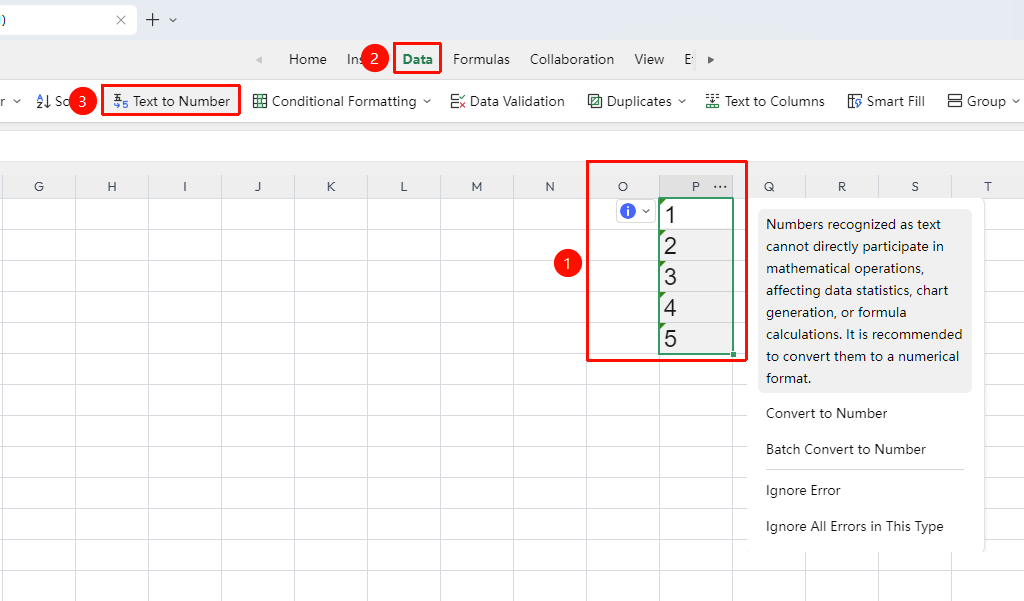
"Data" tab → "Text to Number" button
- Select the cell range containing numbers in text format (a green triangle indicator will appear in the upper-left corner of the cells)
- Click the "Text to Number" button in the Data tab
- The system automatically converts the text numbers in the selected range to numeric format in batch
- The disappearance of the green triangle indicator signifies the conversion to numeric format is complete
Operation Steps
Green Triangle Indicator Conversion
Feature Entry
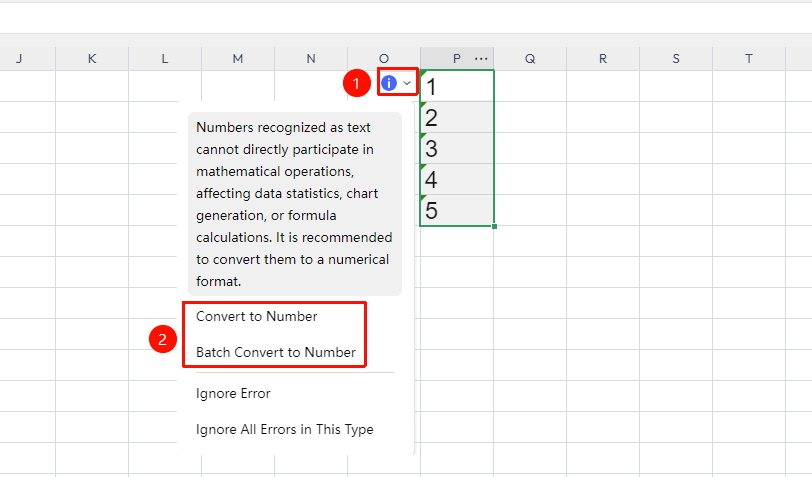
Green triangle indicator in the upper-left corner of the cell → "Convert to Number" / "Batch Convert to Number"
- Click a cell containing a number in text format (a green triangle indicator will appear in the upper-left corner of the cell)
- In the drop-down menu on the left side of the cell, click "Convert to Number" or "Batch Convert to Number"
- The system automatically converts the text numbers in the selected range to numeric format
Frequently Asked Questions
Q1: Formula results do not update after converting text-formatted numbers?
- Solution: After converting the format, press Ctrl+Shift+F9 to force a full sheet recalculation, or double-click the relevant formula cell and press Enter to confirm. The formula results will then update normally.
Q2: How to determine whether a cell is in text format or numeric format?
- Solution: Numbers in text format are left-aligned by default, and a green triangle error indicator appears in the upper-left corner of the cell; numbers in numeric format are right-aligned by default. You can also right-click → "Format Cells" to view the current format type.
Q3: In collaborative mode, after converting text to numbers, can others see the effect?
- Solution: Yes, the conversion results are synchronized to the cloud in real time. Other collaborators can see the changes in numeric format after refreshing the page, and formulas will also update their calculation results accordingly.
Notes
- For data requiring high precision, such as monetary amounts, it is recommended to check whether the number of decimal places is correct after conversion
- It is recommended to set the cell format to numeric at the source to avoid generating text-formatted numbers during data entry