Feature Summary
The italic function can display cell content with slanted text, commonly used for annotations, citations, or content that needs to be visually distinguished, enhancing the visual hierarchy of the spreadsheet.
Feature Description
| Feature Dimension | Description |
|---|---|
| Membership Restriction | No membership restriction |
| Version Restriction | No version restriction |
| Shortcut Key | Ctrl + I |
Operation Steps
Setting Italic via the Toolbar Button
Feature Entry
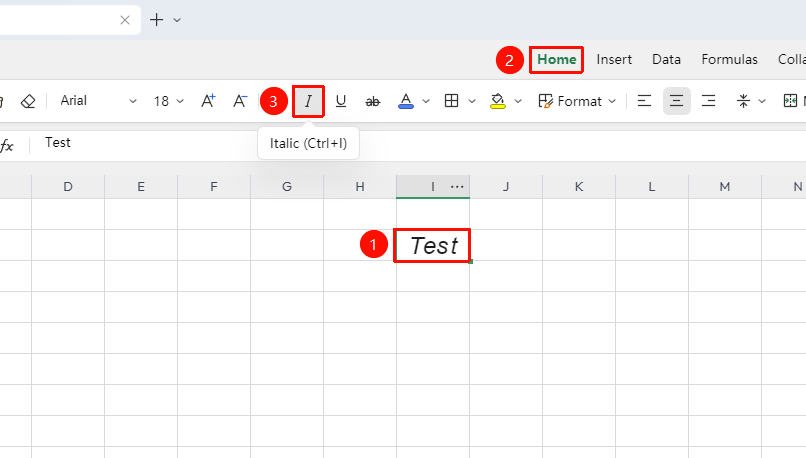
"Home" tab → "Italic"
- Select the cell or partial text within a cell that needs to be italicized
- Click the "I" shaped icon in the font toolbar of the "Home" tab
- The text immediately becomes italicized; click again to remove italic
Setting Italic Using Shortcut Keys
Feature Entry
Shortcut key Ctrl + I
- Select the cell or partial text within a cell that needs to be italicized
- Press the shortcut key
Ctrl + Ito apply the italic effect - Press
Ctrl + Iagain to remove italic
Quick Setting via the Floating Toolbar
Feature Entry
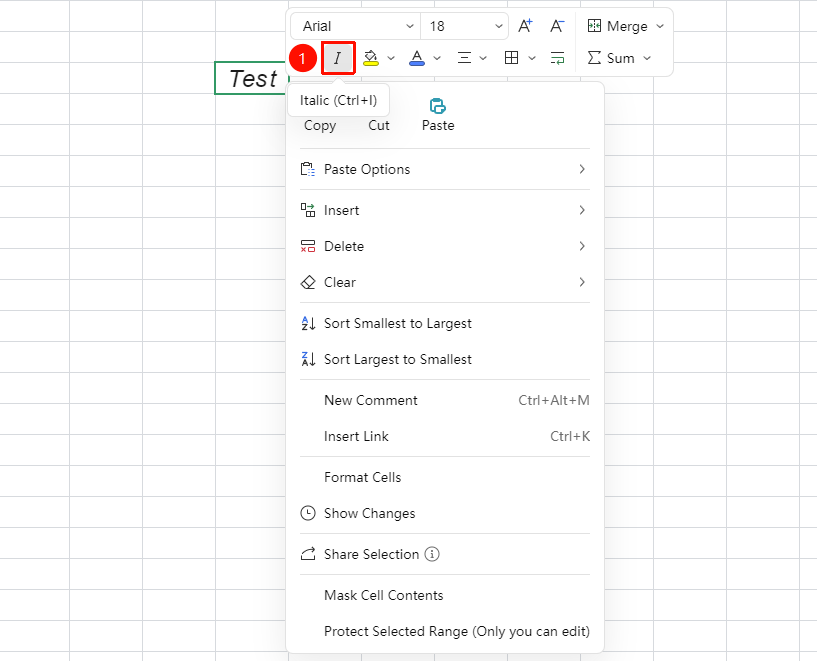
Right-click floating toolbar after selecting content
- Select the text content in the cell and right-click
- The floating mini toolbar automatically pops up
- Directly click the italic option in the toolbar to complete the setting
Setting Italic via Format Cells
Feature Entry
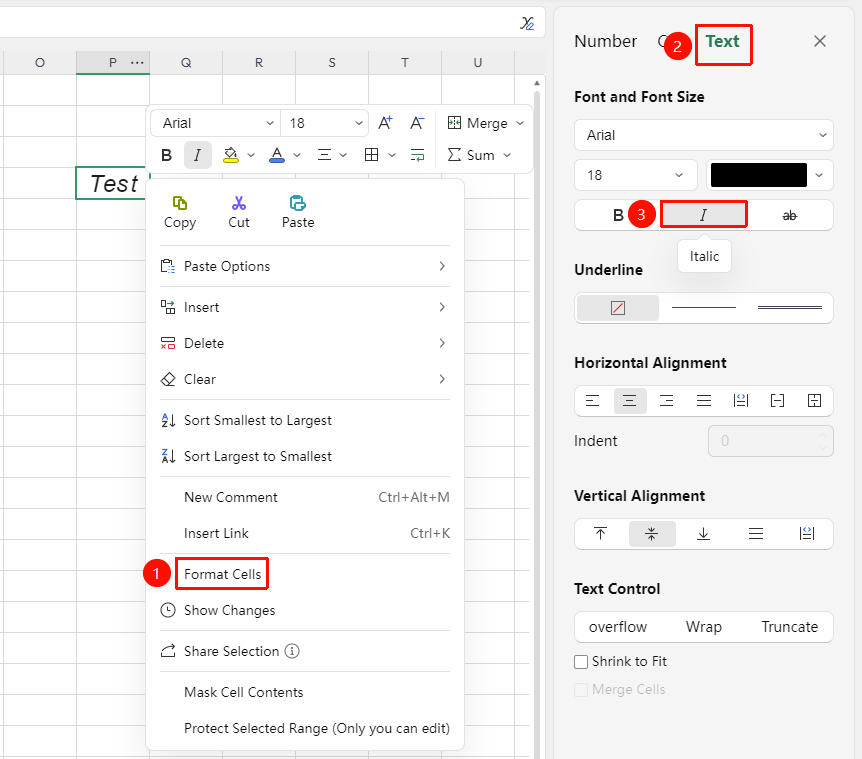
Right-click → "Format Cells" → "Font"
- Select the target cell range
- Right-click and select "Format Cells" (or press
Ctrl + 1) - In the "Text" tab, select "Italic"
- Click "OK" to apply the setting
Frequently Asked Questions
Q1: How to set only part of the text in a cell to italic
- Solution: Double-click the cell to enter edit mode, select the partial text that needs to be italicized, then press
Ctrl + Ior click the italic button.
Q2: Can italic and bold be used simultaneously
- Solution: Yes. Set bold first, then set italic (or vice versa), and the text will display as bold italic. You can also directly select "Bold Italic" in the "Text" section of "Format Cells".
Notes
- In online collaboration mode, italic settings are synchronized in real-time to all collaborators
- Italic can be used simultaneously with formats such as bold and underline
- Clicking the italic button again or pressing the shortcut key can remove the italic effect
- The italic effect may not be obvious for some Chinese fonts