Feature Summary
The Smart Fill feature is used to automatically identify data patterns and generate fill content in batches, helping collaborative teams quickly extract, merge, or format data and reduce repetitive operations.
Feature Description
| Feature Dimension | Description |
|---|---|
| Membership Restriction | No membership restriction |
| Version Restriction | No version restriction |
| Shortcut Key | Ctrl + E |
Operation Steps
Enabling Smart Fill
Feature Entry
"Data" tab → "Smart Fill"
- Manually enter a desired result as an example in the column adjacent to the source data
- Select the example cell and the area below that needs to be filled
- Click the "Smart Fill" button in the "Data" tab
- The system automatically identifies the pattern and fills the remaining cells
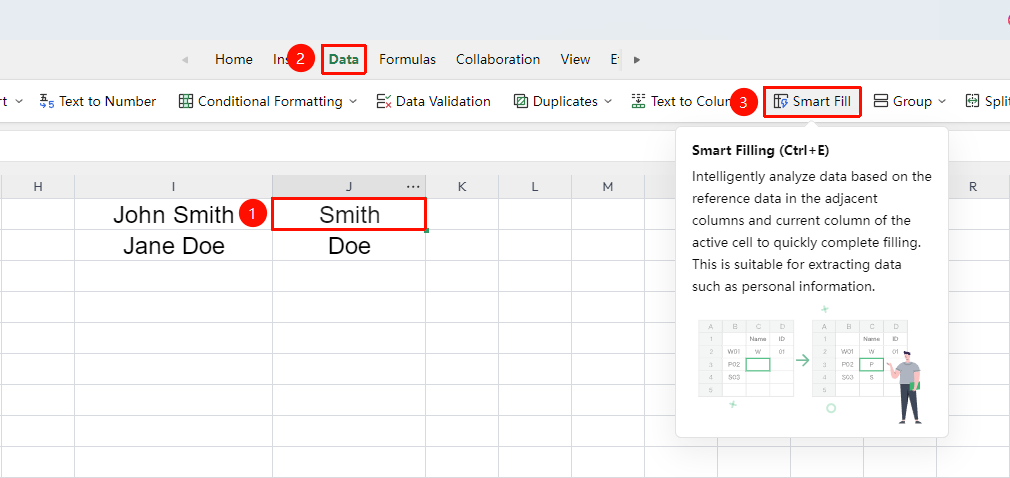
Smart Extraction Example
Feature Entry
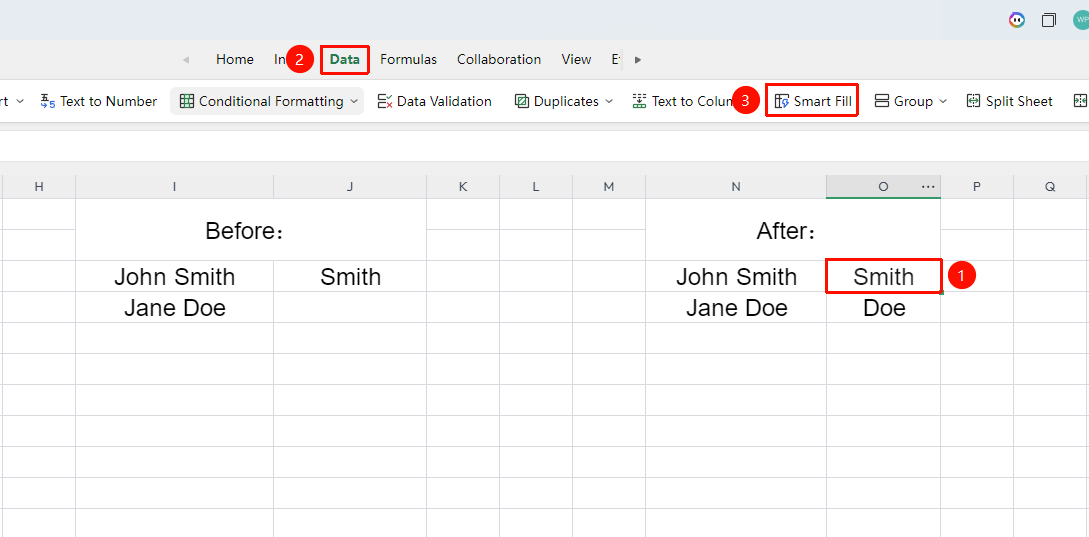
Enter extraction example → Ctrl+E
- Enter an example extracted from another column in a cell (e.g., extracting a surname from a full name)
- Press Ctrl+E to trigger Smart Fill
- The system automatically identifies the conversion rule
- All matching rows are automatically filled with results according to the same rule
Smart Merge Example
Feature Entry
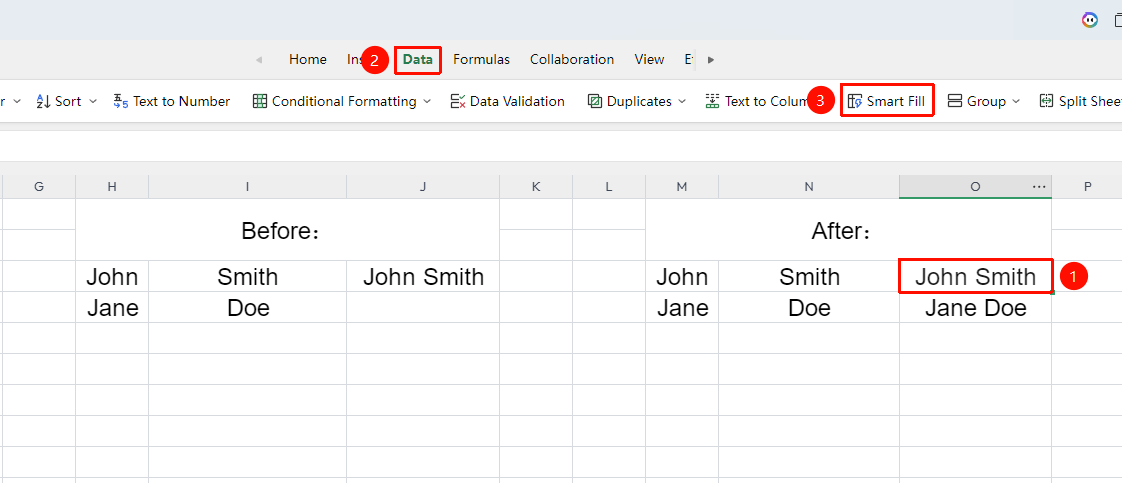
Enter merge example → Smart Fill
- Enter an example of merging data from multiple columns in a new column
- Select the column and trigger "Smart Fill"
- The system identifies the merge rule and fills automatically
- Can combine text, numbers, and other data types for merging
Frequently Asked Questions
Question 1: What should I do if Smart Fill recognition is inaccurate?
- Solution: Try providing 2-3 example data entries to help the system identify the pattern more accurately. The clearer the examples, the more accurate the results.
Question 2: What is the difference between Smart Fill and regular fill?
- Solution: Regular fill only copies data or increments in a simple sequence, while Smart Fill can recognize complex patterns such as text conversion, extraction, and merging.
Question 3: Will Smart Fill change the original data?
- Solution: No, Smart Fill only generates new data in the target column and does not affect the source data column.
Notes
- Smart Fill relies on at least one example data entry; it is recommended to enter a clear conversion example
- Supports multiple smart modes such as text extraction, formatting, and merging
- When the data volume is large, Smart Fill may take a few seconds to process; please wait patiently
- Use the shortcut key Ctrl+E for quick operation