Feature Summary
Recent Changes is used to view data change records in a collaborative spreadsheet within a specified time period, helping team members track who modified which cell content and when.
Feature Description
| Feature Dimension | Description |
|---|---|
| Membership Restriction | No membership restriction |
| Version Restriction | No version restriction |
Operation Steps
Entry 1: "Collaboration" Tab
Feature Entry
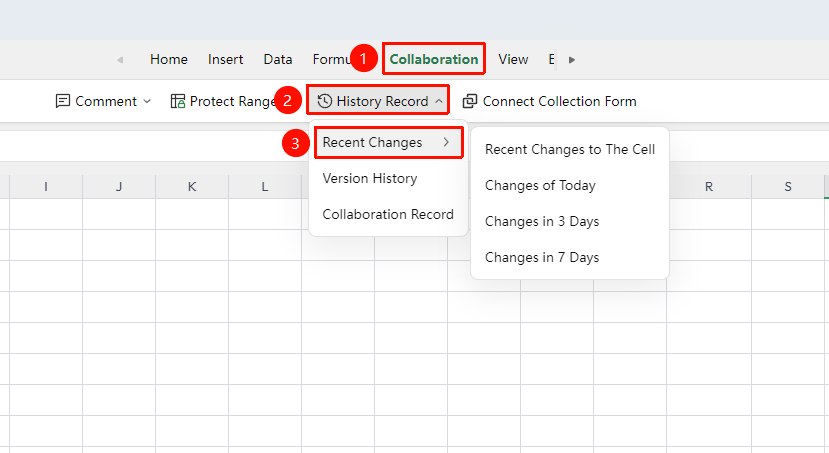
"Collaboration" tab → "History" button → "Recent Changes"
- Select a specific cell or the area you want to view
- Click the top "Collaboration" tab
- Click the "History" button in the toolbar
- Select "Recent Changes" from the drop-down menu
- A submenu will pop up, containing four options: "Cell Recent Changes", "Today's Changes", "Changes in the Last 3 Days", "Changes in the Last 7 Days"
- Select the corresponding time range to view all data change records within that period
Entry 2: File Operations Menu
Feature Entry
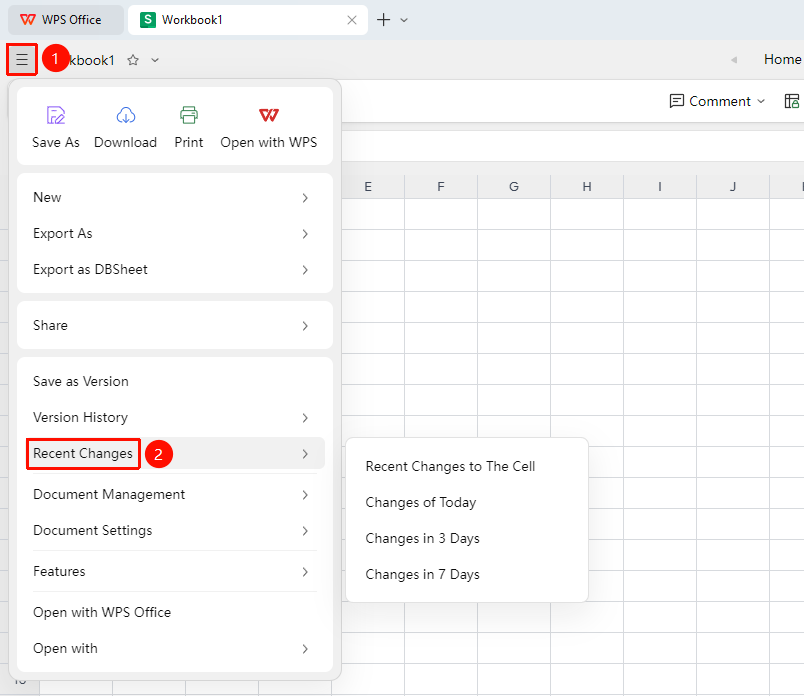
File Operations → "Recent Changes"
- Select a specific cell or the area you want to view
- Click the File Operations (☰ icon) in the upper left corner
- Find "Recent Changes" in the menu
- Select the desired time period to view the relevant changes
Notes
- The Recent Changes feature is only available in collaboration mode (online mode)
- Change records are retained for a limited time; records beyond the time range may not be viewable
- Before viewing cell changes, you must first select the target cell; otherwise, changes for the entire worksheet will be viewed by default
- Worksheet changes can be viewed by playing "Auto Replay" to see all operation sequences