Feature Summary
The conditional formatting feature is used to automatically change the display style of cells (such as background color, font color, and so on) based on set rules, helping collaborative teams intuitively identify key information in data.
Feature Description
| Feature Dimension | Description |
|---|---|
| Membership Restriction | No membership restriction |
| Version Restriction | No version restriction |
Operation Steps
Feature Entry and Preset Categories
Feature Entry
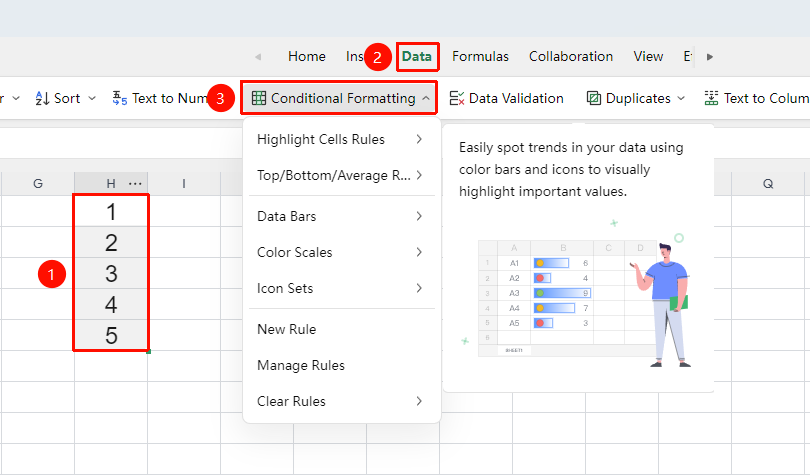
"Data" tab → "Conditional Formatting" button
- Select the cell range where you want to set conditional formatting
- Click the "Conditional Formatting" button in the Data tab
- A drop-down menu appears, containing the following preset categories:
- Highlight Cells: Greater Than, Less Than, Between, Equal To, Text Contains, A Date Occurring, Duplicate Values, More Rules
- Top/Bottom/Average: Top 10, Bottom 10%, Above Average, Below Average, etc.
- Data Bars: Visually display value magnitude with colored bars
- Color Scales: Display data distribution with color gradient intensity
- Icon Sets: Mark data levels with icons such as arrows and traffic lights
- New Rule: Customize conditional formatting rules
- Manage Rules: View and edit existing rules
- Clear Rules: Delete set conditional formatting
New Rule
Feature Entry
"Data" tab → "Conditional Formatting" → "New Rule"
- Select the cell range where you want to set conditional formatting
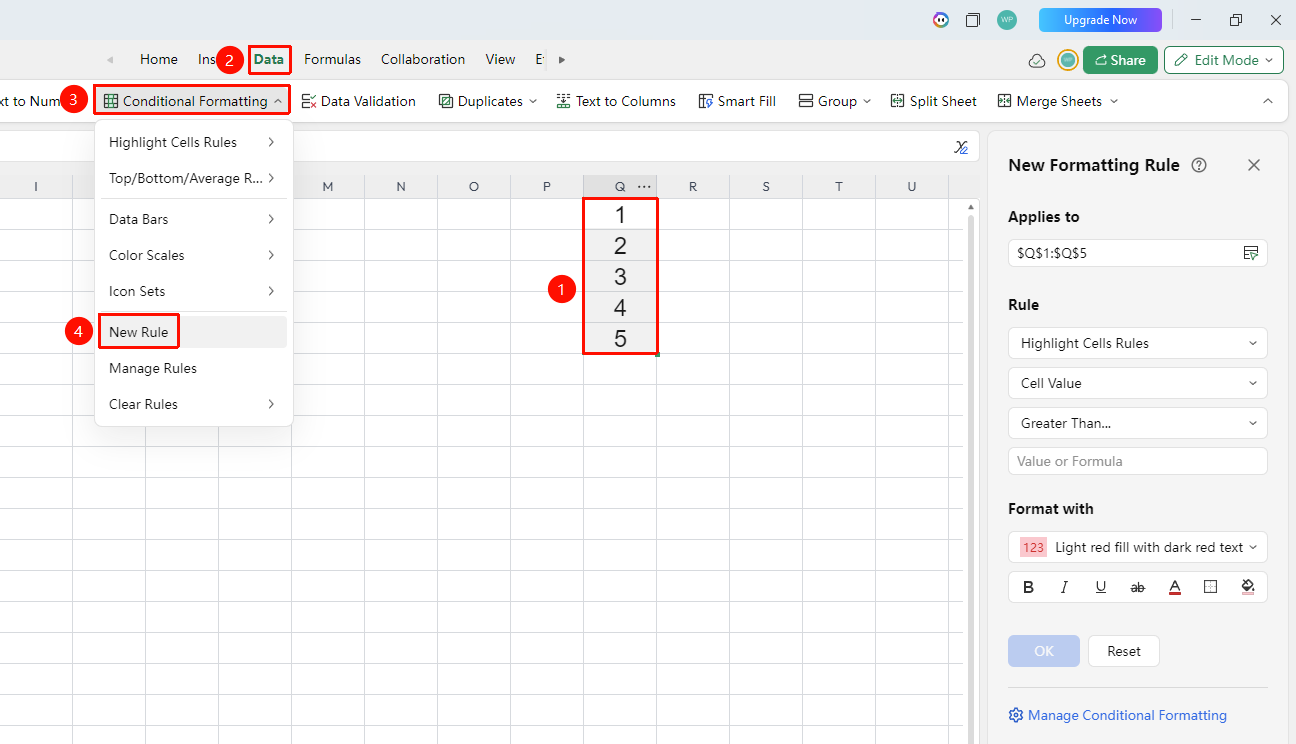
- Click "Conditional Formatting" → "New Rule"
- The "New Conditional Formatting" panel pops up on the right. Configure as follows:
- Applies to: Confirm or modify the cell range to apply
- Format cells if: Select the rule type (Highlight Cells / Top/Bottom/Average / Data Bars / Color Scales / Icon Sets, and so on.)
- Condition Settings: Select the judgment field (e.g., "Cell Value" ) and comparison operator (e.g., "Greater Than", "Equal To", "Text Contains", and so on.)
- Value or Formula: Enter the specific condition value; supports direct input of values or formulas
- Formatting Style: Select a preset style (e.g., "Light Red Fill with Dark Red Text" ), or customize via the format buttons below:
- B Bold / I Italic / U Underline
- Font Color / Borders / Fill Color
- After configuration, click the "Create Rule" button to apply
- To reconfigure, click "Reset" to clear the current settings
Quick Create Preset Rules
Feature Entry
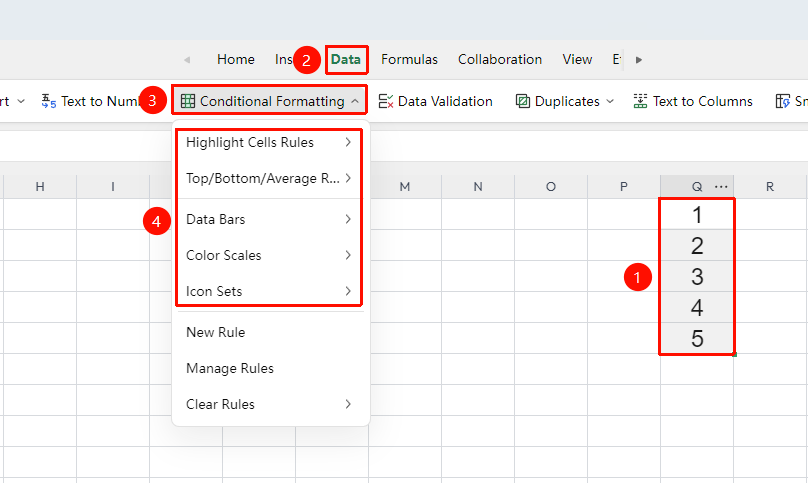
"Data" tab → "Conditional Formatting" → Submenu of preset categories
- Select the cell range where you want to set conditional formatting
- Click "Conditional Formatting", select a preset category, such as "Highlight Cells" → "Greater Than"
- Enter the condition value in the pop-up input box (e.g.,
100) - Select or customize the display format
- Click OK, and the corresponding format will be automatically applied to cells that meet the condition
Manage Rules
Feature Entry
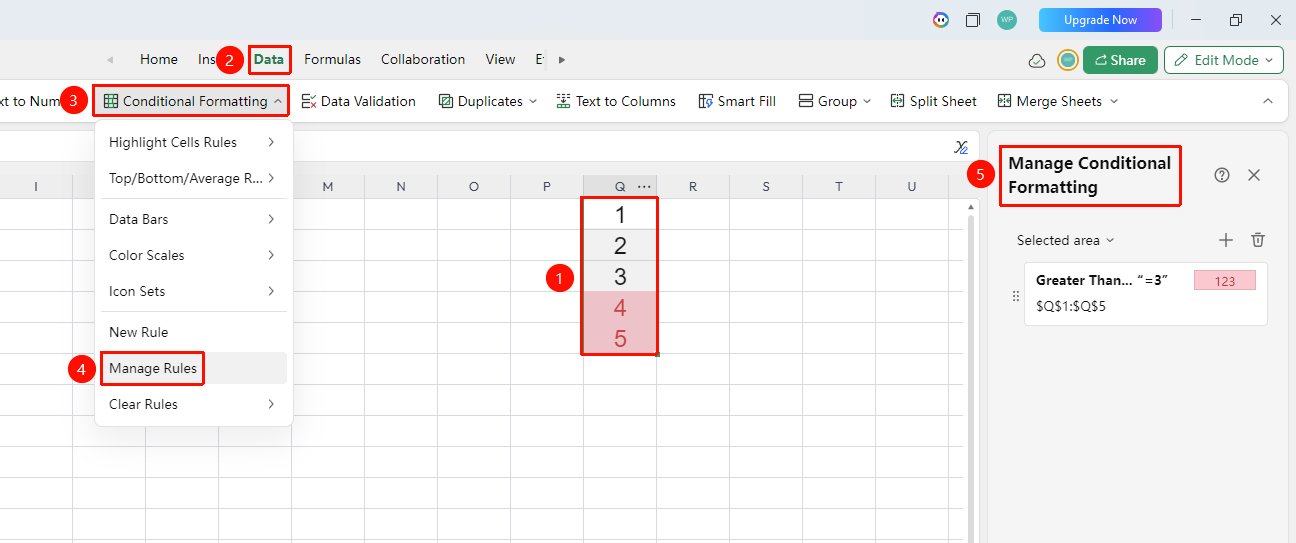
"Data" tab → "Conditional Formatting" → "Manage Rules" / Bottom of the right panel → "Manage Conditional Formatting" link
- Click "Conditional Formatting" → "Manage Rules", or click the "Manage Conditional Formatting" link at the bottom of the new rule panel
- The rule management interface pops up, where you can perform the following operations:
- View Rule List: Display all conditional formatting rules for the current worksheet or current selection
- Modify Rule: Double-click a rule to edit its condition judgment and display format
- Adjust Priority: Select a rule and click the Move Up/Move Down buttons to adjust the execution order of rules (higher priority for those listed above)- New Rule: Click "New Rule" to add a new rule in the management interface
Clear Rules
Feature Entry
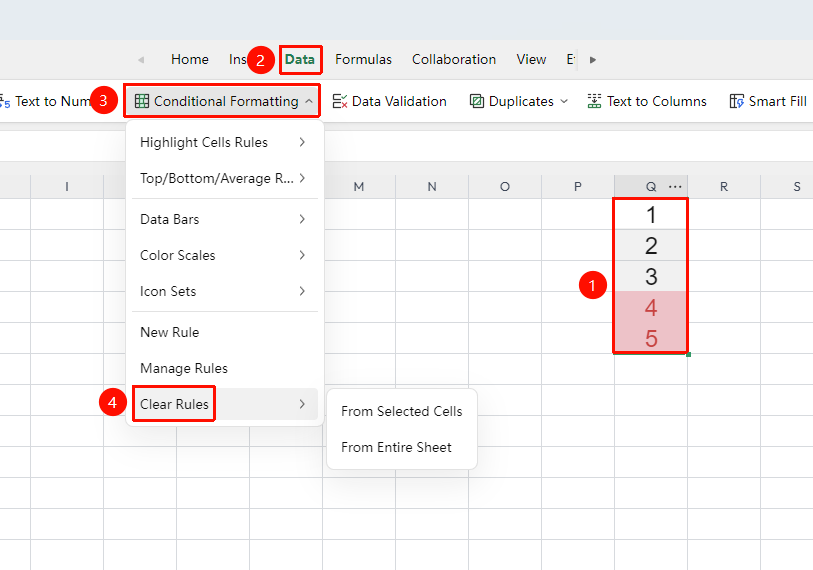
"Data" tab → "Conditional Formatting" → "Clear Rules" submenu
- Select the cell range from which you want to clear conditional formatting
- Click "Conditional Formatting" → "Clear Rules"
- Choose the clearing scope from the submenu:
- Clear Rules from Selected Cells: Clears conditional formatting only from the currently selected range
- Clear Rules from Entire Sheet: Clears all conditional formatting in the current worksheet
- After clicking, the conditional formatting in the corresponding area will be removed immediately
FAQ
Q1: Colors do not display after setting conditional formatting?
- Solution: Check whether the applied range correctly covers the target area; confirm whether the condition values are reasonable (e.g., if "greater than 1000" is set as "greater than 10000", there will be no match); verify in "Manage Rules" whether the rule is disabled.
Q2: When multiple rule conditions are met, which format is displayed?
- Solution: Conditional formatting is executed in order of priority from top to bottom, with rules higher on the list having higher priority. You can change the display effect by adjusting the order in "Manage Rules".
Q3: Is conditional formatting set in collaboration mode visible to others?
- Solution: Yes, conditional formatting rules are saved in the document. When other collaborators open the document, the same conditional formatting effects are automatically applied and synchronized in real time.
Notes
- Conditional formatting rules are saved with the document, and all collaborators see the same effects
- Clearing rules cannot be undone; it is recommended to confirm that retention is not needed before proceeding
- In custom formula conditional formatting, cell references must use absolute references ($ symbol)