Feature Summary
The Find and Replace feature is used to quickly locate or batch modify specific text and numeric content in collaborative spreadsheets, improving the efficiency of searching and editing when the team handles large amounts of data.
Feature Description
| Feature Dimension | Description |
|---|---|
| Membership Restriction | No membership restriction |
| Version Restriction | No version restriction |
Operation Steps
Using the Find Feature
Feature Entry
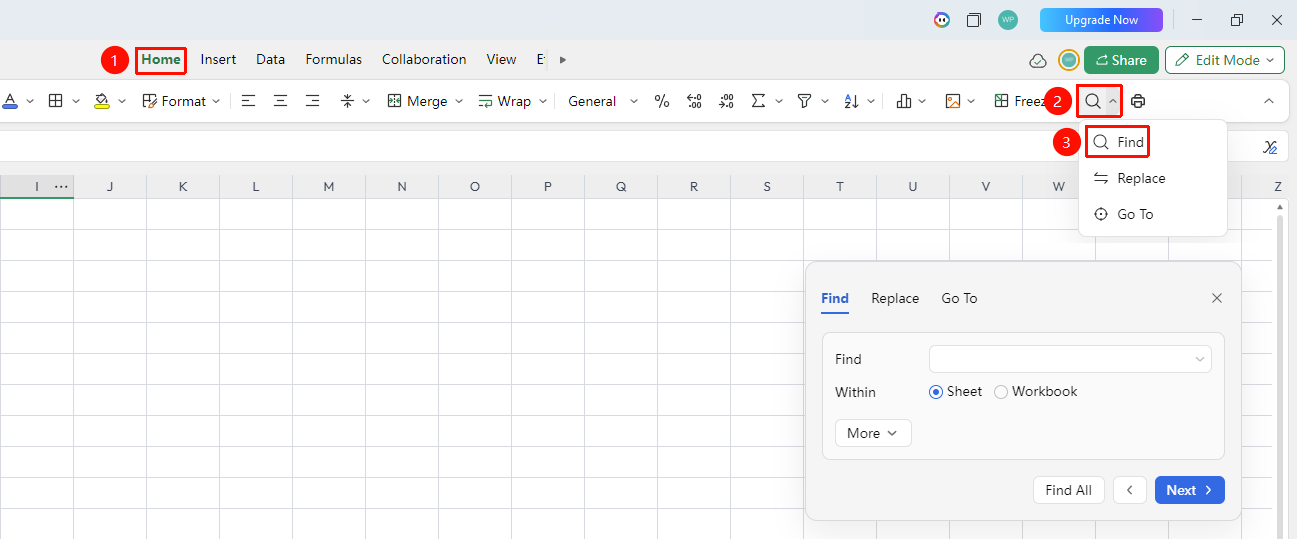
"Home" tab → "Find" button / Shortcut Ctrl+F
- Press the Ctrl + F shortcut, or click the "Find" button in the Home tab
- Enter the content you want to find in the find box
- Click "Find Next" to jump to the matching cell
- Click "Find All" to view a list of all matching results
Using the Replace Feature
Feature Entry
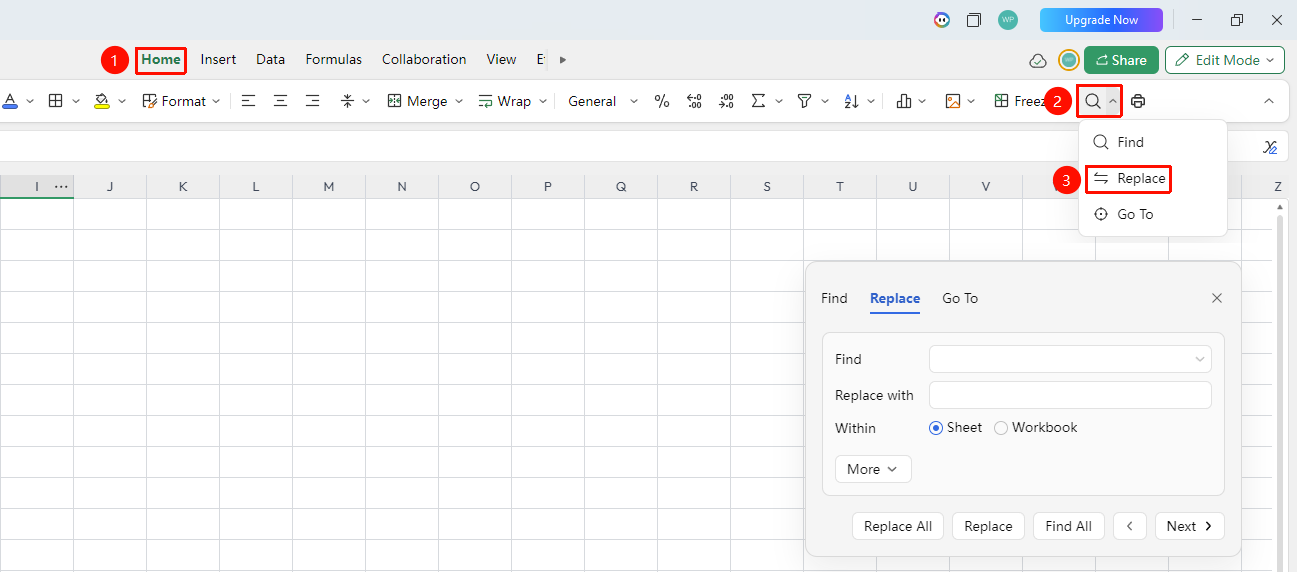
"Home" tab → "Find" button dropdown menu → "Replace" / Shortcut Ctrl+H
- Press the Ctrl + H shortcut, or click the "Find" button dropdown menu in the Home tab → "Replace"
- Enter the original content in the "Find" input box
- Enter the new content in the "Replace with" input box
- Click "Replace" to replace one by one, or click "Replace All" to batch replace
Using the Go To Feature
Feature Entry
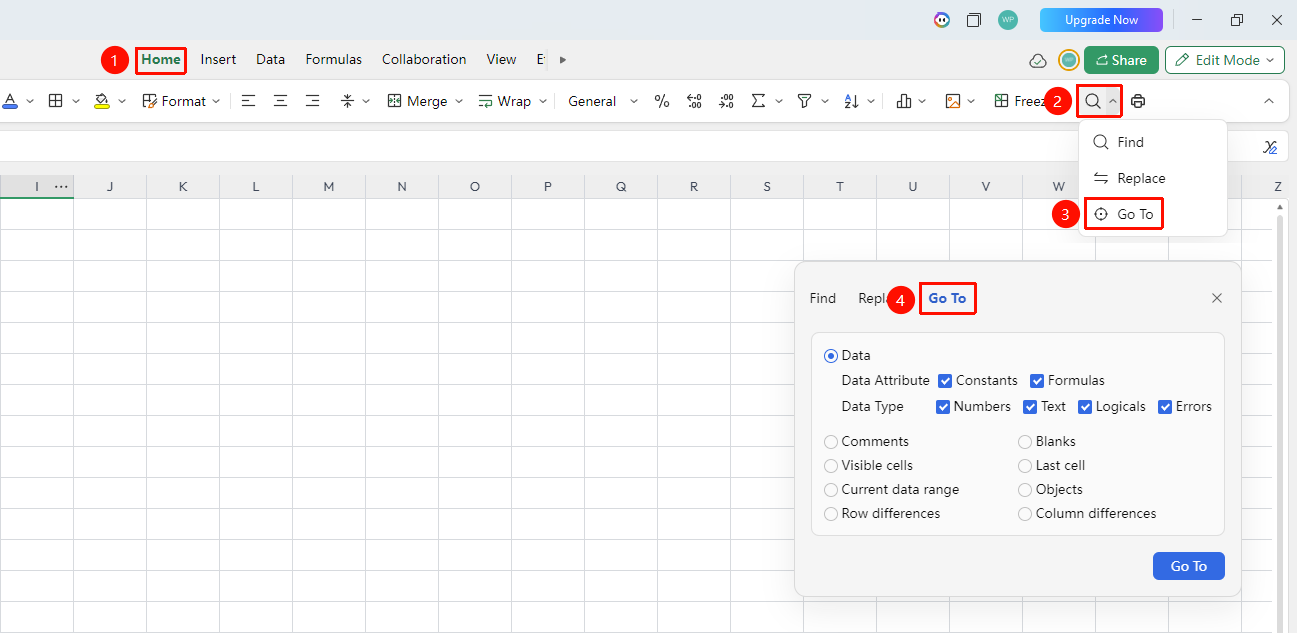
"Home" tab → "Find" button dropdown menu → "Go To" / Shortcut Ctrl+G
- Press the Ctrl + G shortcut, or click the "Find" button dropdown menu in the Home tab → "Go To"
- Check different types of content to locate as needed
Advanced Find Options
Feature Entry
Find/Replace dialog box → "Options" button
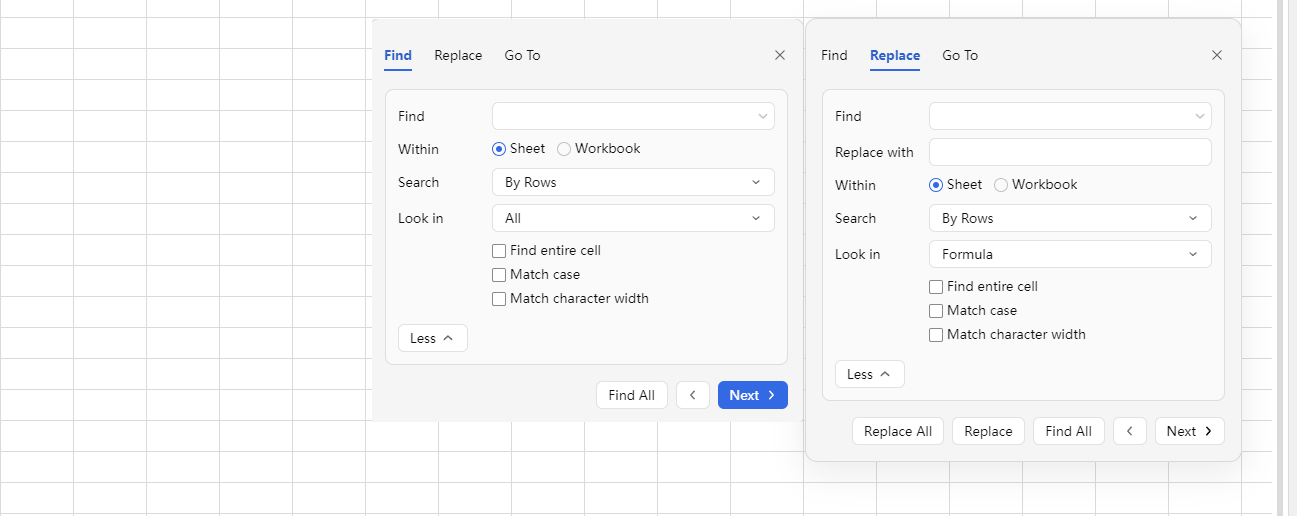
- Click the "Options" button in the Find/Replace dialog box to expand advanced settings
- Configurable options include:
- Search Scope: Sheet or Workbook
- Match Case: Exact case matching
- Match Entire Cell Content: Match the entire cell content (rather than partial match)
- Search by Row/Column: Control the search direction
- You can also use the "Format" button to find content based on format conditions
Frequently Asked Questions
Question 1: Can others see the replaced content in collaboration mode?
- Solution: Yes, after the replace operation is executed, it will be synced to the cloud in real time, and other collaborators will see the update immediately. It is recommended to communicate and confirm with team members before replacing to avoid accidental data modification.
Question 2: How to find content in multiple sheets simultaneously?
- Solution: In the Find dialog box, click "Options", change the search scope from "Sheet" to "Workbook", and you can find content in all sheets of the entire workbook.
Notes
- In collaboration mode, replace results will be synced to all collaborators in real time
- Using format find can accurately locate content with specific formatting in complex spreadsheets