Feature Summary
The WPS Sheets collaboration mode supports inserting bar charts into spreadsheets, providing an intuitive visual representation of data comparisons and trend changes.
Feature Description
| Feature Dimension | Description |
|---|---|
| Membership Restrictions | No membership restrictions |
| Version Restrictions | No version restrictions |
Step-by-Step Instructions
Inserting a Bar Chart
Function Access Point
"Insert" tab → "Chart" → "Bar Chart"
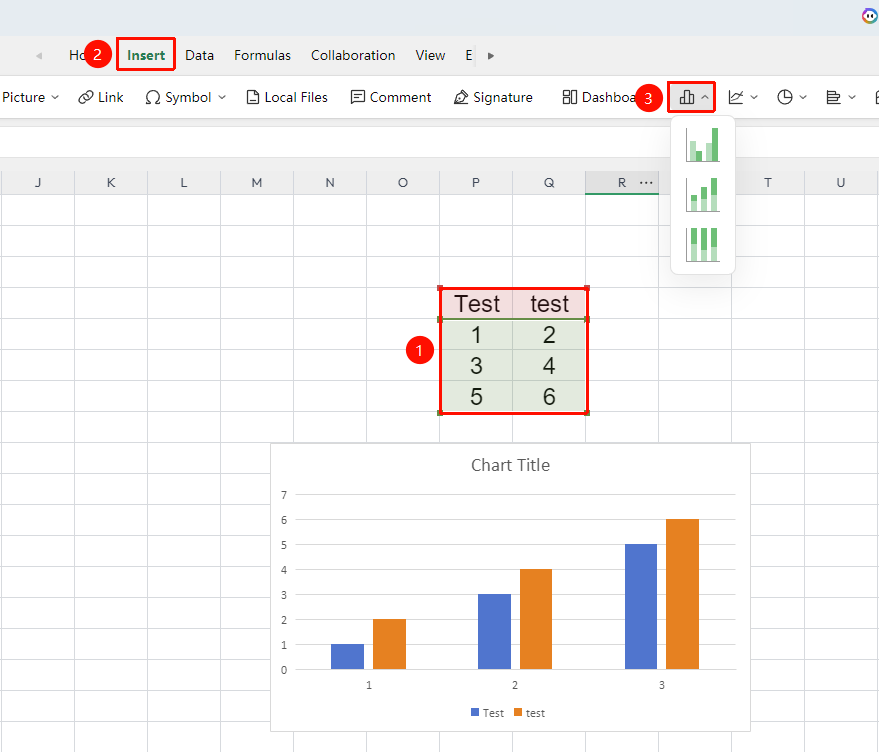
- Select the cell range containing your data (ensure it includes both category labels and numerical values).
- Click the "Insert" tab and select "Bar Chart".
- Choose a specific subtype (e.g., Clustered Column Chart, Stacked Column Chart, and so on).
- A bar chart will be automatically generated; you can drag and drop to adjust its position and size.
Frequently Asked Questions
Question 1: Why doesn't the bar chart update after the data is refreshed?
- Solution: The data source is not linked to a dynamic range. Right-click the chart → "Edit Chart" and reselect the data range.
Question 2: Why are the data points in the bar chart misaligned or the labels disorganized?
- Solution: The data source contains empty rows/columns or merged cells causing interference. Delete any empty rows/columns and unmerge any header rows before reselecting the range to insert the chart.
Important Notes
- The data source should include a continuous header row and numerical values; avoid empty rows or columns.
- You can edit chart elements and data by right-clicking the chart → "Edit Chart".