Feature Summary
The Clear Formatting feature can remove custom formatting settings such as fonts, colors, borders, backgrounds, and alignment from cells with one click, while fully preserving the cell contents including text, numbers, and formulas, quickly restoring cells to their default style.
Feature Description
| Feature Dimension | Description |
|---|---|
| Membership Restriction | No membership restriction |
| Version Restriction | No version restriction |
Operation Steps
Clear Formatting via the Menu Bar
Feature Entry
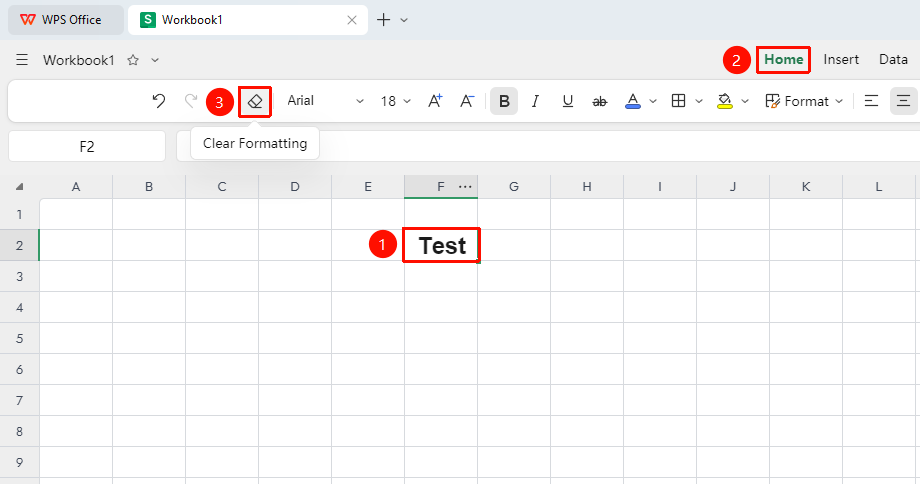
"Home" → "Clear Formatting"
- Select the cell or range from which you want to clear formatting (supports single, continuous, and non-contiguous range selection)
- Click the "Clear Formatting" button in the "Home" tab
- The cell formatting is immediately restored to the default style, while the content remains unchanged
Clear Formatting via the Right-Click Menu
Feature Entry
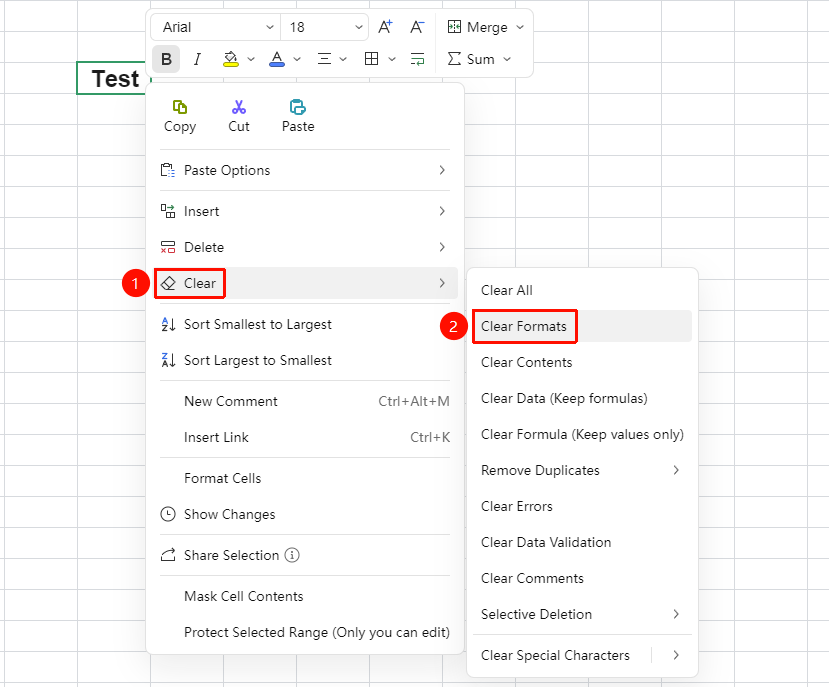
Right-click menu → "Clear" → "Clear Formatting"
- Select the cell or range from which you want to clear formatting
- Right-click on the selected area
- Select "Clear Formatting" from the pop-up "Clear" menu
- Formatting is cleared immediately, and content is preserved
Frequently Asked Questions
Question 1: Will clearing formatting delete the cell content?
- Solution: No. Clearing formatting only removes formatting settings such as fonts, colors, borders, and backgrounds, while fully preserving content such as text, numbers, and formulas.
Question 2: How to clear both content and formatting simultaneously?
- Solution: Select "Clear" → "Clear All", or press the
Deletekey directly to clear content. If you need to clear both formatting and content simultaneously, use the "Clear All" option.
Question 3: Can clearing formatting remove conditional formatting?
- Solution: Yes, it can.
Notes
- To clear formatting for the entire sheet, press
Ctrl + Ato select all and then perform the clear formatting operation - In collaborative mode, the clear formatting operation will be synchronized to all collaborators in real time