Feature Summary
The Edit Chart feature is used to create, modify, and beautify charts in collaborative spreadsheets, helping team members present data in a visual format and improving the efficiency of collaborative data analysis.
Feature Description
| Feature Dimension | Description |
|---|---|
| Membership Restriction | No membership restriction |
| Version Restriction | No version restriction |
Operation Steps
Edit Chart Elements
Feature Entry
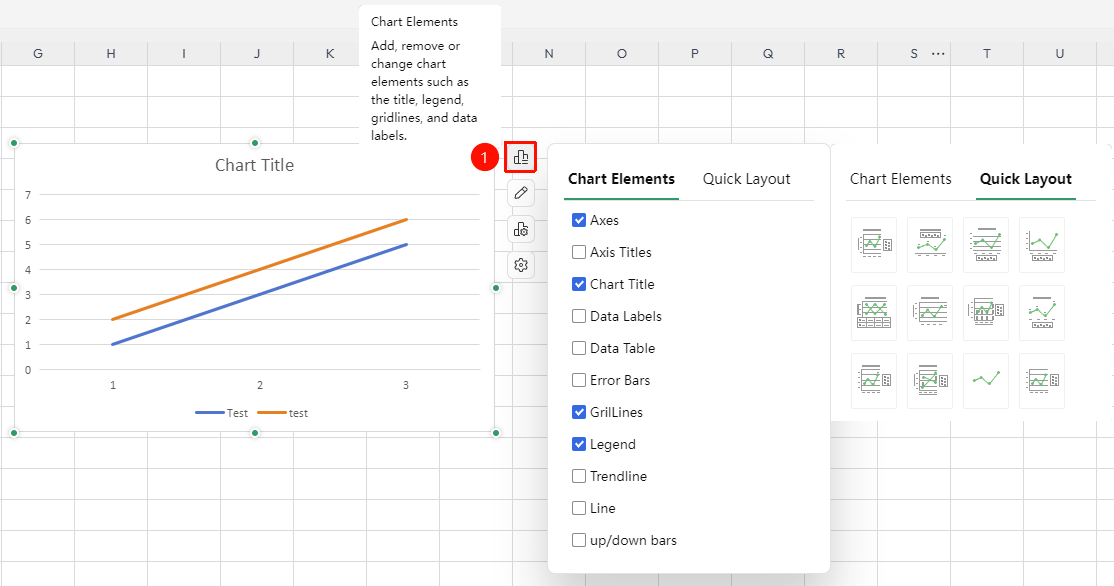
Click "Chart" → "Chart Elements"
- Click to select an inserted chart
- Select "Chart Elements"
- In the pop-up "Chart Elements" dialog, you can check whether to display chart elements such as chart title, axes, and data labels
- In the "Quick Layout" dialog, you can quickly switch chart layouts
Change Chart Style
Feature Entry
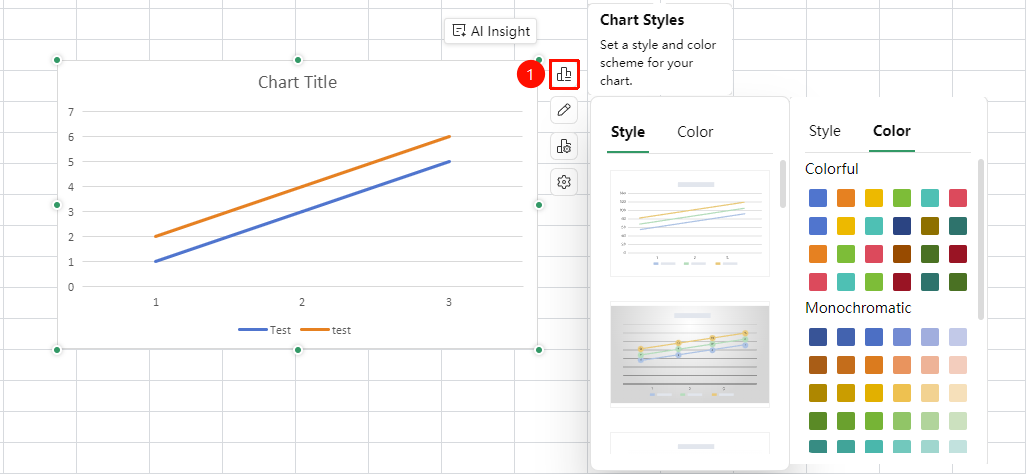
Click "Chart" → "Chart Styles"
- Click to select an inserted chart
- Select "Chart Styles"
- In the pop-up "Styles" dialog, you can click a preset style to apply it to the chart with one click
- In the "Color" dialog, you can quickly switch chart colors
Modify Chart Properties
Feature Entry
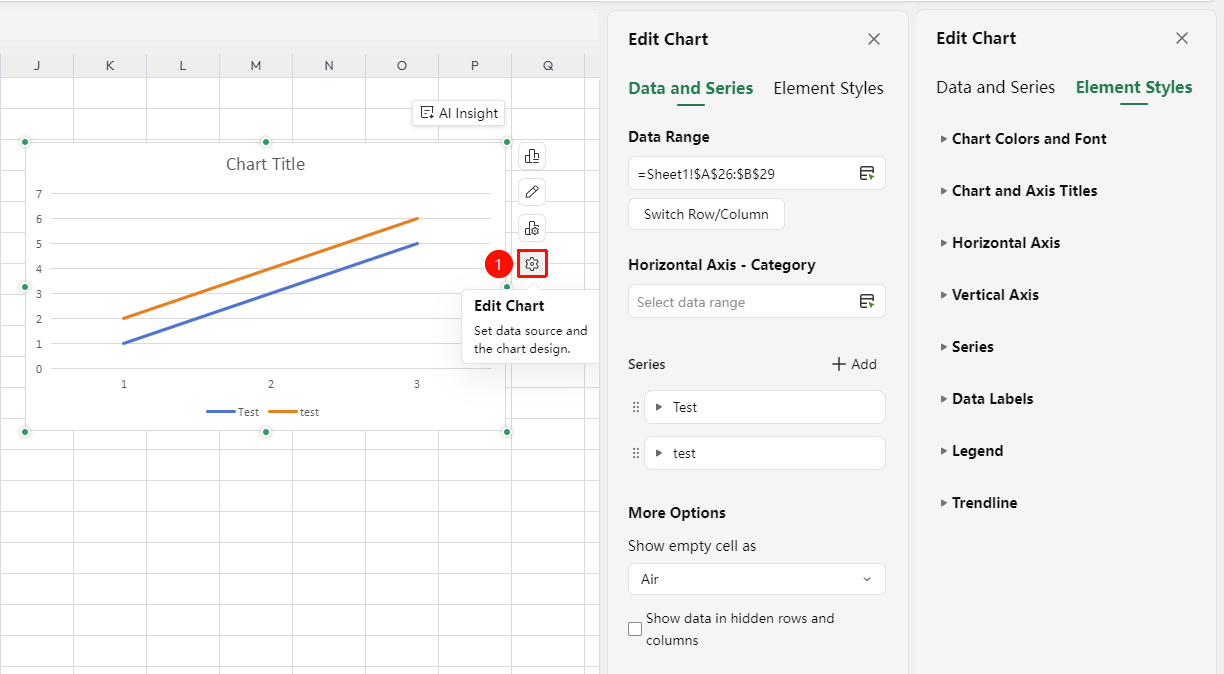
Double-click chart / Click chart → "Edit Chart"
- Double-click the chart or click the chart's "Edit Chart" to open the properties panel
- Configurable properties include:
- Data & Series: Data range, horizontal axis - category, series, etc.
- Chart Element Styles: Color & font, title & axis titles, horizontal/vertical axis, data labels, and so on.
- After modifying in each properties panel, you can preview the effect in real time
Change Chart Type
Feature Entry
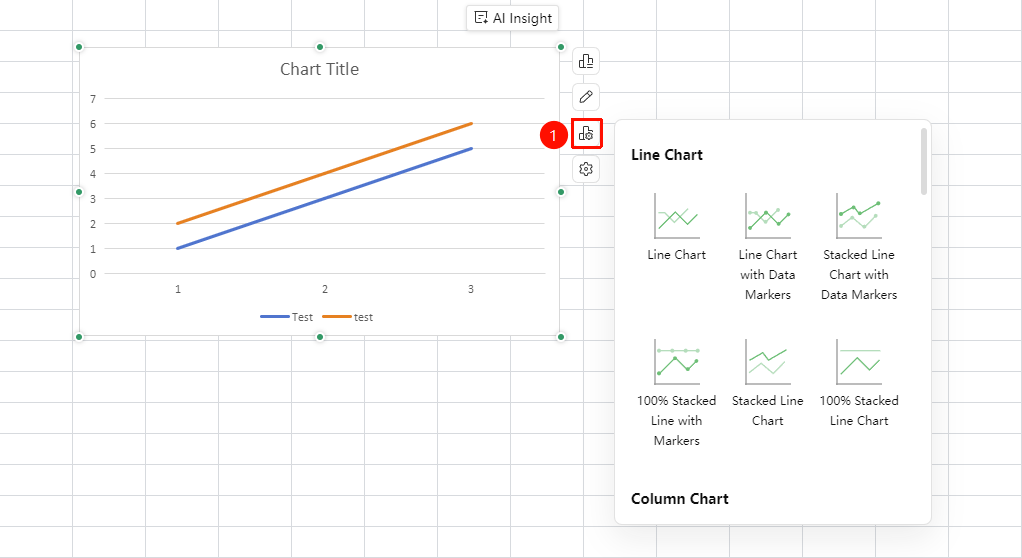
Click "Chart" → "Change Chart Type"
- Select the chart you want to modify
- Right-click the chart area and select "Change Type"
- Select a new chart type in the pop-up panel
- Click OK, and the chart will automatically switch to the new type while retaining the original data
FAQ
Q1: Can others see the chart I edit in collaboration mode?
- Solution: Yes, chart modifications are synced to the cloud in real time. Other online collaborators can see the latest chart after refreshing the page. The chart is part of the document content, and all collaborators share the same chart.
Q2: After updating the data source in the chart, the chart does not change automatically?
- Solution: If you directly modify the values in the data source cells, the chart will update automatically. If the chart does not refresh, you can right-click the chart and select "Refresh Data", or check whether the data range referenced by the chart covers the modified area.
Notes
- Before inserting a chart, ensure the data range includes headers and the numeric column data format is correct
- It is recommended that the team agree on a unified naming convention for chart titles, axis labels, and other text in advance
- Chart property modifications (color, font, layout) will be synced to all collaborators in real time; it is recommended to communicate and confirm before making changes