Feature Summary
Gridlines are a visual aid in WPS Sheets collaboration mode that control whether the dividing lines between cells are displayed. When enabled, they allow clear differentiation between individual cells.
Feature Description
| Feature Dimension | Description |
|---|---|
| Membership Restriction | No membership restriction |
| Version Restriction | No version restriction |
Operation Steps
Show/Hide Gridlines
Feature Entry
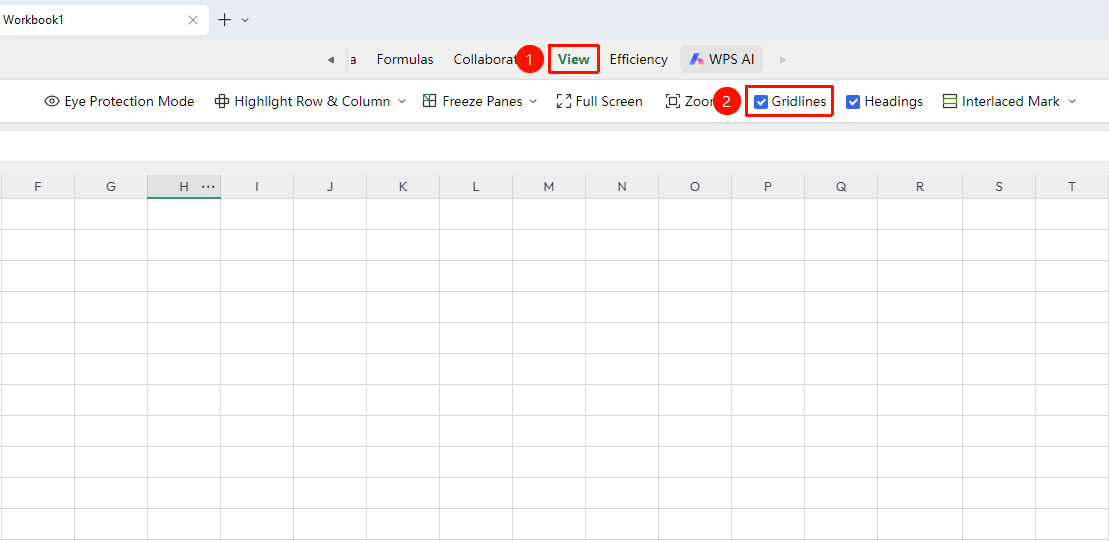
"View" tab → "Gridlines"
- Click the top "View" tab
- Find the "Gridlines" toggle button in the toolbar
- Click to enable (a checked state indicates gridlines are displayed)
- Click again to disable; the cell border lines in the spreadsheet will disappear
- Changes only affect the display of the current worksheet and do not affect other worksheets
Feature Entry ②
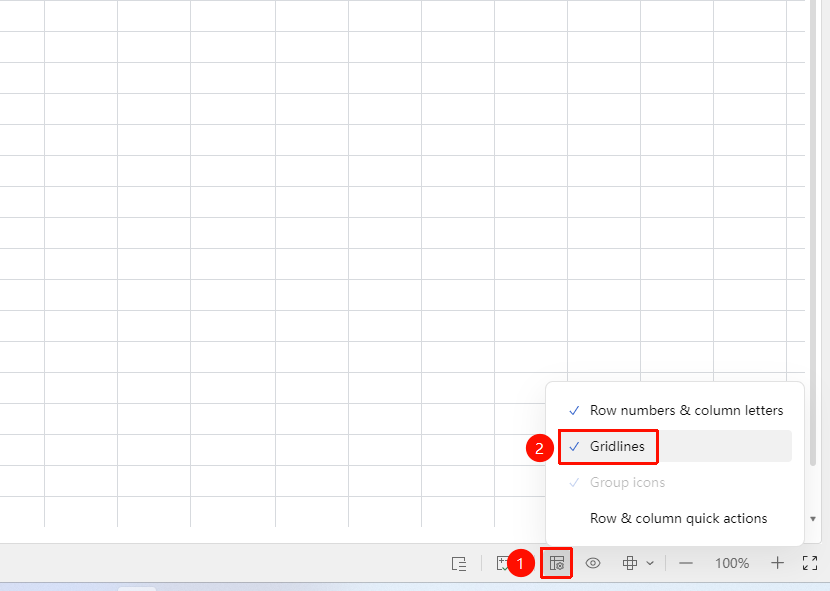
"Display Settings" in the status bar at the bottom of the screen
- Click the "Display Settings" button in the status bar at the bottom right corner of the screen
- Find the "Gridlines" toggle button
FAQ
Q1: What is the difference between gridlines and cell borders?
- Solution: Gridlines are on-screen visual guides; they will not be printed and will not appear in exported files. Cell borders are actual formatting settings that will be printed and displayed in exported files. The two are independent of each other.
Q2: Will turning off gridlines affect the print result?
- Solution: No. Gridlines serve only as an on-screen visual aid and are not displayed by default when printing. If you need to print borders, you must manually set the cell border formatting.
Notes
- Gridline changes only affect the current worksheet; each worksheet can be set independently
- Gridlines are a display-only feature and do not affect data content or export results