Feature Summary
The Row/Column Quick Tools feature displays quick buttons next to column headers, allowing you to drag to swap row/column positions and improve spreadsheet editing efficiency.
Feature Description
| Feature Dimension | Description |
|---|---|
| Membership Restriction | No membership restriction |
| Version Restriction | No version restriction |
Operation Steps
Enabling Row/Column Quick Tools
Feature Entry
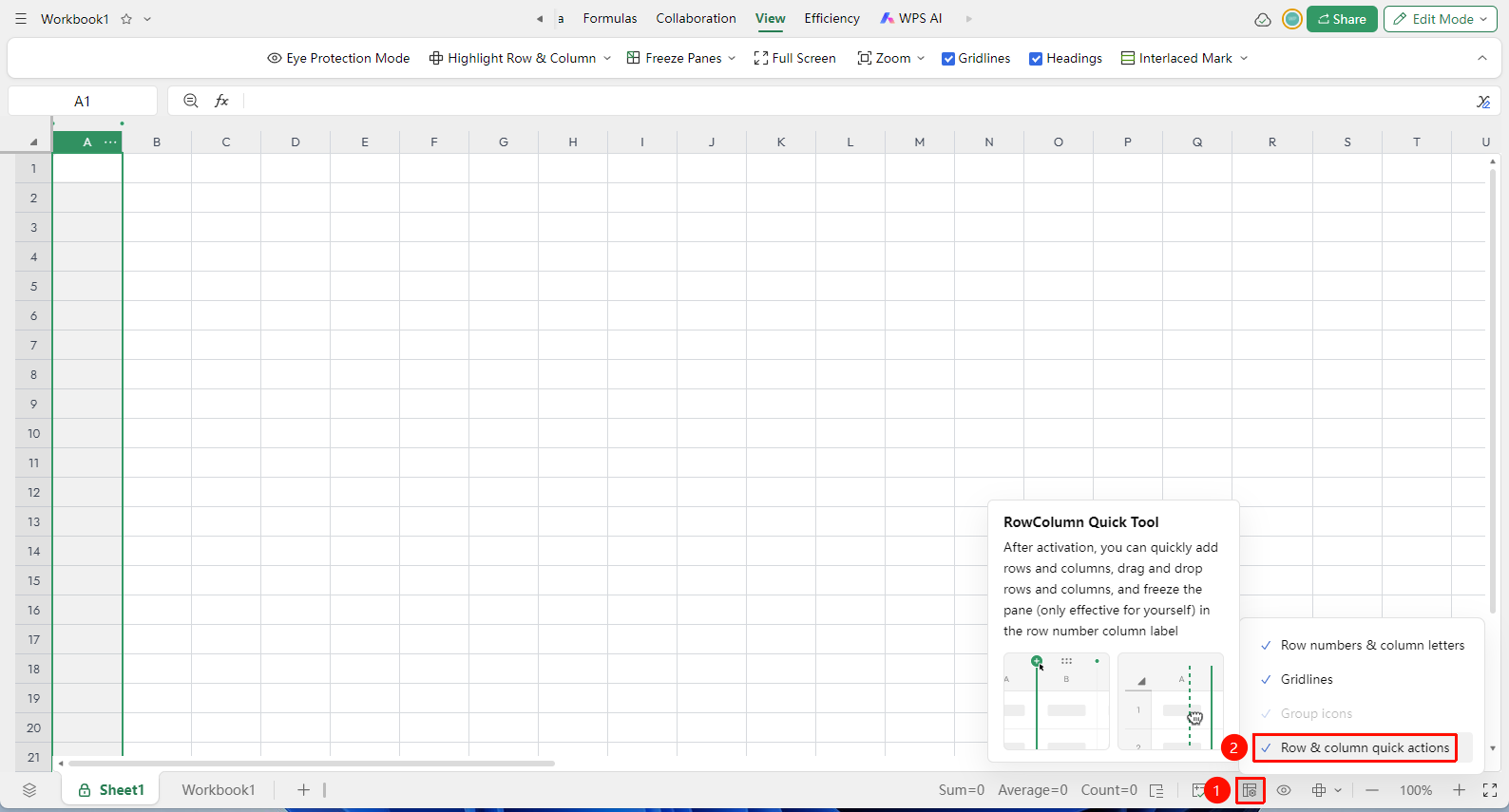
Status bar in the lower-right corner → "Display Settings" → "Row/Column Quick Tools"
- Click "Display Settings" in the status bar at the lower-right corner of the WPS Spreadsheet interface.
- Find the "Row/Column Quick Tools" option in the pop-up menu.
- Check this option to enable the Row/Column Quick Tools.
- After enabling, quick action buttons will appear next to columns/rows.
Quickly Moving/Swapping Rows and Columns
Feature Entry
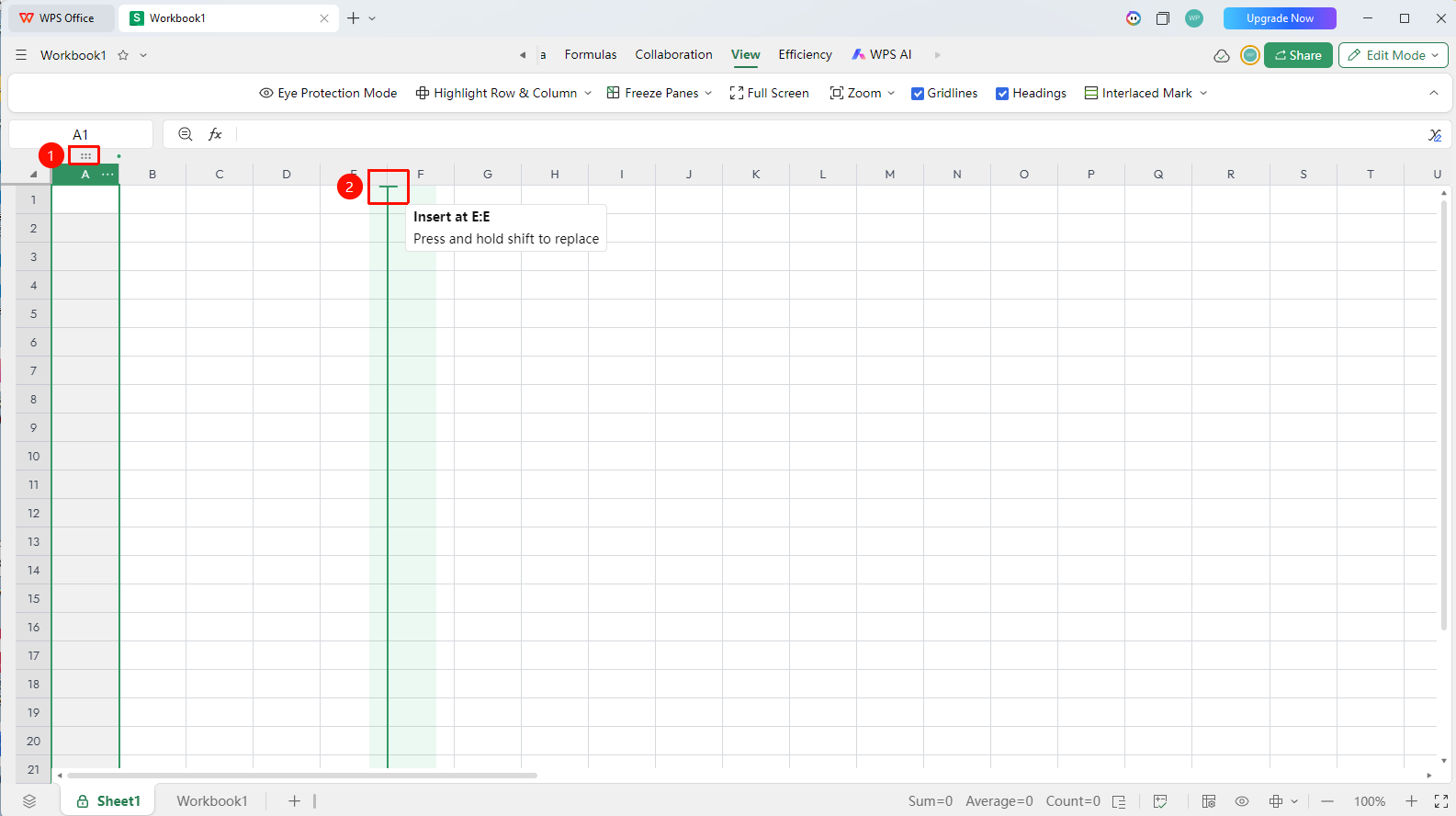
"…" button at the top of the column/row header
- Use the mouse to select the row or column you want to move/overwrite.
- A green quick button with an ellipsis will appear at the top of the column or row.
- Drag the row or column to the desired position to move it there.
- During dragging, an insertion indicator line will appear at the target position.
- Hold down the Shift key on the keyboard to overwrite the original content.
Disabling Row/Column Quick Tools
Feature Entry
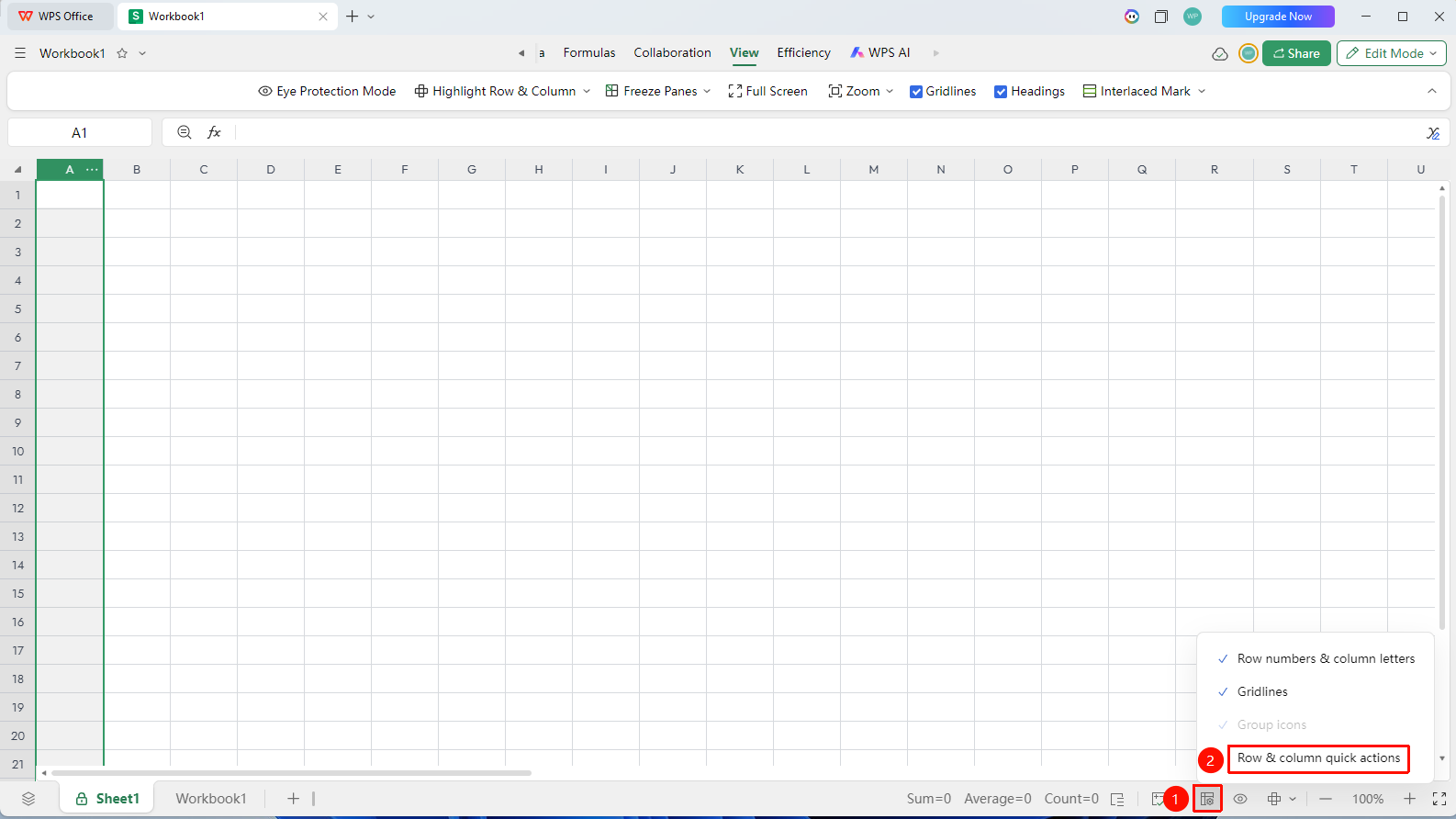
Status bar in the lower-right corner → "Display Settings" → "Row/Column Quick Tools"
- Click "Display Settings" in the status bar at the lower-right corner again.
- Uncheck the "Row/Column Quick Tools" option in the pop-up menu.
- The quick buttons next to the column headers will be hidden.
Notes
- When dragging to swap column positions, you must hold down the Shift key; otherwise, an insertion will be performed (original content shifts backward).
- After disabling the Row/Column Quick Tools, previously inserted columns will not be deleted; only the quick buttons will be hidden.