Feature Summary
The Row Height and Column Width feature supports adjusting the table layout through menu settings, right-click operations, and manual dragging, helping users flexibly control row and column dimensions to enhance data presentation.
Feature Description
| Feature Dimension | Description |
|---|---|
| Membership Restriction | No membership restriction |
| Version Restriction | No version restriction |
Operation Steps
Adjust via the "Rows & Columns" Menu
Feature Entry
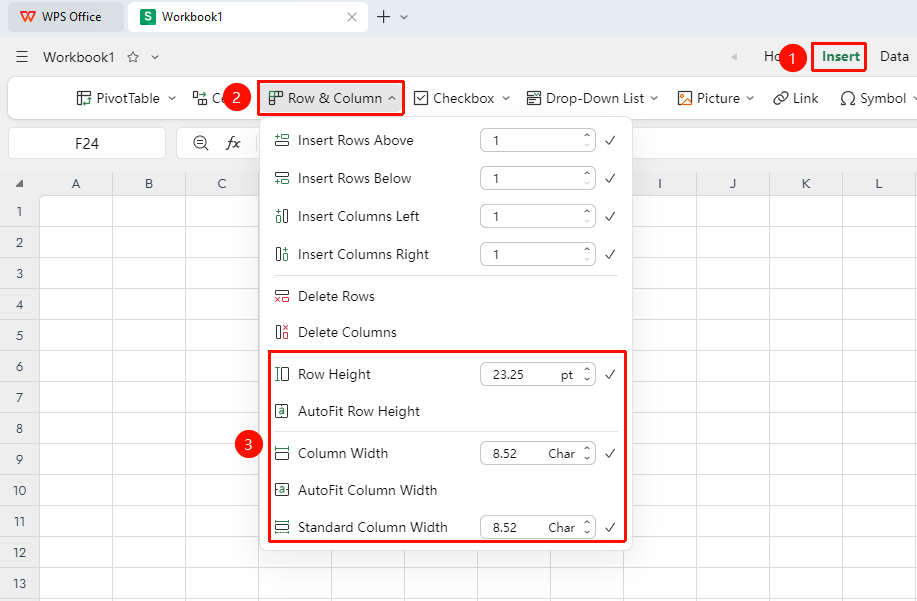
"Insert" tab → "Rows & Columns" dropdown button
- Select the row or column you want to adjust
- Click the "Rows & Columns" dropdown button in the "Insert" tab
- In the dropdown menu, you can perform the following row height and column width settings:
- "Row Height": Enter a value to set the row height precisely (unit: points), default is 13.5 points
- "AutoFit Row Height": The system automatically adjusts the row height based on the content height
- "Column Width": Enter a value to set the column width precisely (unit: characters), default is 8.18 characters
- "AutoFit Column Width": The system automatically adjusts the column width based on the content width
- "Standard Column Width": Resets the column width to the standard default width (8.18 characters)
- After entering the target value in the corresponding value box, click the confirm button (√) to apply
Adjust via the Right-Click Shortcut Menu
Feature Entry
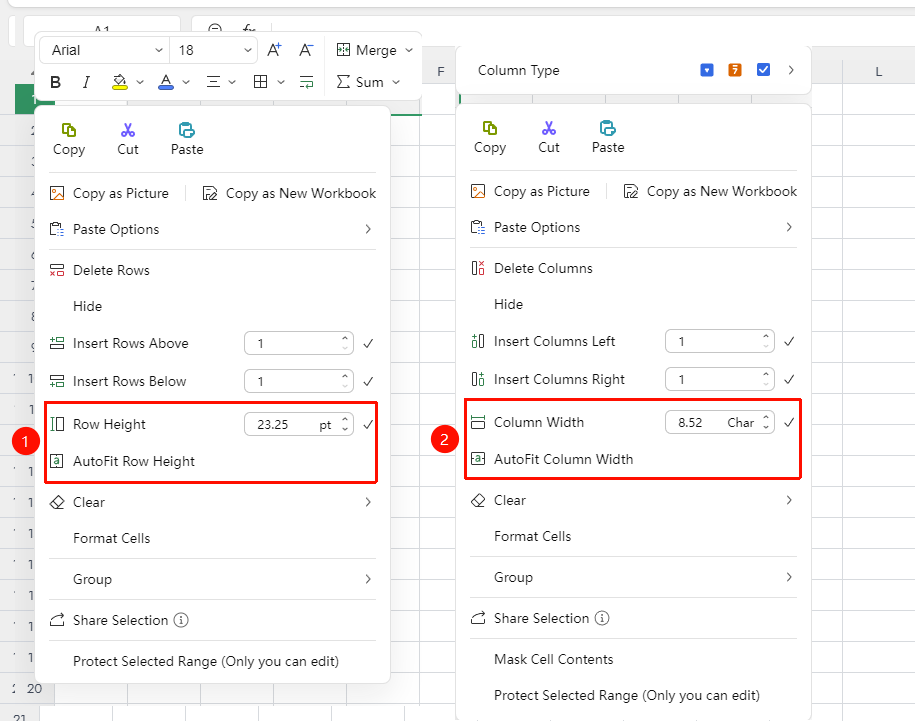
Right-click the row number/column header
- Select the target row or column, right-click to open the context menu
- Available operations:
- Right-click the row number: Select "Row Height" to enter a value and adjust the row height, or select "AutoFit Row Height" for automatic adjustment
- Right-click the column header: Select "Column Width" to enter a value and adjust the column width, or select "AutoFit Column Width" for automatic adjustment
- After entering the target value, click the confirm button (√) to apply
FAQ
Q1: What should I do if the row height value is inaccurate after setting?
- Solution: The unit for row height is "points" (1 point ≈ 0.035 cm). If you need an exact value in centimeters, convert it first before entering.
Q2: Why are all row heights/column widths the same after batch adjustment?
- Solution: Dragging the separator line will set all selected areas to the same size. If you need to adjust them individually, drag row by row/column by column or use "AutoFit Row Height" for automatic adjustment.
Q3: How can I quickly reset all columns to the default width?
- Solution: Select all columns, click "Insert" → "Rows & Columns" → "Standard Column Width" to restore all columns to the default standard width (8.18 characters) with one click. This option is not available in the right-click context menu.
Notes
- The maximum column width is 255 characters, and the maximum row height is 409 points
- "Standard Column Width" is only available in the "Insert" → "Rows & Columns" menu, not in the right-click context menu
- Using "AutoFit Row Height/Column Width" can automatically adapt to multi-line or wide text content.
- The settings in the "Rows & Columns" menu are consistent with those in the right-click menu. The difference is that the "Rows & Columns" menu additionally includes adding/deleting rows and columns and the standard column width.