Feature Summary
WPS Sheets Collaboration Mode supports quickly applying preset table styles, beautifying the table appearance with one click and enhancing data presentation.
Feature Description
| Feature Dimension | Description |
|---|---|
| Membership Restriction | No membership restriction |
| Version Restriction | No version restriction |
Operation Steps
Apply Preset Table Styles
Feature Entry
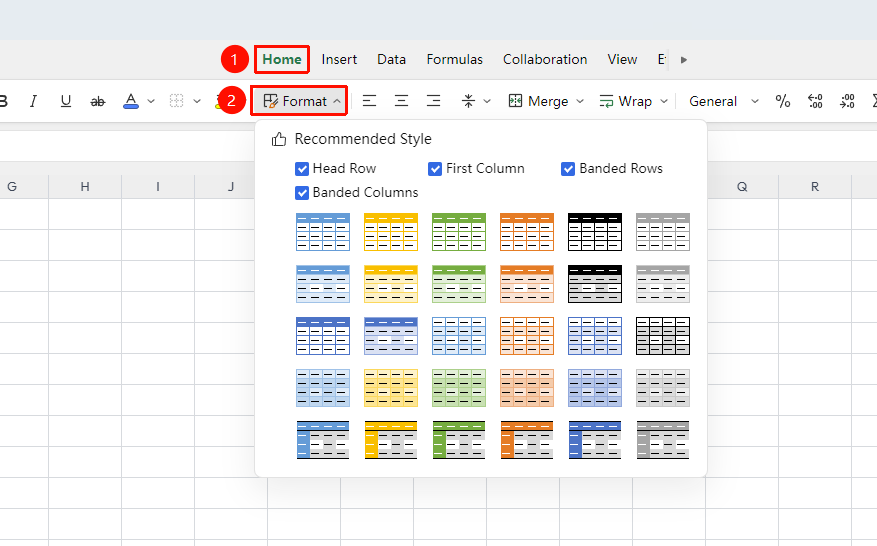
"Home" tab → "Table Styles"
- Select the entire table area where you want to apply the style
- Click the "Table Styles" button in the "Home" tab
- Choose a preset style from the expanded style gallery and click to apply it directly
- You can select "First Column Fill", "First Row Fill", "Alternate Row Fill", or "Alternate Column Fill" styles and preview the style in real time
Frequently Asked Questions
Q1: Can styles and manual formatting be overlaid?
- Solution: After applying a style, you can still manually modify cell formatting, but applying a new style again will overwrite previous manual settings.
Q2: How to remove an applied style and restore the original formatting?
- Solution: After selecting the cells, click the "Clear Formatting" button, and the style will be restored to the default format.
Q3: How do styles affect printing?
- Solution: All cell styles (fill color, borders, font formatting) will be printed completely. It is recommended to preview and confirm the effect before printing.
Notes
- All operations are synchronized in real time in collaboration mode; please maintain communication with team members
- If you encounter restricted operations, check whether there are editing locks or area permission restrictions
- It is recommended to regularly back up important content through "Version History" to prevent accidental operations