Feature Summary
The Calculation Options feature is used to control the calculation behavior of formulas in collaborative spreadsheets, balancing calculation performance and data accuracy when processing large amounts of formula data.
Feature Description
| Feature Dimension | Description |
|---|---|
| Membership Restrictions | No membership restrictions |
| Version Restrictions | No version restrictions |
Operation Steps
Finding the Calculation Options Feature Entry
Feature Entry
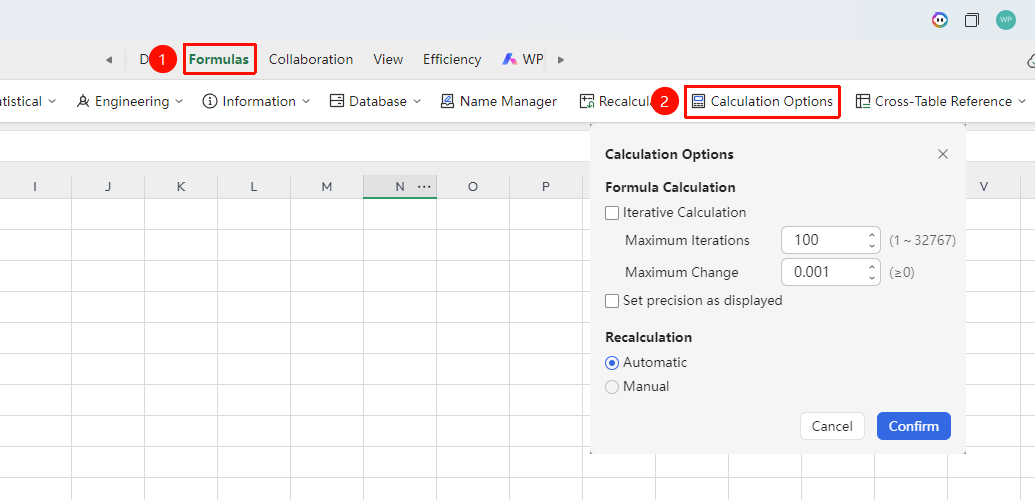
"Formulas" tab → "Calculation Options" button
- Click the top "Formulas" tab
- Find the "Calculation Options" button in the toolbar
- Click to open the "Calculation Options" dialog box, which contains two main setting areas: "Formula Calculation" and "Recalculation"
Formula Calculation Settings
Feature Entry
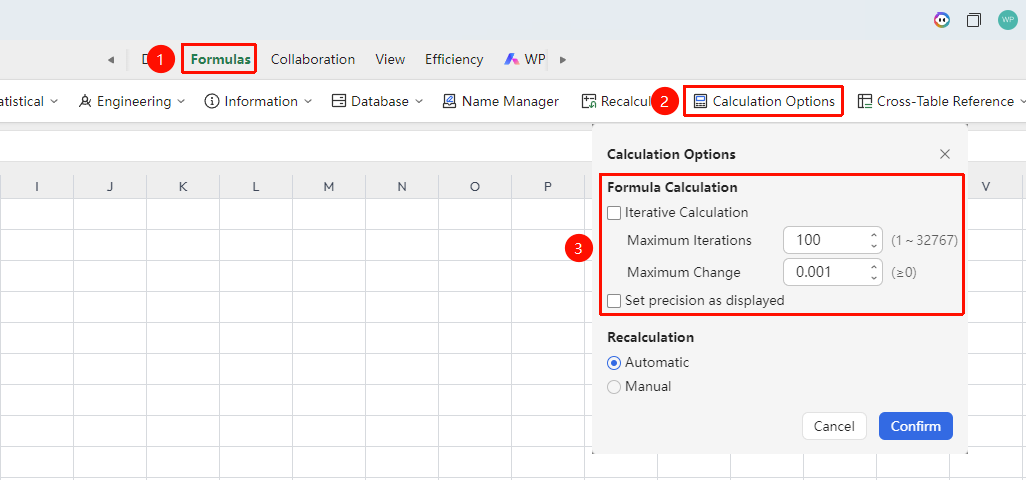
Calculation Options dialog box → "Formula Calculation" area
Iterative Calculation Parameters:
| Setting Item | Description | Default Value |
|---|---|---|
| Iterative Calculation | Check to enable iterative calculation, allowing circular references in formulas to approximate results through multiple iterations | Unchecked by default |
| Maximum Iterations | Sets the maximum number of cycles for iterative calculation | 100 (range 1~32767) |
| Maximum Error | Sets the convergence precision for iterative calculation; stops when the difference between two iteration results is less than this value | 0.001 (≥0) |
Precision Control:
| Setting Item | Description |
|---|---|
| Calculate with Displayed Precision | When checked, formula calculation results will be truncated according to the cell's displayed precision before participating in subsequent calculations. For example, if a cell displays 0.1 (actual value is 0.1234), 0.1 will be used in calculations |
Operation Steps:
- If you need to enable iterative calculation, check the "Iterative Calculation" checkbox
- Adjust the "Maximum Iterations" value (using the up/down arrows on the right or by direct input)
- Adjust the "Maximum Error" value
- If you need to calculate with displayed precision, check "Calculate with Displayed Precision"
- After completing the settings, they need to be used in conjunction with the settings in the "Recalculation" area to take effect
Switching Recalculation Mode
Feature Entry
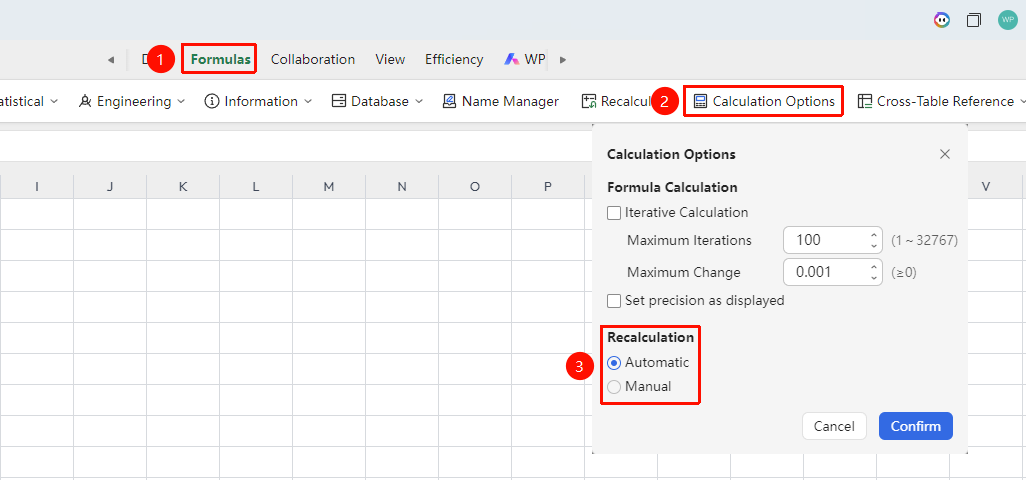
Calculation Options dialog box → "Recalculation" area
| Setting Item | Description |
|---|---|
| Automatic Recalculation | Selected by default. When the data in a referenced cell changes, all dependent formulas are automatically recalculated |
| Manual Recalculation | When switched, modifying data will not automatically trigger formula updates. Formulas are only recalculated after pressing F9 or clicking the "Recalculate" button |
Operation Steps:
- In the "Recalculation" area, select the "Automatic Recalculation" or "Manual Recalculation" radio button
- Click the "OK" button in the lower right corner to save all settings
- After switching to manual mode, a prompt message will be displayed in the status bar
- In manual mode, click the "Formulas" → "Recalculate" button, or press F9 to immediately recalculate formulas in all worksheets
- Press Shift+F9 to recalculate only the formulas in the currently active worksheet
Frequently Asked Questions
Question 1: Will switching the calculation mode affect other collaborators?
- Solution: Yes, the calculation option is a document-level setting. After switching, all collaborators will be affected. In manual mode, formulas will not update automatically when others modify data until someone presses F9. It is recommended to communicate and confirm with the team before switching.
Question 2: After enabling iterative calculation, what should I do if the circular reference does not converge?- Solution: Increase the "Maximum number of iterations" or raise the "Maximum error" value to accelerate convergence. If the formula itself contains logical errors that prevent convergence, check the formula logic. For scenarios that do not require iterative calculation, uncheck "Iterative calculation" to restore normal circular reference error prompts.
Problem 3: What should I do if automatic recalculation takes too long?
- Solution: Check the amount of data involved in calculations within the sheet, or perform a calculation diagnostic. You can also split the sheet to reduce the calculation load before performing automatic recalculation.
Notes
- The default mode is automatic calculation. Ensure all collaborators understand the current mode before operating.
- After switching to manual calculation, the system will prompt whether to recalculate all formulas when closing the document.
- "Precision as displayed" will permanently affect formula calculation results. Only check this option when you are sure it is needed.