Feature Summary
WPS Sheets collaboration mode supports adding, modifying, or deleting border lines for cells, enhancing the visual hierarchy and readability of the spreadsheet.
Feature Description
| Feature Dimension | Description |
|---|---|
| Membership Restriction | No membership restriction |
| Version Restriction | No version restriction |
Operation Steps
Quickly Apply Preset Borders
Feature Entry
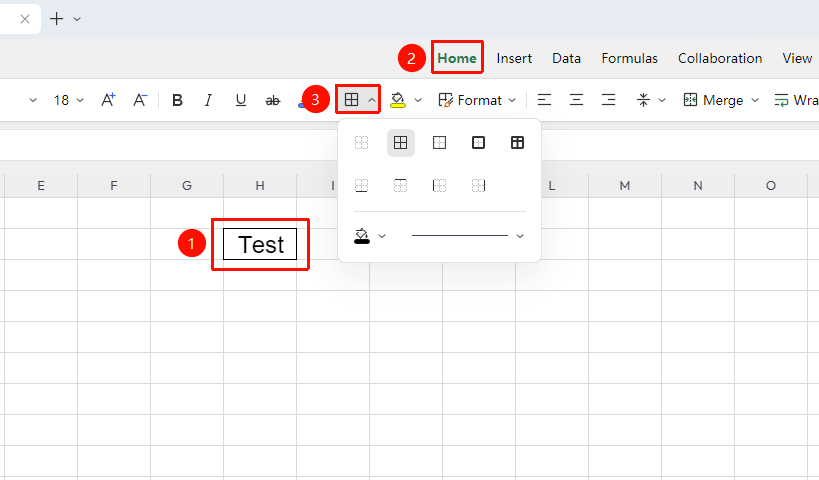
"Home" tab → "Borders" button
- Select the cell range where you want to add borders
- Click the drop-down arrow of the "Borders" (grid icon) button in the "Home" tab
- Choose a preset style from the list: All Borders, Outside Borders, Inside Borders, etc., to apply it
- You can click "Line Color" or "Line Style" to view more border colors and styles
Custom Border Styles
Feature Entry
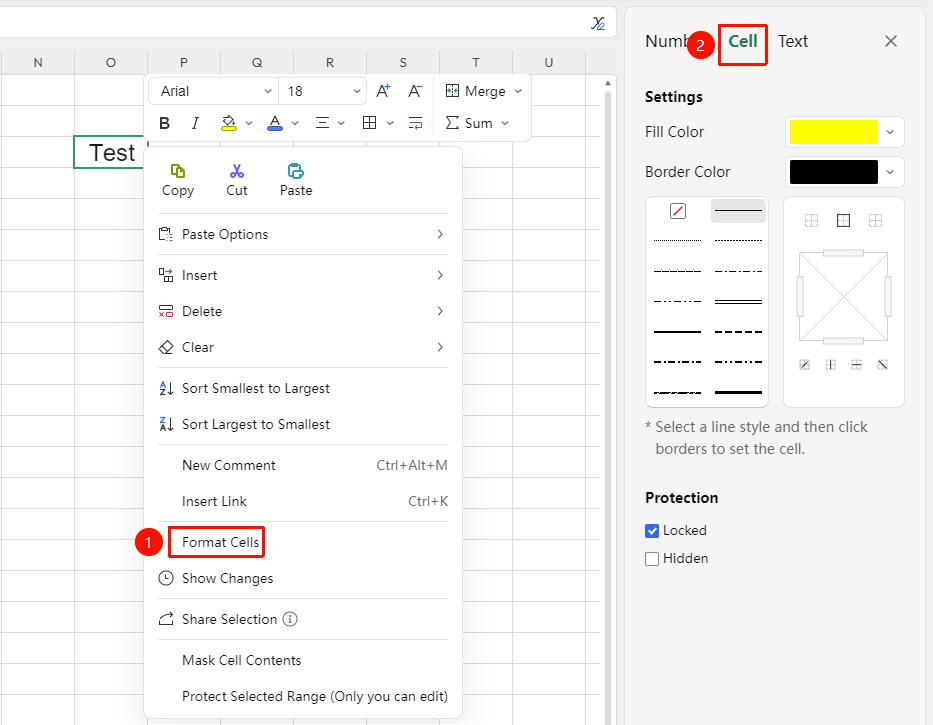
Right-click → "Format Cells" → "Border"
- Select the target cell range and right-click to bring up the context menu
- Select "Format Cells" from the context menu to open the side panel on the right
- Switch to the "Cell" tab, and choose the line type, color, and thickness in the "Line" section
- Choose an overall layout in the Presets section, or click corresponding positions in the diagram area to control each edge individually
Delete Border Lines
Feature Entry
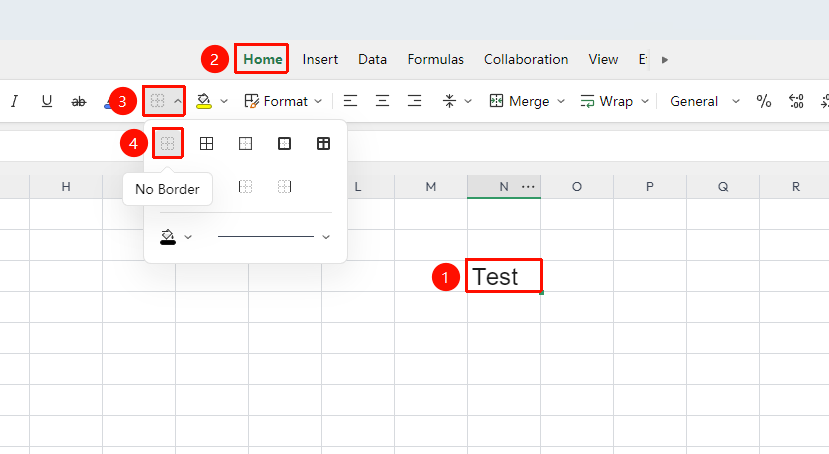
"Home" tab → "Borders" button
- Select the range from which you want to clear borders
- Click "Home" → "Borders" drop-down menu, and select "No Border" to clear all with one click
- If you only need to delete a specific edge, choose the corresponding option such as "No Left Border"
Frequently Asked Questions
Will modifying borders in collaboration mode affect others?
- Solution: Changes are synced in real-time to all collaborators. It is recommended to coordinate formatting standards before applying them uniformly.
How to modify only part of the borders without affecting the whole?
- Solution: Go to "Format Cells" → "Border" tab, and click on a specific edge line in the diagram area to toggle it on or off.
Notes
- Gridlines and borders are two different concepts; gridlines are only on-screen visual aids
- When printing, only borders will be printed; gridlines will not be printed
- You can set different styles and colors for border lines at different edge positions