Feature Summary
WPS Sheets supports inserting sparklines in collaboration mode, displaying data trends or distributions as miniature charts within cells without creating a full chart area, making it easy to quickly overview data trends in a data table.
Feature Description
| Feature Dimension | Description |
|---|---|
| Membership Restriction | No membership restriction |
| Version Restriction | No version restriction |
Operation Steps
Insert Sparkline
Feature Entry
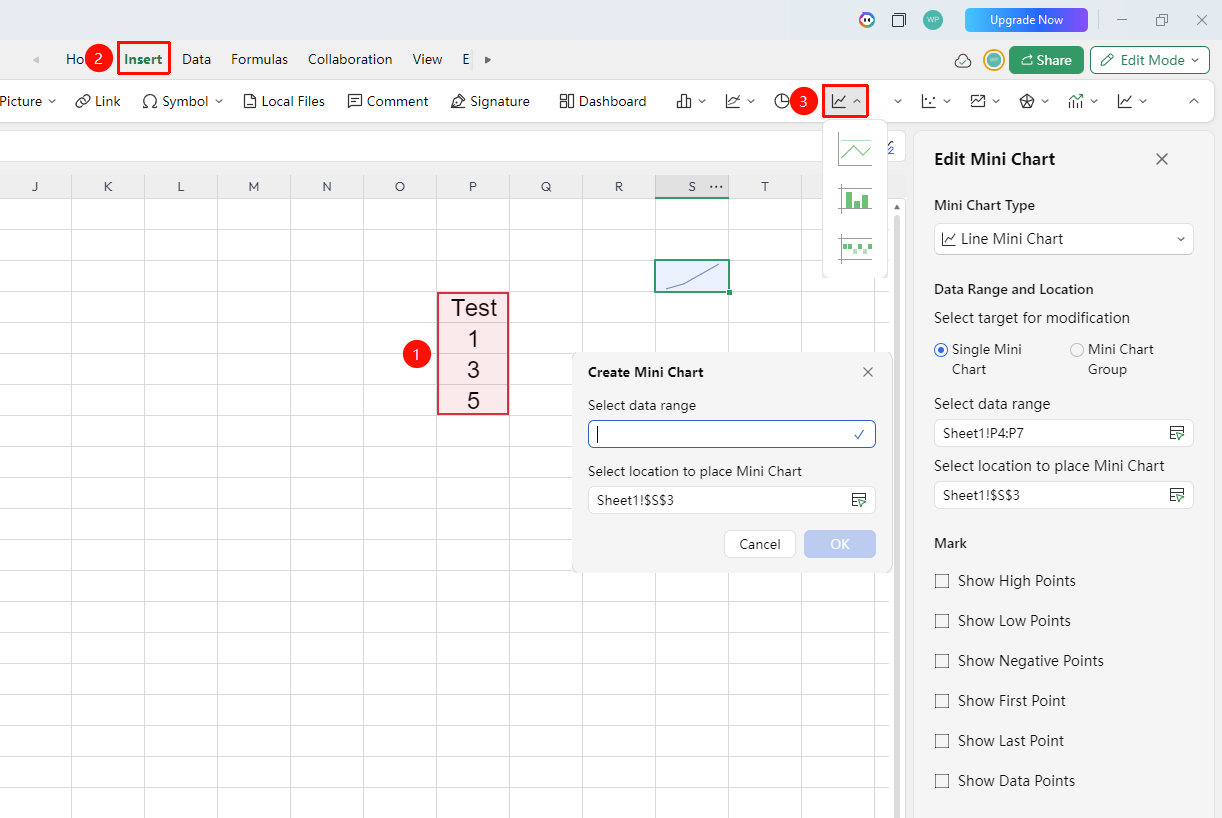
"Insert" tab → "Charts" → "Sparklines"
- Select the cell range containing data (ensure it includes category headers and values)
- Click the "Insert" tab, select "Sparklines"
- Then select a specific subtype (Line Sparkline, Column Sparkline, Win/Loss Sparkline)
- In the pop-up panel, set the sparkline's Data Range and Location to Place Sparkline
- After confirmation, the sparkline will be embedded and displayed in the selected cell
FAQ
Q1: What is the difference between a sparkline and a regular chart?
- Solution: A sparkline is embedded in a cell and is a miniature chart that only shows trends without axes or legends; a regular chart is an independent chart object containing complete elements such as legends and axes. Sparklines are suitable for quickly browsing trends within a table, while regular charts are suitable for in-depth analysis.
Q2: Can multiple sparklines be inserted into one cell?
- Solution: Only one sparkline can be inserted per cell. If you need to display sparklines in multiple cells, you can select the target cells individually and insert them one by one, or batch-select multiple target cells and uniformly insert the same sparkline data.
Q3: What chart types are supported by sparklines?
- Solution: Sparklines support three types: Line Sparkline (shows trends), Column Sparkline (shows comparisons), and Win/Loss Sparkline (shows positive/negative comparisons). You can choose the appropriate type based on data characteristics.
Notes
- Each sparkline requires an independent data source range and target cell to be specified
- Modifications to sparklines in collaboration mode are visible to all collaborators in real time
- Sparklines are suitable for quickly overviewing data trends in a table; detailed analysis still requires the use of full charts