Feature Summary
Alternating row marking is a visual optimization feature in WPS Sheets collaboration mode. It automatically adds a different background color to every other row, improving data readability and making it ideal for large datasets.
Feature Description
| Feature Dimension | Description |
|---|---|
| Membership Restriction | No membership restriction |
| Version Restriction | No version restriction |
Steps
Enabling Alternating Row Marking
Feature Entry
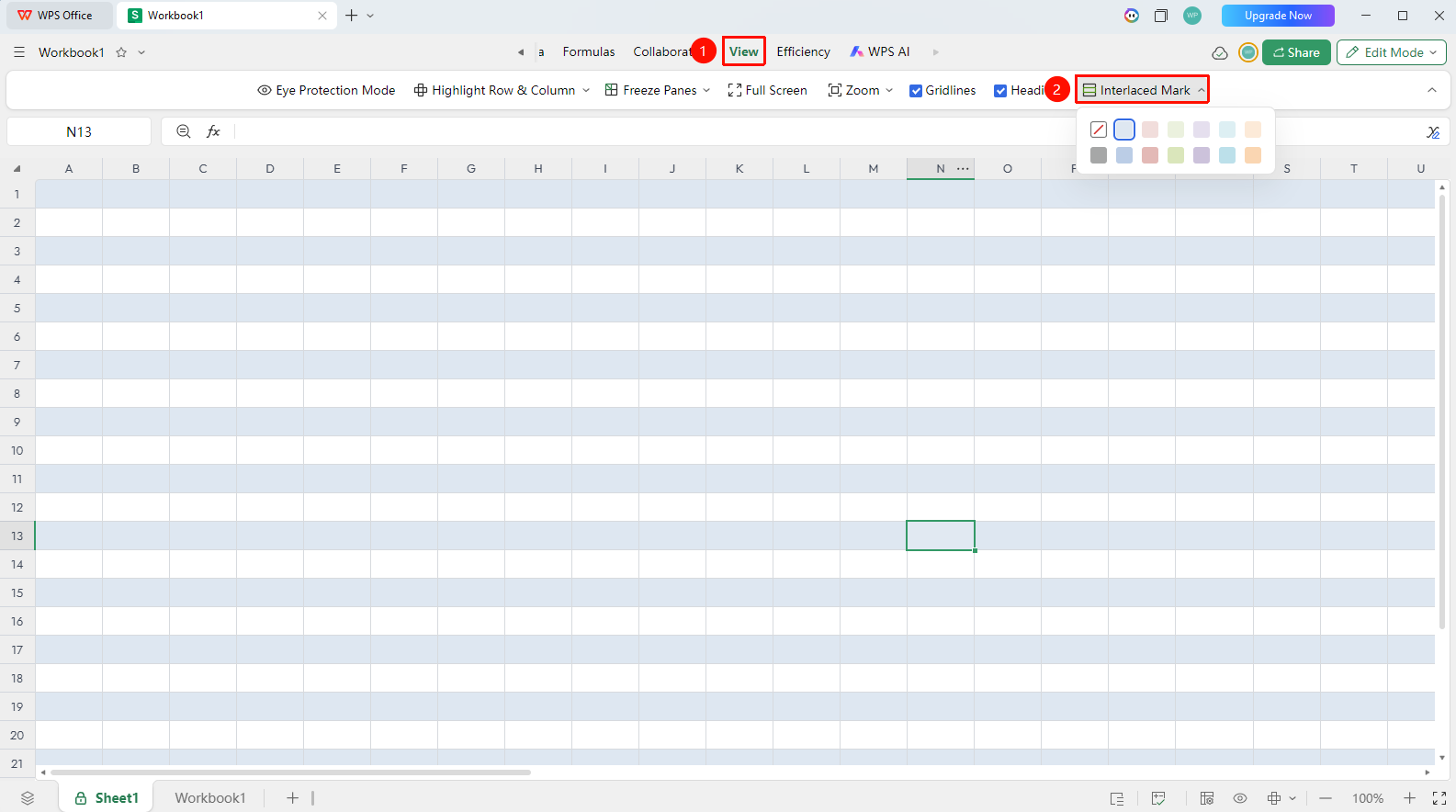
"View" tab → "Alternating Row Marking"
- Click the top "View" tab
- Find and click the "Alternating Row Marking" button in the toolbar
- The spreadsheet immediately displays the alternating row marking effect; click again to disable alternating row marking
- The right-side dropdown menu allows you to select a custom color scheme
FAQ
Q1: Does alternating row marking affect data content?
- Solution: No. Alternating row marking is only a visual display effect. It merely adds a temporary background color to cells and does not affect the actual data content or change cell formatting.
Q2: Will alternating row marking be printed together with the spreadsheet?
- Solution: No. Alternating row marking is a visual aid for on-screen display and is not output by default when printing. If you need a striped effect when printing, you must manually set a background fill format for the cells.
Q3: Does the alternating row marking setting take effect for all collaborators?
- Solution: No. Alternating row marking is a local display setting. Each collaborator can enable or disable it independently without affecting the display status of other users.
Notes
- Alternating row marking only changes the display effect of the current worksheet
- Works best when combined with table styles to enhance the spreadsheet's aesthetics
- Alternating row marking only affects the display; this visual effect is not included when importing/exporting files