Feature Summary
WPS Sheets supports inserting area charts in collaboration mode, using filled regions to display data trends over time, emphasizing the range and total amount of value changes, and intuitively presenting the overall data trajectory.
Feature Description
| Feature Dimension | Description |
|---|---|
| Membership Restriction | No membership restriction |
| Version Restriction | No version restriction |
Operation Steps
Inserting an Area Chart
Feature Entry
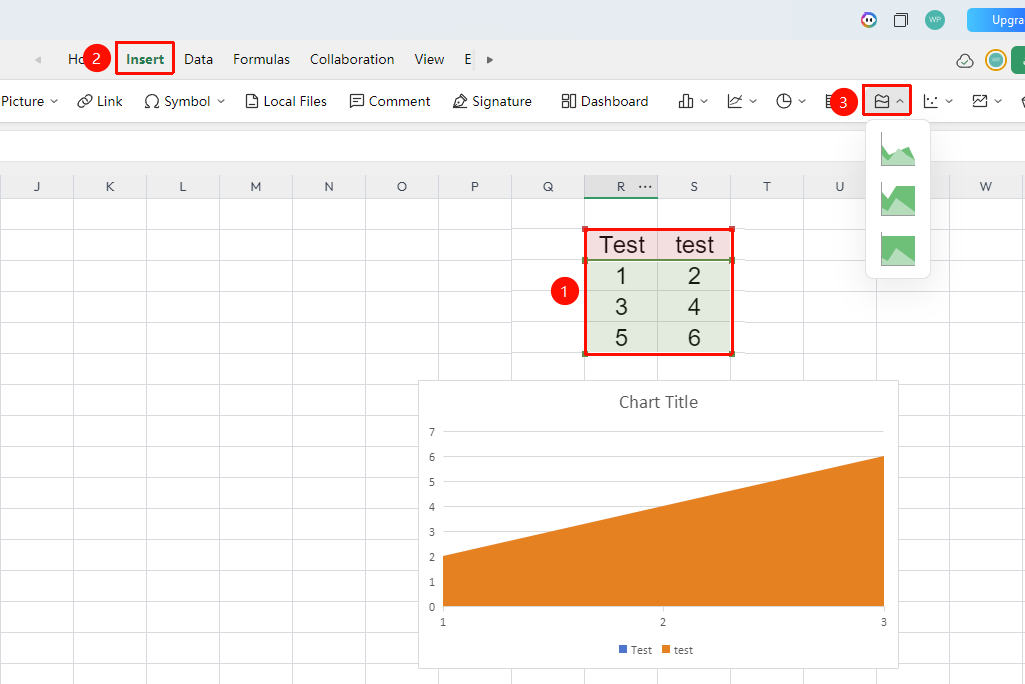
"Insert" tab → "Chart" → "Area Chart"
- Select the cell range containing data (ensure category headers and values are included)
- Click the "Insert" tab, then select "Area Chart"
- Choose a specific subtype (Area Chart, Stacked Area Chart, 100% Stacked Area Chart, and so on.)
- The area chart will be generated automatically; you can drag to adjust its position and size
FAQ
Q1: What is the difference between an area chart and a line chart?
- Solution: A line chart only uses lines to show trends, whereas an area chart fills the space below the line with color, placing greater emphasis on the magnitude of value changes and total variation, making it visually more impactful than a line chart.
Q2: What are the requirements for selecting data series in an area chart?
- Solution: Area charts require data to be arranged continuously by time or category. The horizontal axis is typically a time series, and the value axis represents continuously changing numerical values, making it suitable for displaying cumulative trends or total changes.
Notes
- Area charts are suitable for emphasizing the total amount and trend of data over time, but not for comparing discrete categories
- Multiple series in an area chart can cause overlapping effects, which can be optimized by adjusting transparency or switching to a stacked area chart
- Data for area charts should be continuous; they are not recommended for discrete data with significant fluctuations