Feature Summary
WPS Sheets supports inserting pie charts in collaboration mode, displaying a set of categorical data as sectors to show the proportion of each part relative to the whole. This is suitable for presenting data distribution and proportion.
Feature Description
| Feature Dimension | Description |
|---|---|
| Membership Restriction | No membership restriction |
| Version Restriction | No version restriction |
Operation Steps
Insert a Pie Chart
Feature Entry
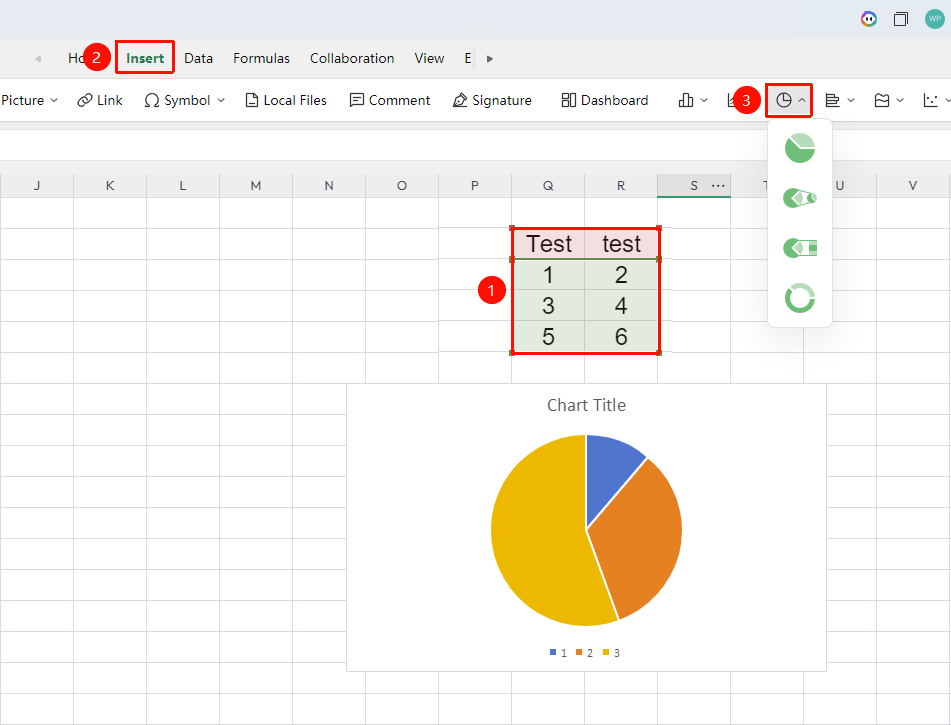
"Insert" tab → "Chart" → "Pie Chart"
- Select the cell range containing data (ensure category titles and values are included)
- Click the "Insert" tab, then select "Pie Chart"
- Choose a specific subtype (Pie Chart, Pie of Pie, Bar of Pie, and so on.)
- The pie chart will be automatically generated; you can drag to adjust its position and size
FAQ
Q1: What data analysis scenarios are pie charts suitable for?
- Solution: Pie charts are suitable for showing the proportional relationship of parts to a whole, such as sales share, market share, and cost composition. The sector area intuitively reflects the relative size of each data item.
Q2: What is the maximum number of data items a pie chart can display?
- Solution: It is recommended to limit the number of data items in a pie chart. When there are too many items, the sectors become too small to distinguish. In such cases, consider merging minor data into an "Other" category.
Notes
- Pie charts are used to show proportional relationships and are not suitable for comparing absolute value differences between multiple variables
- The sum of all sector data should equal the whole (100%), otherwise the chart proportions will be distorted
- In collaboration mode, modifications to the pie chart are visible to all collaborators in real time
- Pay attention to distinguishing the application scenarios of pie charts and doughnut charts