Feature Summary
Row and column highlighting is a visual aid in WPS Sheets collaboration mode. It adds color highlighting to the row and column of the currently selected cell, helping users quickly locate their position in large data tables.
Feature Description
| Feature Dimension | Description |
|---|---|
| Membership Restriction | No membership restriction |
| Version Restriction | No version restriction |
Steps
Enabling Row and Column Highlighting
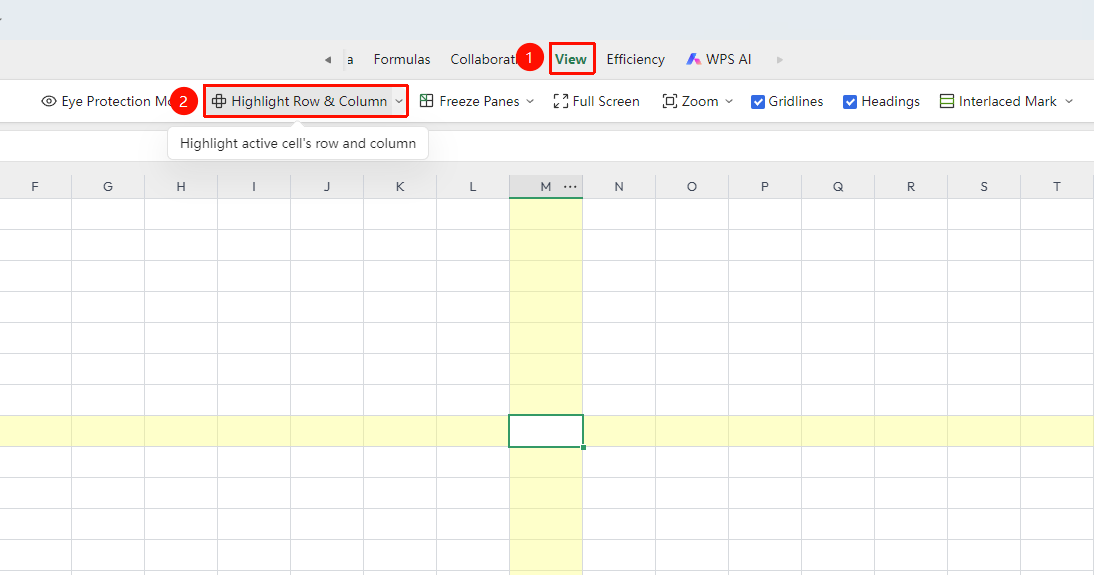
Feature Entry ①
"View" tab → "Row and Column Highlighting"
- Click the top "View" tab
- Find the "Row and Column Highlighting" toggle in the toolbar
- Click to enable; click again to disable
- When any cell is selected, its row and column will automatically be marked with color highlighting
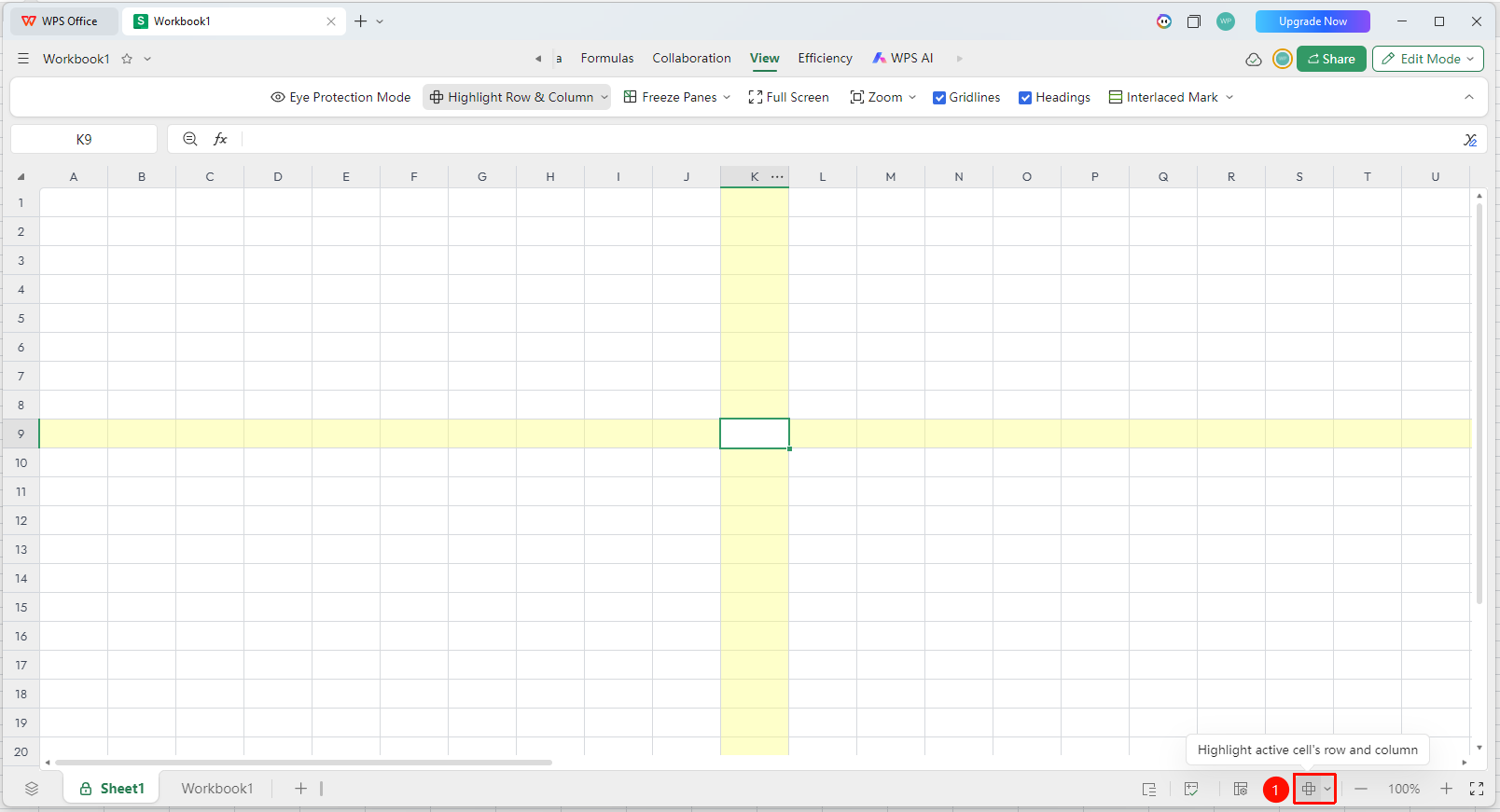
Feature Entry ②
Bottom status bar "Row and Column Highlighting"
- Click the "Row and Column Highlighting" toggle on the bottom status bar
- Click to enable; click again to disable
- When any cell is selected, its row and column will automatically be marked with color highlighting
Customizing Highlight Color
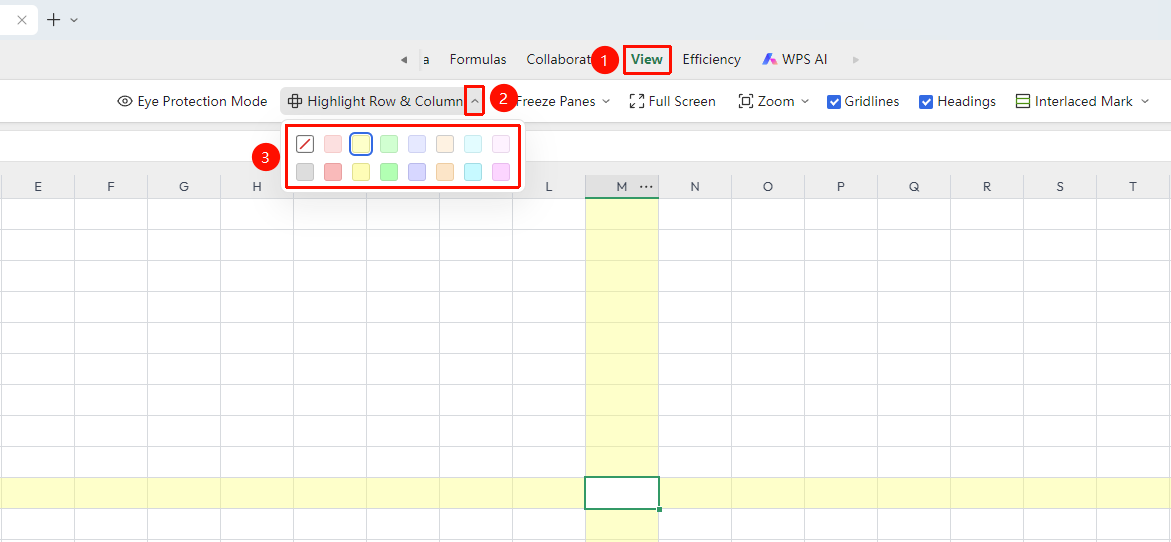
Feature Entry
"View" tab → "Row and Column Highlighting" → "Custom Color"
- Click the dropdown arrow next to the "Row and Column Highlighting" toggle
- Select a custom color
- The selected color will be applied to the row and column highlighting effect
- You can choose a color with suitable contrast based on personal preference
FAQ
Q1: Does row and column highlighting affect printing?
- Solution: No, it does not. Row and column highlighting is only a visual aid for screen display and will not appear in printouts. You can use it with confidence.
Q2: Does row and column highlighting apply to all collaborators in collaboration mode?
- Solution: Each collaborator can independently toggle the highlighting effect without affecting the display status of others.
Notes
- Row and column highlighting only changes the screen display and does not affect data content
- The row and column highlighting effect will not be included when printing or exporting images
- It is recommended to enable this feature when working with large data tables to quickly locate data positions