Feature Summary
The Cell Style feature provides preset formatting combinations that can be quickly applied to cells, including number format, font, border, fill, etc., improving formatting efficiency.
Feature Description
| Feature Dimension | Description |
|---|---|
| Membership Restriction | No membership restriction |
| Version Restriction | No version restriction |
Operation Steps
Apply Cell Style
Feature Entry
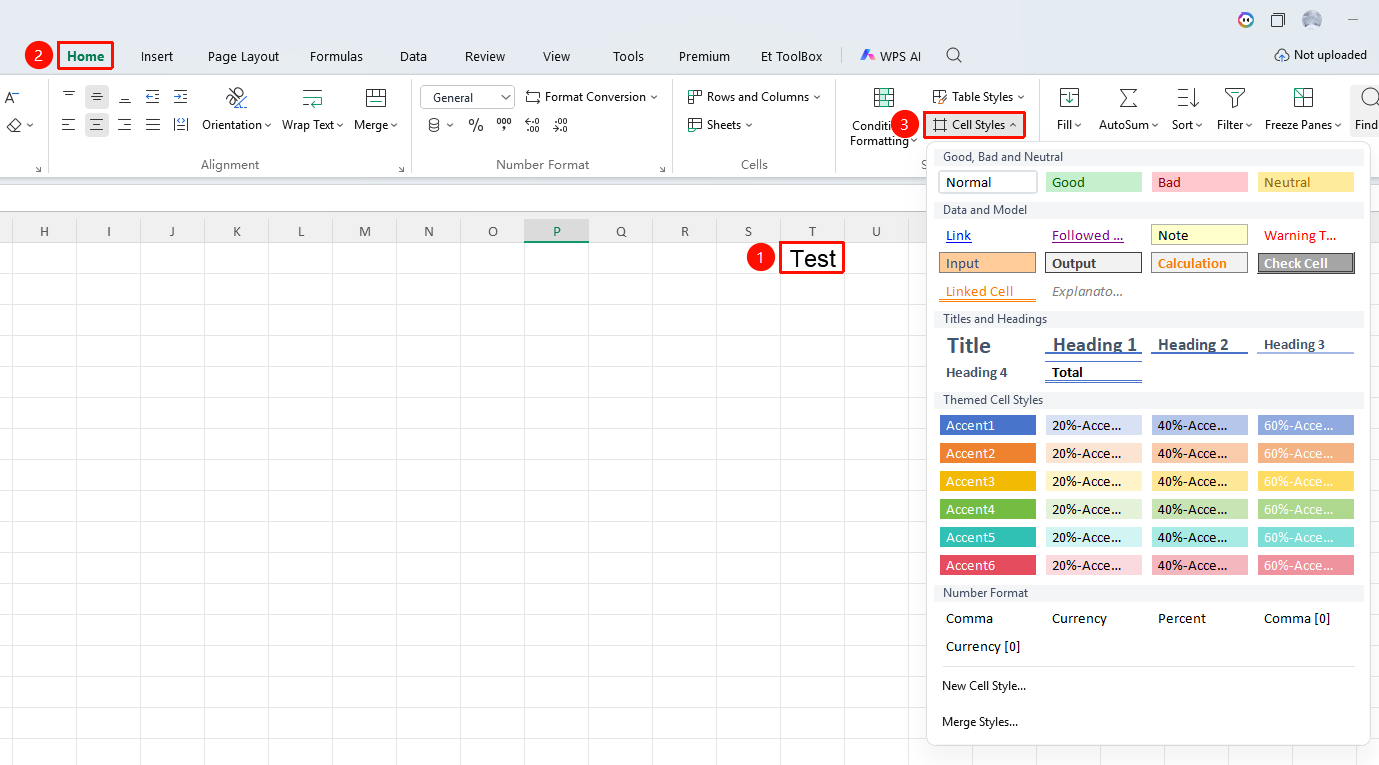
"Home" tab → "Cell Styles" drop-down menu
- Select the cell(s) to which you want to apply the style
- Click the "Cell Styles" button in the Home tab
- Choose the desired style from the style gallery (Good, Bad, Neutral, Title, Number Format, and so on.)
- Click to apply
Custom Cell Style
Feature Entry
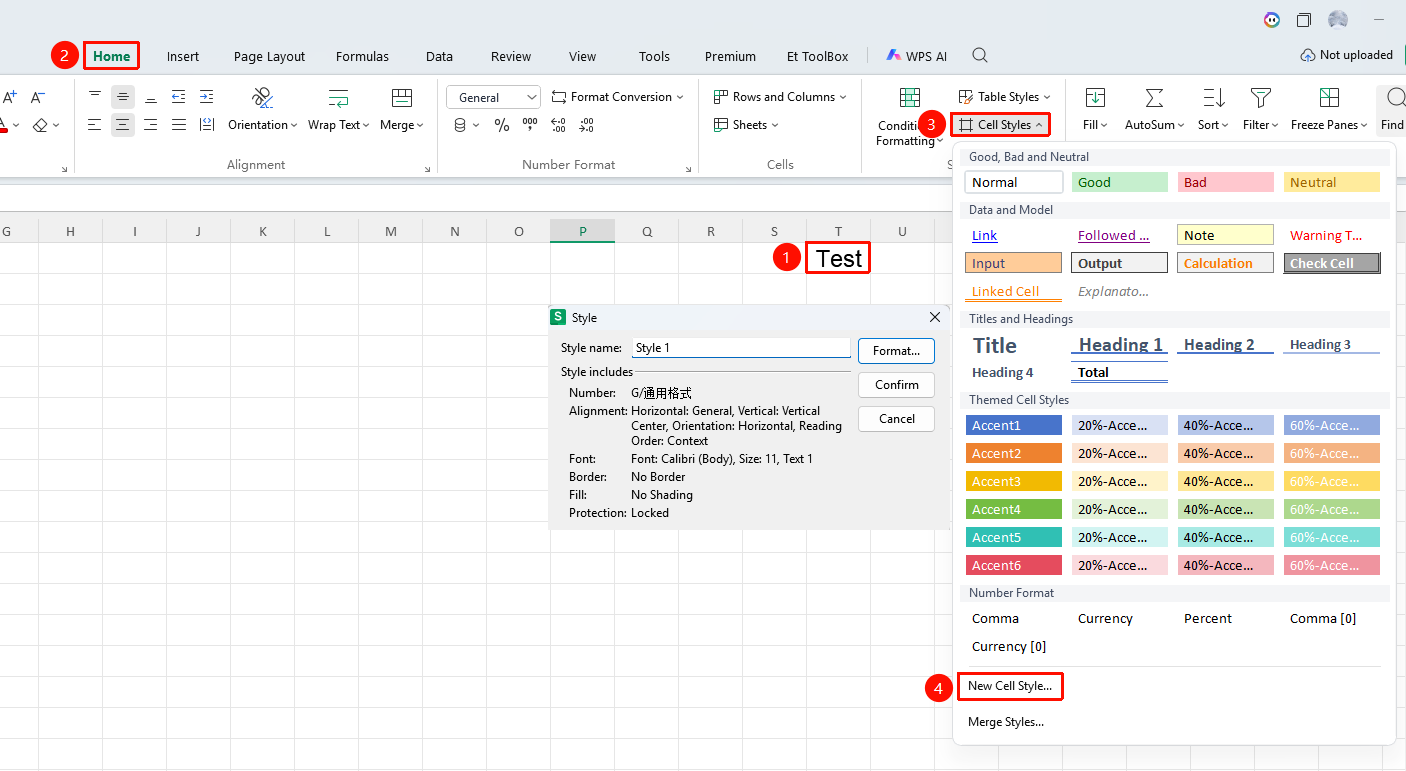
"Home" tab → "Cell Styles" drop-down menu → "New Cell Style" option
- Select the cell(s) to which you want to apply the style
- Click the Cell Styles drop-down menu in the Home tab
- Select "New Cell Style"
- Enter a style name
- Click the Format button to set font, border, fill, and so on.
- Click OK to save
Frequently Asked Questions
Question 1: How to modify an existing style?
- Solution: Right-click the style in the style gallery, select "Modify", and adjust the style settings.
Notes
- A cell style is a combination of multiple formatting settings
- Custom styles can be saved for future use
- After a style is modified, all cells to which that style is applied will be updated automatically