Feature Summary
The Merge & Split feature is used to combine multiple cells into one, or split a merged cell into multiple cells, making it easier to adjust table layouts.
Feature Description
| Feature Dimension | Description |
|---|---|
| Membership Restriction | Some features require a membership subscription |
| Version Restriction | No version restrictions |
Steps
Merge Cells
Feature Entry
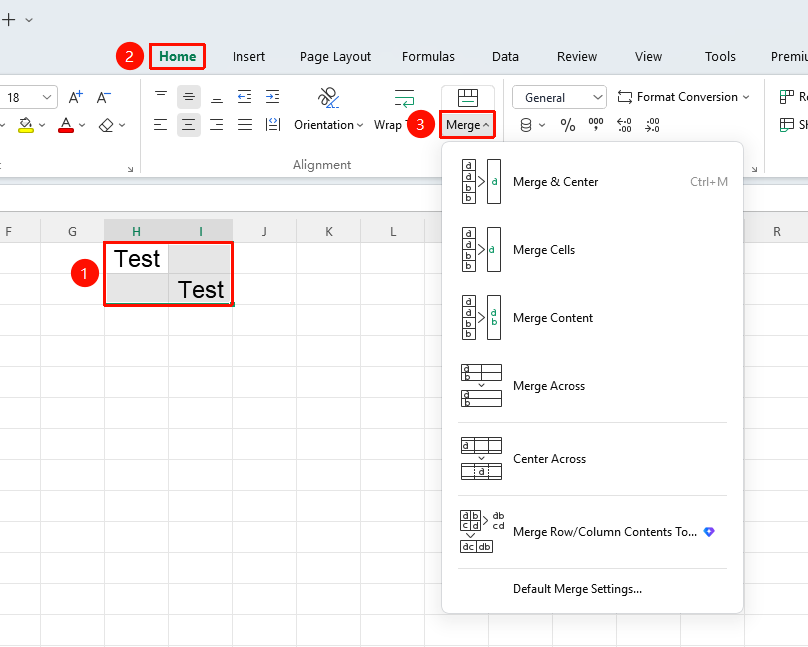
"Home" tab → "Merge & Center" button
- Select the multiple cells you want to merge
- Click the Merge & Center button in the Home tab
- Click the arrow below the button to choose a merge method:
- Merge & Center: Content is centered after merging
- Merge Cells: Original alignment is kept after merging
- Merge Identical Cells: Merge cells with the same content together
- Merge Row/Column Content into One Cell: Merge the content of multiple cells into one cell by row or column (requires membership)
Split Cells
Feature Entry
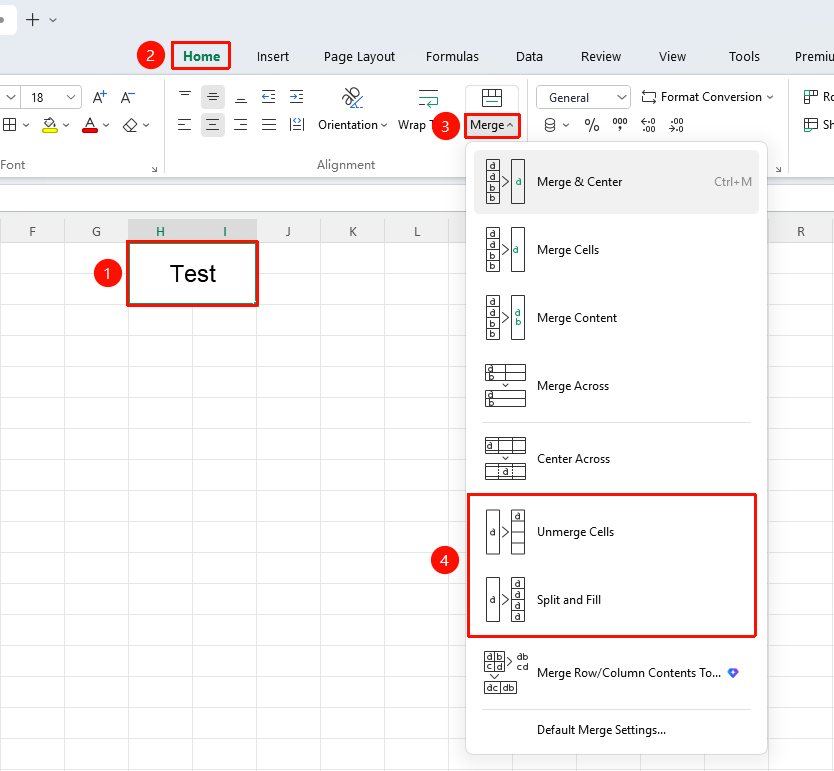
"Home" tab → Dropdown arrow below the "Merge & Center" button → "Unmerge Cells" option
- Select the merged cell
- Click the dropdown arrow below the Merge & Center button in the Home tab
- Click the Unmerge Cells button, or the Split & Fill Content button
FAQ
Q1: Will data be lost after merging cells?
- Solution: Only the data in the top-left cell is kept after merging; data in other cells will be lost. It is recommended to back up before merging.
Q2: Does merging cells affect sorting and filtering?
- Solution: Merged cells can affect sorting and filtering functions. It is recommended to avoid using merged cells in areas where sorting and filtering are needed.
Notes
- Merging cells only keeps the data in the top-left cell
- Merged cells can be unmerged and restored
- Merged cells can affect data processing functions