Feature Summary
The Consolidate feature is used to summarize similar data from multiple sheets or worksheets. It supports various statistical methods such as Sum, Average, Count, Max, and Min, helping users quickly integrate scattered data for efficient data analysis.
Feature Description
| Feature Dimension | Description |
|---|---|
| Membership Restrictions | No membership restrictions |
| Version Restrictions | No version restrictions |
Steps
Basic Consolidation Process
Feature Entry
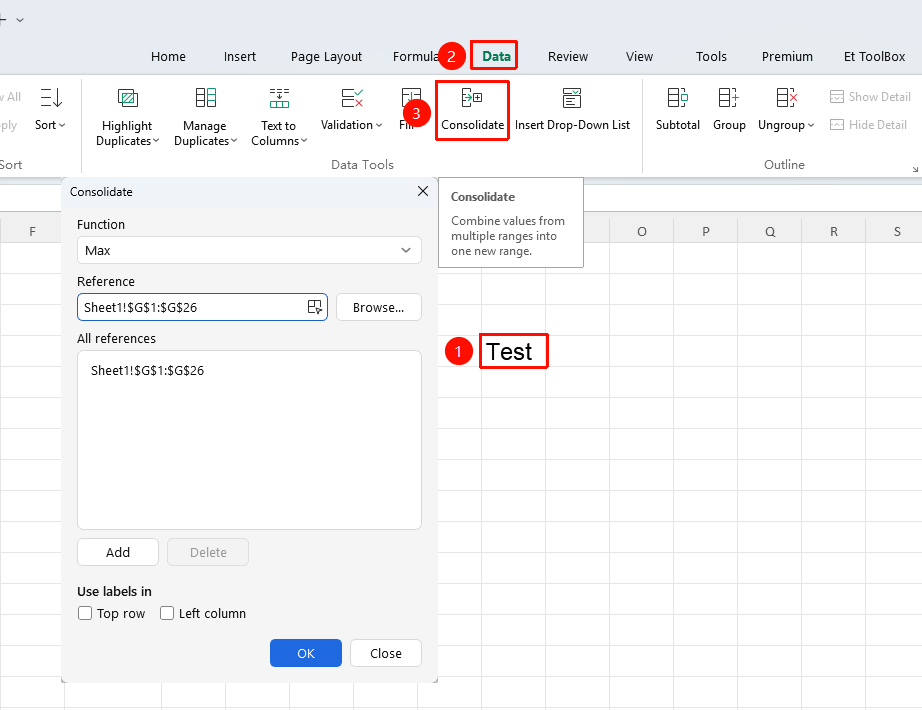
"Data" tab → "Consolidate" button
- Create a new blank worksheet as the destination for the results
- Click to select the starting cell where the results will be placed (ensure the target area is blank)
- Click the Consolidate button in the Data tab
- Set the core parameters in the pop-up dialog box:
- Function: Select the statistical method based on your summary needs (Sum, Average, Count, Max, and so on.)
- Add Data Source: Place the cursor in the Reference input box, switch to the source sheet and select the data range, then click the "Add" button
- Label Position Settings: If the data includes headers or row labels, check Top row and Left column
- Click OK, and WPS will automatically complete the consolidation, displaying the results in the target area
FAQ
Q1: What should I do if the consolidation results do not update automatically?
- Solution: Consolidation results do not update automatically. If the source data is modified, you need to re-execute the consolidation operation.
Q2: What should I do if the category labels are displayed incorrectly after summarization?
- Solution: Check whether the structure of all source data is consistent and whether the category label names are uniform. If they are inconsistent, they will be recognized as different categories and generate multiple rows.
Q3: What should I do if there is insufficient space in the target area?
- Solution: The target area needs to reserve enough blank space to avoid overwriting existing data. If space is insufficient, you can insert enough blank rows and columns first.
Q4: How can I simply stack the contents of multiple tables (without statistical summarization)?
- Solution: If you just want to stack the contents of multiple tables, you can use the "Merge Tables" feature in the "Data" tab, which is more suitable for batch concatenation of data.
Notes
- Keep the structure of all source data as consistent as possible and unify category label names; otherwise, they will be recognized as different categories and generate multiple rows
- The target area needs to reserve enough blank space to avoid overwriting existing data
- Consolidation results do not update automatically. If the source data is modified, you need to re-execute the consolidation
- If you just want to stack the contents of multiple tables (without statistical summarization), you can use the "Merge Tables" feature