Feature Summary
When you need to quickly enter repetitive or patterned data, the Fill feature helps you complete data entry efficiently. Through various methods such as the fill handle, fill options, series fill, and smart fill, you can easily achieve batch copying of data, series incrementation, and intelligent recognition filling, significantly improving data processing efficiency.
Feature Description
| Feature Dimension | Description |
|---|---|
| Membership Restriction | No membership restriction |
| Version Restriction | No version restriction |
| Fill Down Shortcut | Ctrl+D |
| Fill Right Shortcut | Ctrl+R |
Operation Steps
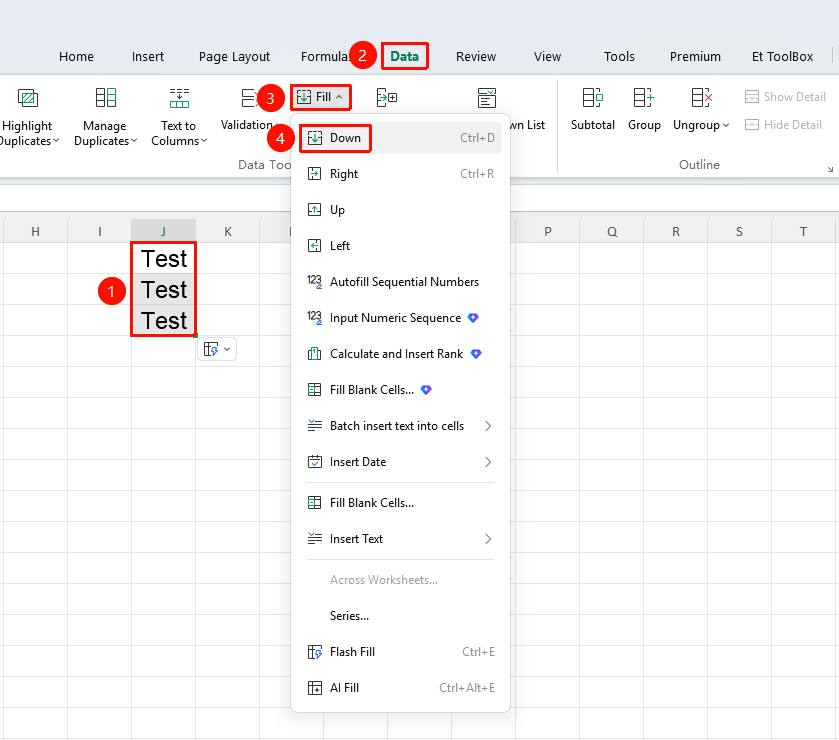
Fill Down
Feature Entry
"Home" tab → "Fill" dropdown menu → "Fill Down" option
- Select the cells containing data
- Click the Home tab
- Select the Fill dropdown menu
- Click the "Fill Down" option
- Copy the content of the topmost cell in the selection to all cells below
Fill Right
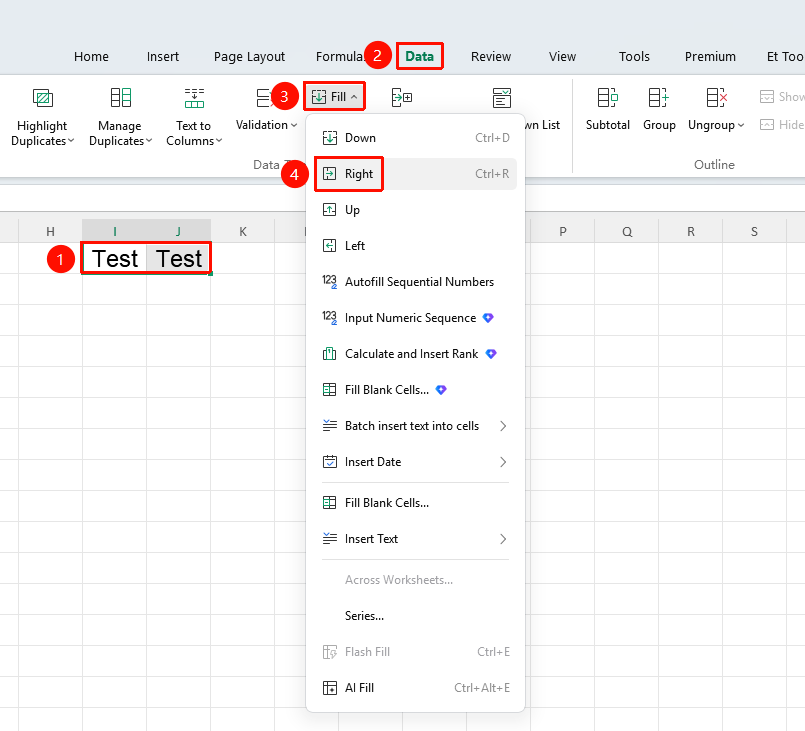
Feature Entry
"Home" tab → "Fill" dropdown menu → "Fill Right" option
- Select the cells containing data
- Click the Home tab
- Select the Fill dropdown menu
- Click the "Fill Right" option
- Copy the content of the leftmost cell in the selection to all cells to the right
Fill Up
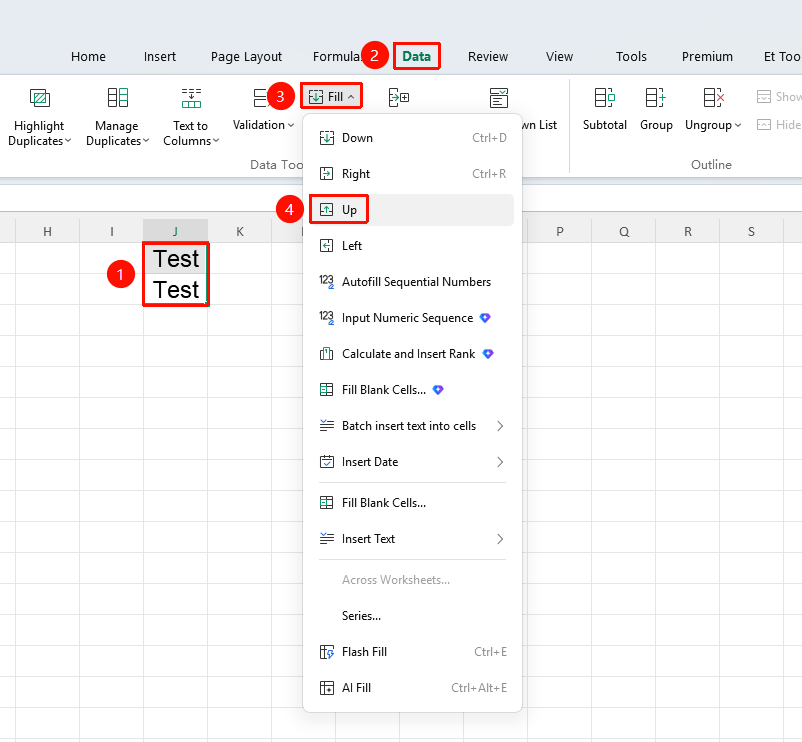
Feature Entry
"Home" tab → "Fill" dropdown menu → "Fill Up" option
- Select the cells containing data
- Click the Home tab
- Select the Fill dropdown menu
- Click the "Fill Up" option
- Copy the content of the bottommost cell in the selection to all cells above
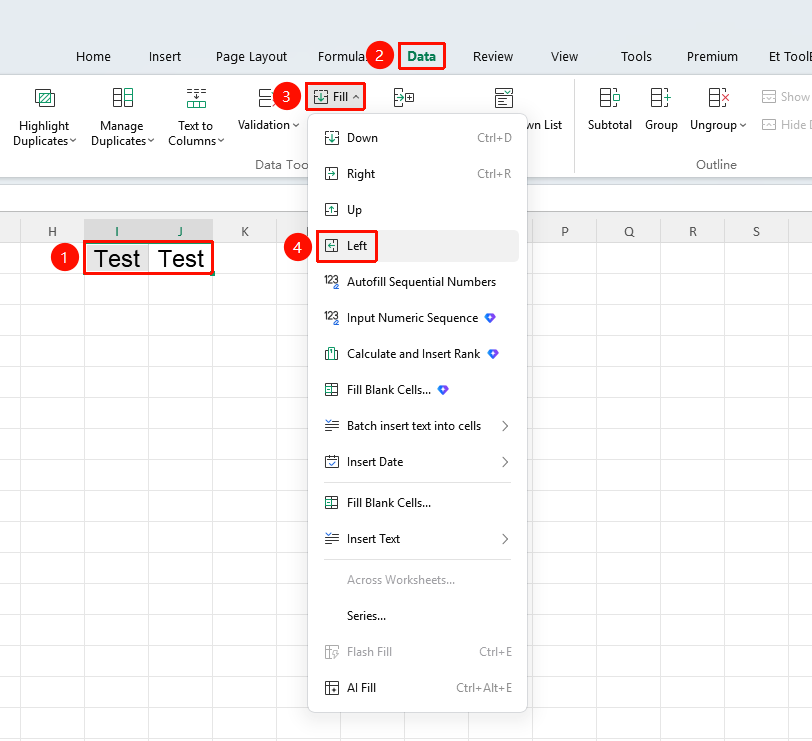
Fill Left
Feature Entry
"Home" tab → "Fill" dropdown menu → "Fill Left" option
- Select the cells containing data
- Click the Home tab
- Select the Fill dropdown menu
- Click the "Fill Left" option
- Copy the content of the rightmost cell in the selection to all cells to the left
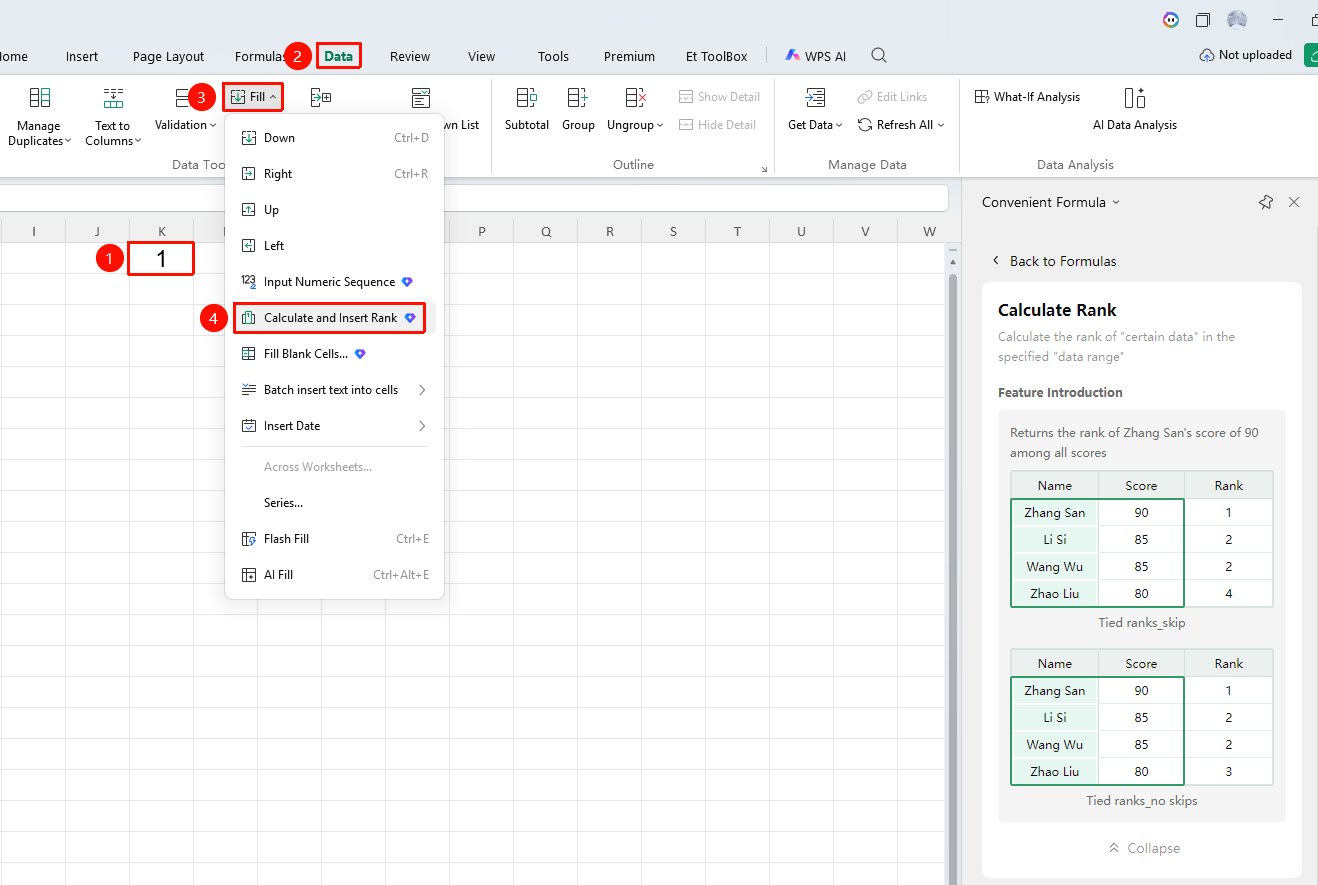
Calculate and Enter Ranking (Membership required)
Feature Entry
"Home" tab → "Fill" dropdown menu → "Calculate and Enter Ranking" option
- Select the cells containing data
- Click the Home tab
- Select the Fill dropdown menu
- Click the "Calculate and Enter Ranking" option
- Automatically calculate the ranking of each value based on the data range and fill it into the corresponding cell
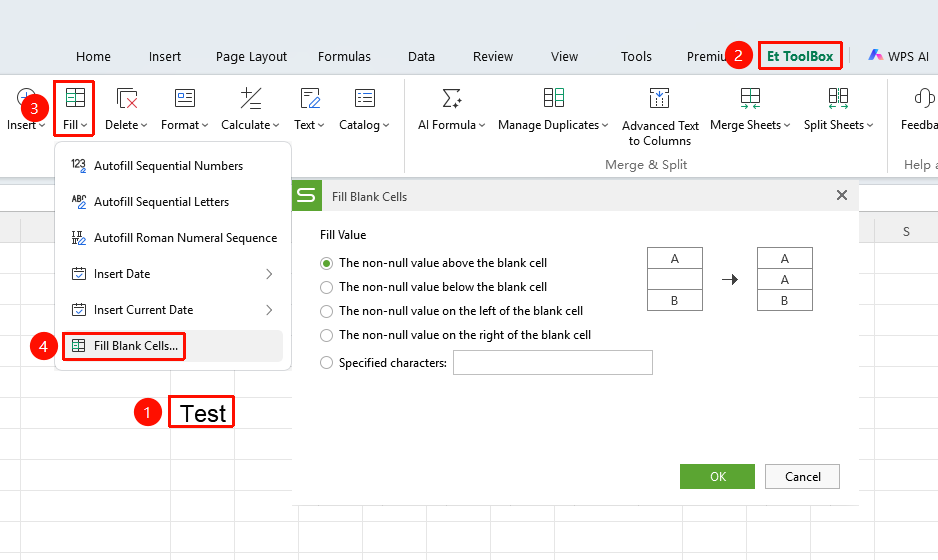
Fill Blank Cells (Membership required)
Feature Entry
"Home" tab → "Fill" dropdown menu → "Fill Blank Cells" option
- Select the cells containing data
- Click the Home tab
- Select the Fill dropdown menu
- Click the "Fill Blank Cells" option
- Batch fill blank cells within the selection, with the option to fill using values from above, below, left, or right
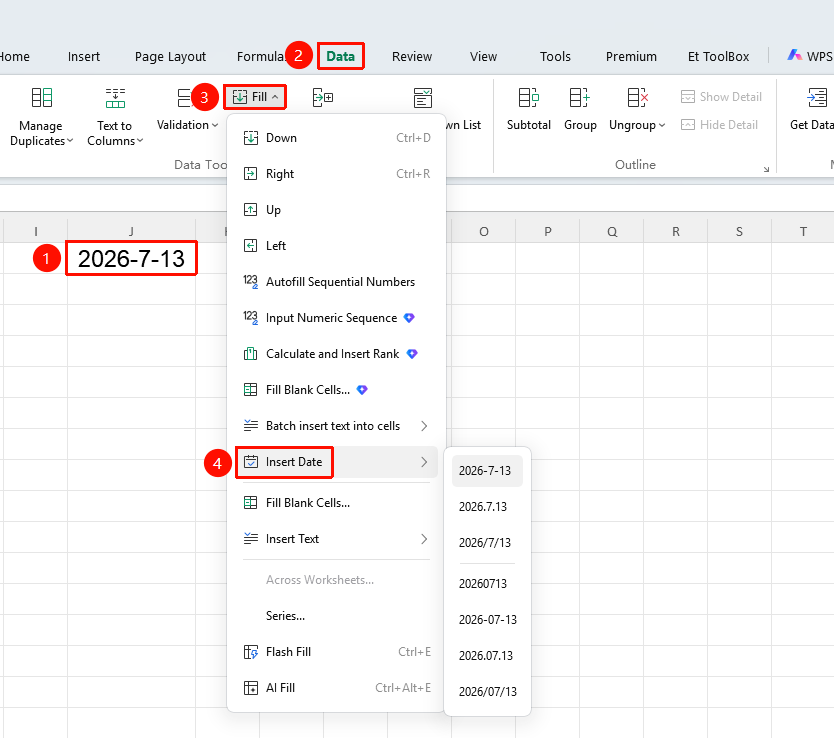
Enter Current Date
Feature Entry
"Home" tab → "Fill" dropdown menu → "Enter Current Date" option
- Select the cells containing data
- Click the Home tab
- Select the Fill dropdown menu
- Click the "Enter Current Date" option
- Quickly insert the current system date into the selected cells, supporting multiple date formats
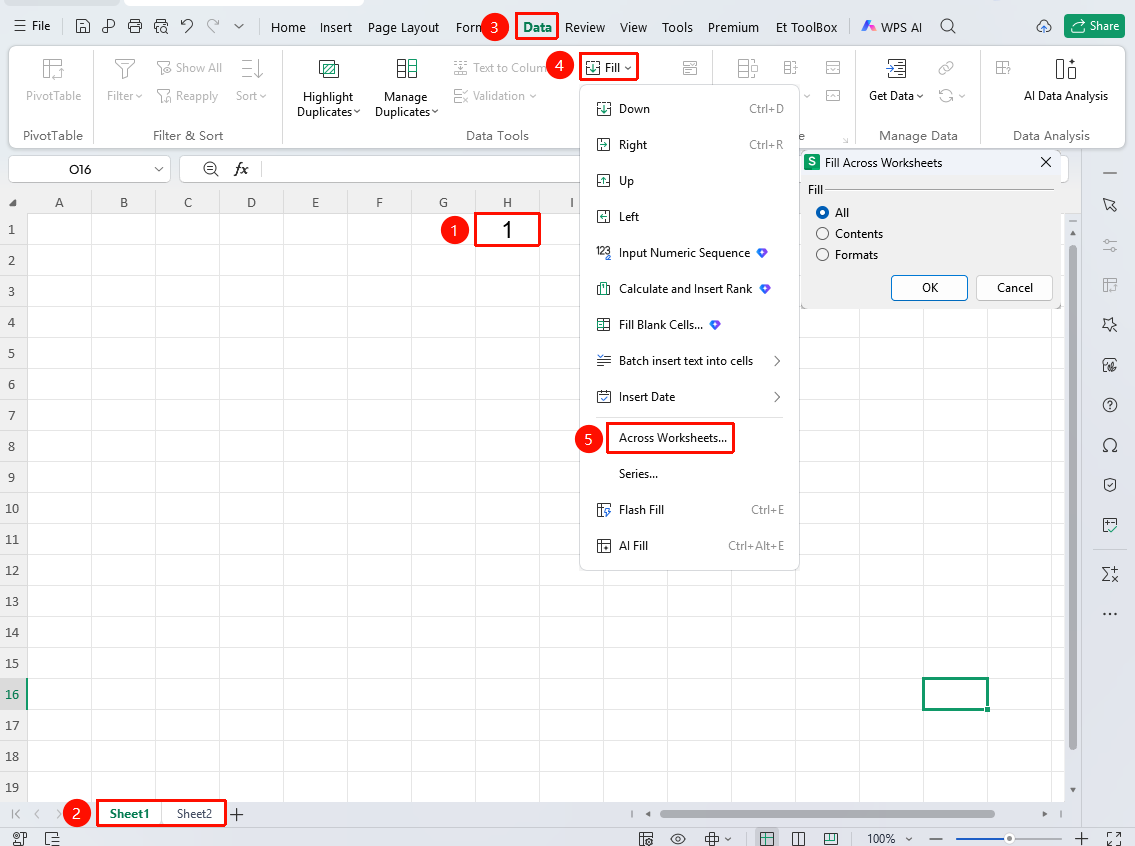
To Worksheets in Same Group
Feature Entry
"Home" tab → "Fill" dropdown menu → "To Worksheets in Same Group" option
- Select the cells containing data
- Click the Home tab
- Select the Fill dropdown menu4. Click the "To Same Group Sheets" option
- Batch fill the content of the selected area of the current worksheet into other selected worksheets in the same group
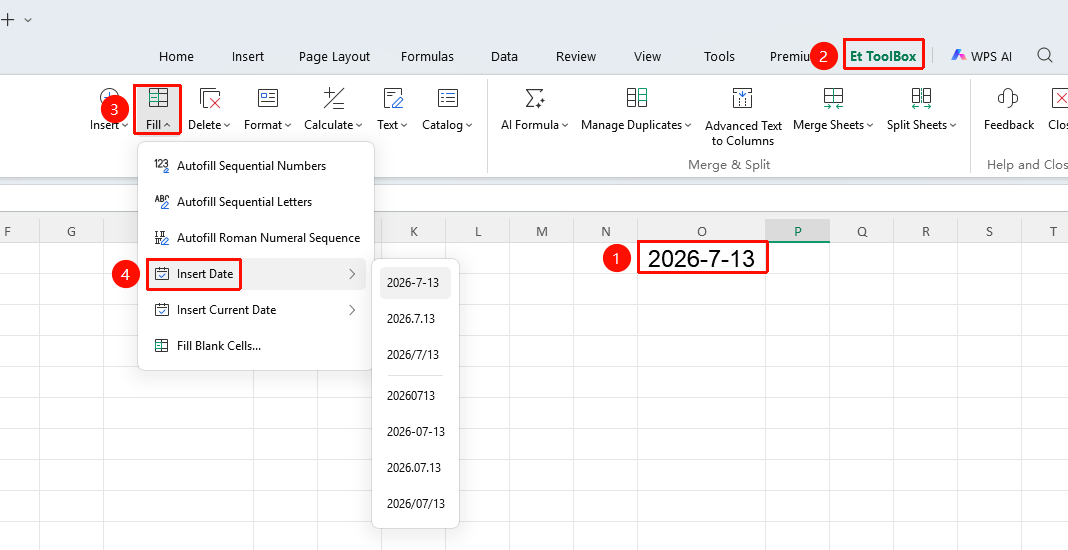
Insert Current Date
Feature Entry
"Member Exclusive" tab → "Smart Toolbox" option → "Smart Toolbox" tab → "Fill" dropdown menu → "Insert Current Date" option
- Select the cells containing data
- Click the Member Exclusive tab
- Select the Smart Toolbox option to open the Smart Toolbox tab
- Click the Fill dropdown menu, then click the "Insert Current Date" option
- Quickly insert the current system date into the selected cells, supporting multiple date formats