Feature Summary
The fill feature is used to add background color to cells, making the spreadsheet more visually appealing and clearly structured. It is commonly used to beautify spreadsheets and distinguish data areas.
Feature Description
| Feature Dimension | Description |
|---|---|
| Membership Restriction | Some features require membership |
| Version Restriction | No version restriction |
Operation Steps
Setting Cell Fill Color
Feature Entry
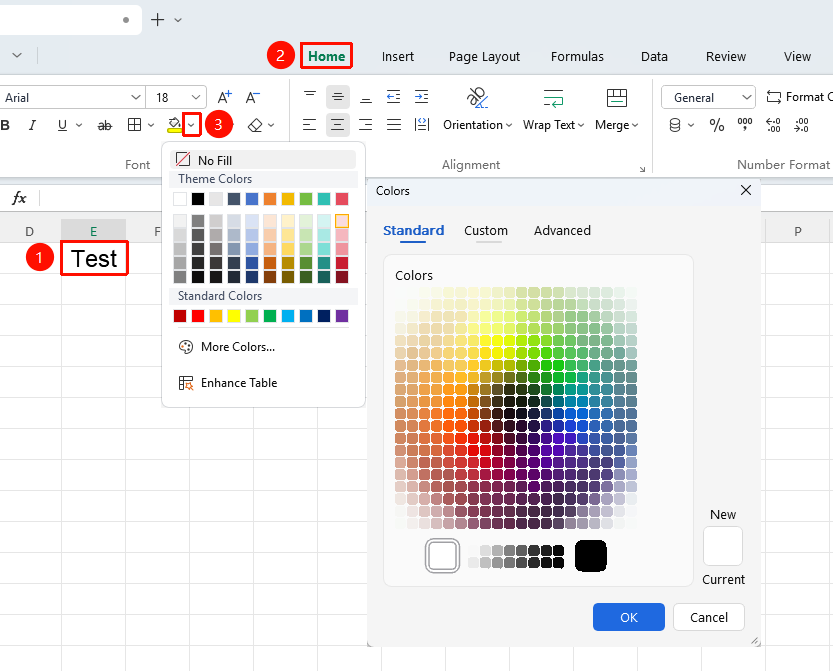
"Home" tab → "Fill Color" dropdown menu
- Select the cell(s) you want to add color to
- Click the "Fill Color" dropdown menu
- Choose a color from the color panel
- The cell(s) will be filled with the selected color
Filling Color via Right-Click Menu
Feature Entry
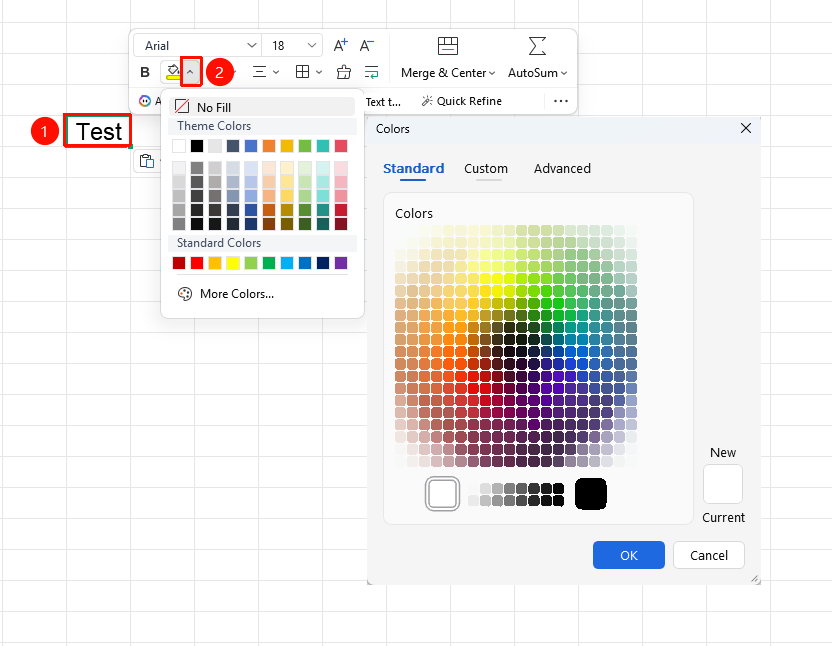
Right-click menu → "Fill Color" dropdown menu
- Select the cell(s) you want to add color to
- Right-click to open the context menu
- Click the "Fill Color" dropdown menu in the context menu
- Click the desired color in the list to apply it
Filling Color via Format Cells Dialog
Feature Entry
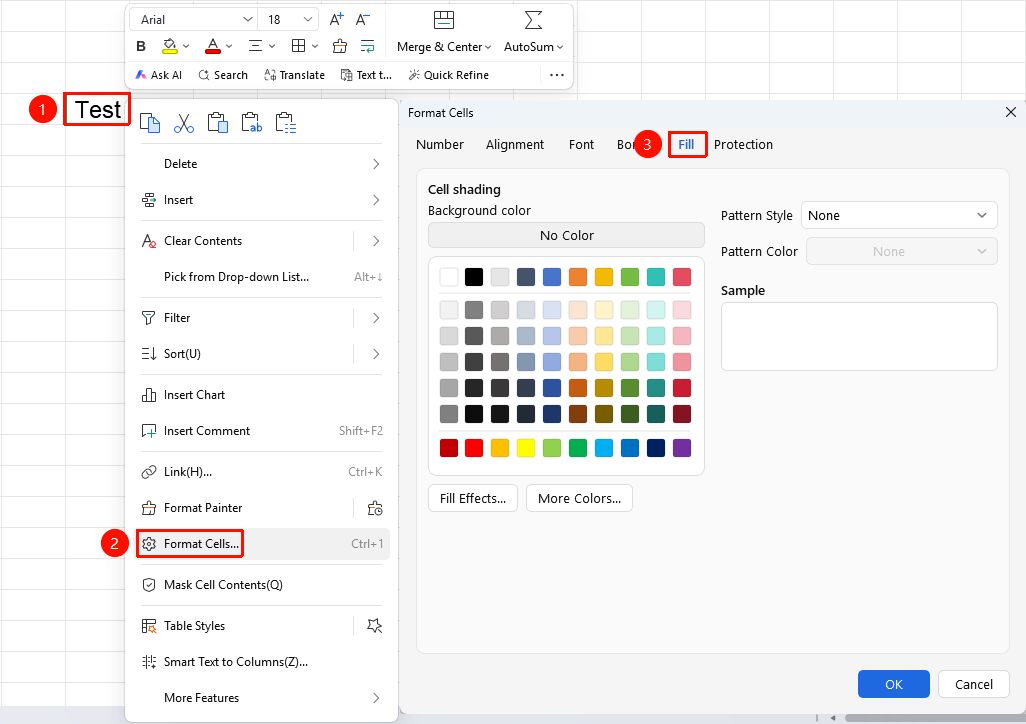
"Home" tab → "Font Settings" arrow icon → "Patterns" tab
- Select the cell(s) or text within cells you want to set as italic
- Click the Font Settings arrow icon in the Home tab
- In the pop-up dialog, click the "Patterns" tab, select a color, and then click OK
FAQ
Q1: How to remove cell shading?
- Solution: Select the cell(s), click the fill color dropdown button, and choose "No Fill" to remove it.