Feature Summary
Font and font size are the most basic text formatting features in WPS Sheets, supporting quick adjustment of cell text font style and size through multiple methods to meet typesetting needs in different scenarios.
Feature Description
| Feature Dimension | Description |
|---|---|
| Membership Restrictions | No membership restrictions (some cloud fonts require payment) |
| Version Restrictions | No version restrictions |
Operation Steps
Setting Font via the Ribbon
Feature Entry
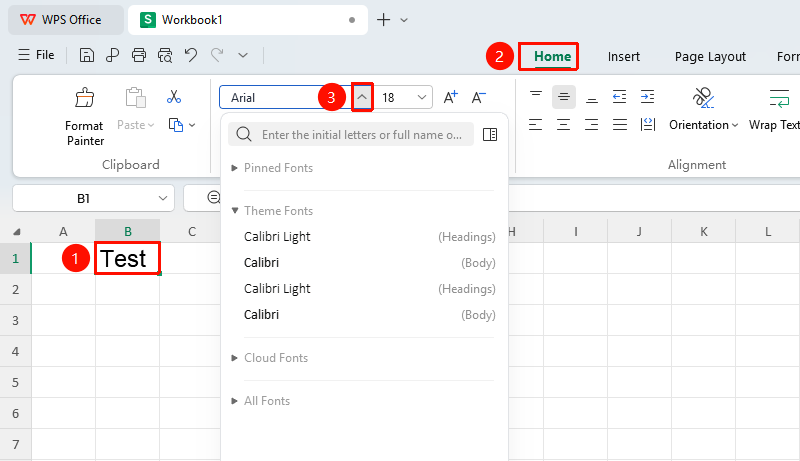
"Home" tab → "Font" dropdown menu
- Select the cell or text within the cell that you want to modify the font for
- Click the "Font" dropdown menu in the Home tab
- Find the desired font in the dropdown list (e.g., SimSun, Microsoft YaHei, Arial, and so on) and click to apply
- You can also directly type the font name in the font box for quick search
Setting Font Size via the Ribbon
Feature Entry
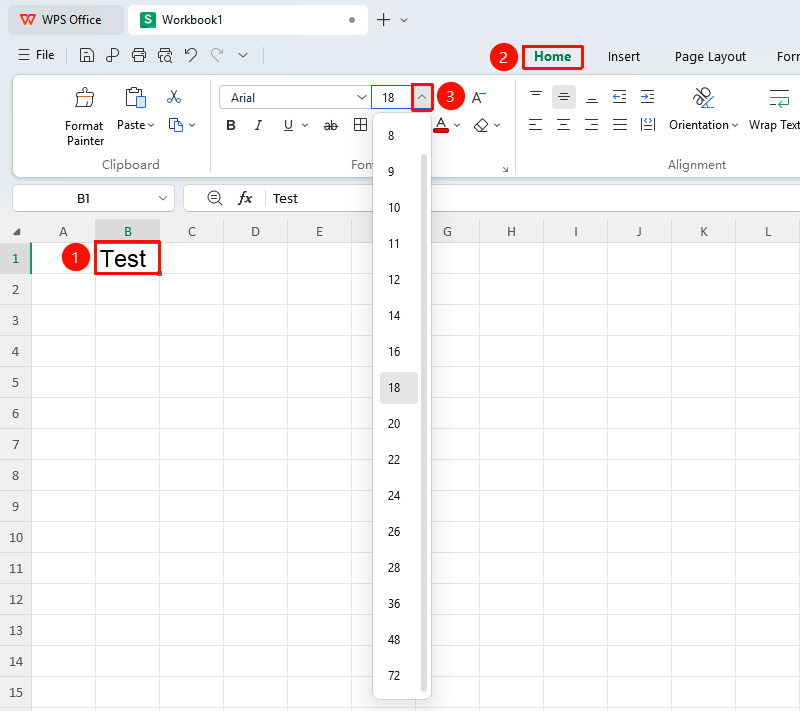
"Home" tab → "Font Size" dropdown menu
- Select the cell or text within the cell that you want to adjust the font size for
- Click the dropdown arrow next to the "Font Size" box in the Home tab
- Click the desired font size in the list to apply
- You can also directly click the "Font Size" box and enter a custom value (e.g., 100, 400), then press Enter to confirm
Setting Font via the Right-Click Menu
Feature Entry
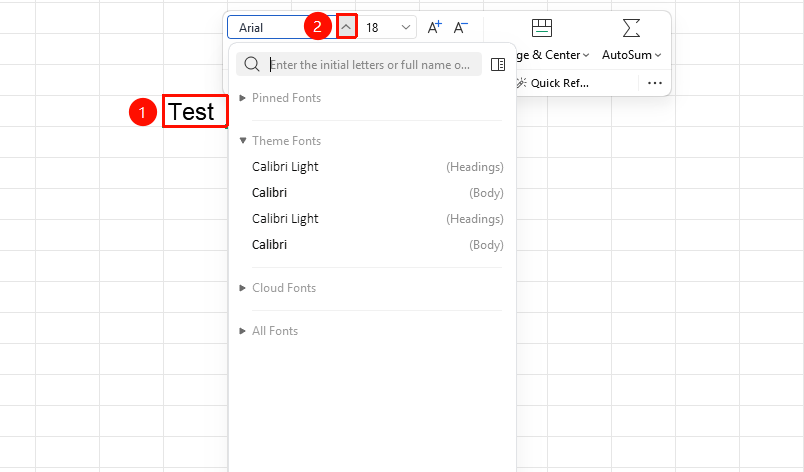
Right-click menu → "Font" dropdown menu
- Select the cell or text within the cell that you want to modify the font for
- Right-click to bring up the context menu
- Click the "Font" dropdown menu in the context menu
- Find the desired font in the dropdown list (e.g., SimSun, Microsoft YaHei, Arial, and so on) and click to apply
Setting Font Size via the Right-Click Menu
Feature Entry
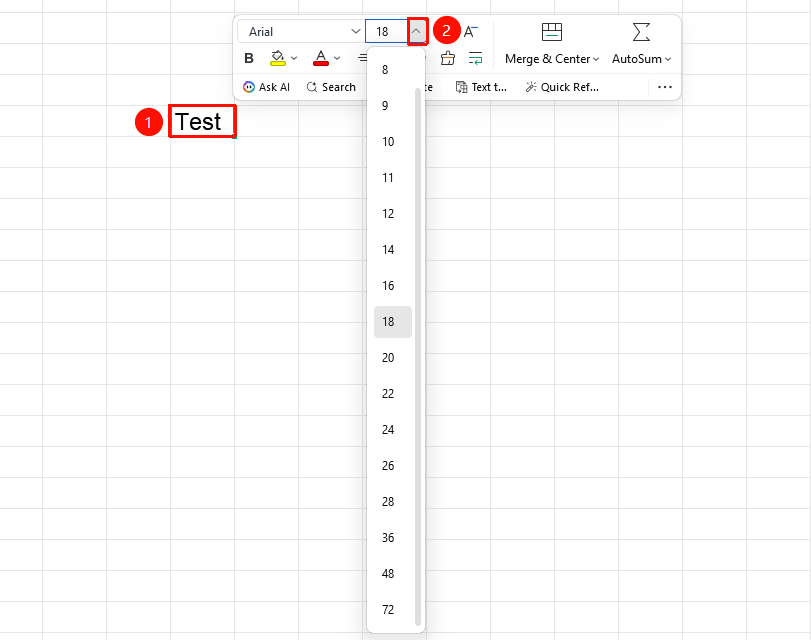
Right-click menu → "Font Size" dropdown menu
- Select the cell or text within the cell that you want to adjust the font size for
- Right-click to bring up the context menu
- Click the "Font Size" dropdown menu in the context menu
- Click the desired font size in the list to apply
Setting Font and Font Size via the Format Cells Dialog
Feature Entry
"Home" tab → "Font Settings" arrow icon → "Font" menu or "Font Size" menu
- Select the cell or text within the cell that you want to modify the font and font size for
- Click the "Font Settings" arrow icon in the Home tab
- In the pop-up dialog, set the "Font" or "Font Size", and click OK
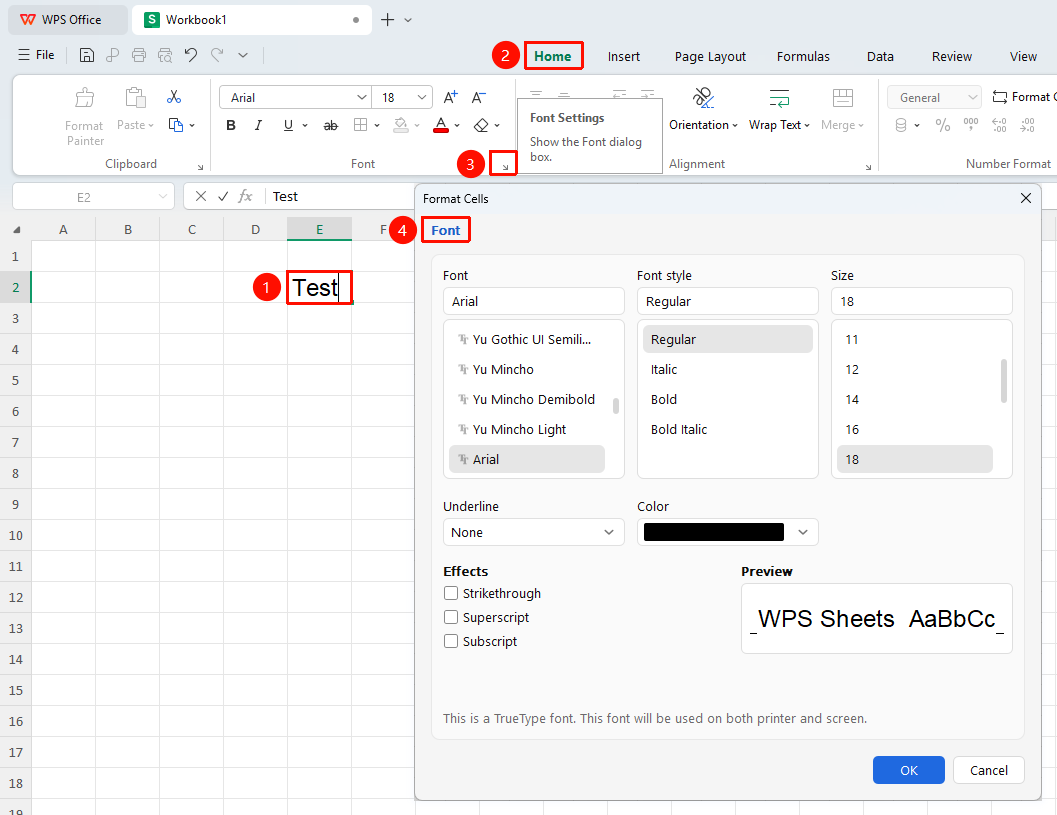
Setting Font and Font Size via Right-Click Format Cells
Feature Entry
Right-click menu → "Format Cells" button → "Font" tab → "Font" menu or "Font Size" menu
- Select the target cell, right-click and select the Format Cells button
- Switch to the Font tab
- Click the "Font" dropdown menu or the "Font Size" dropdown menu
- Select the appropriate font and font size, then click OK
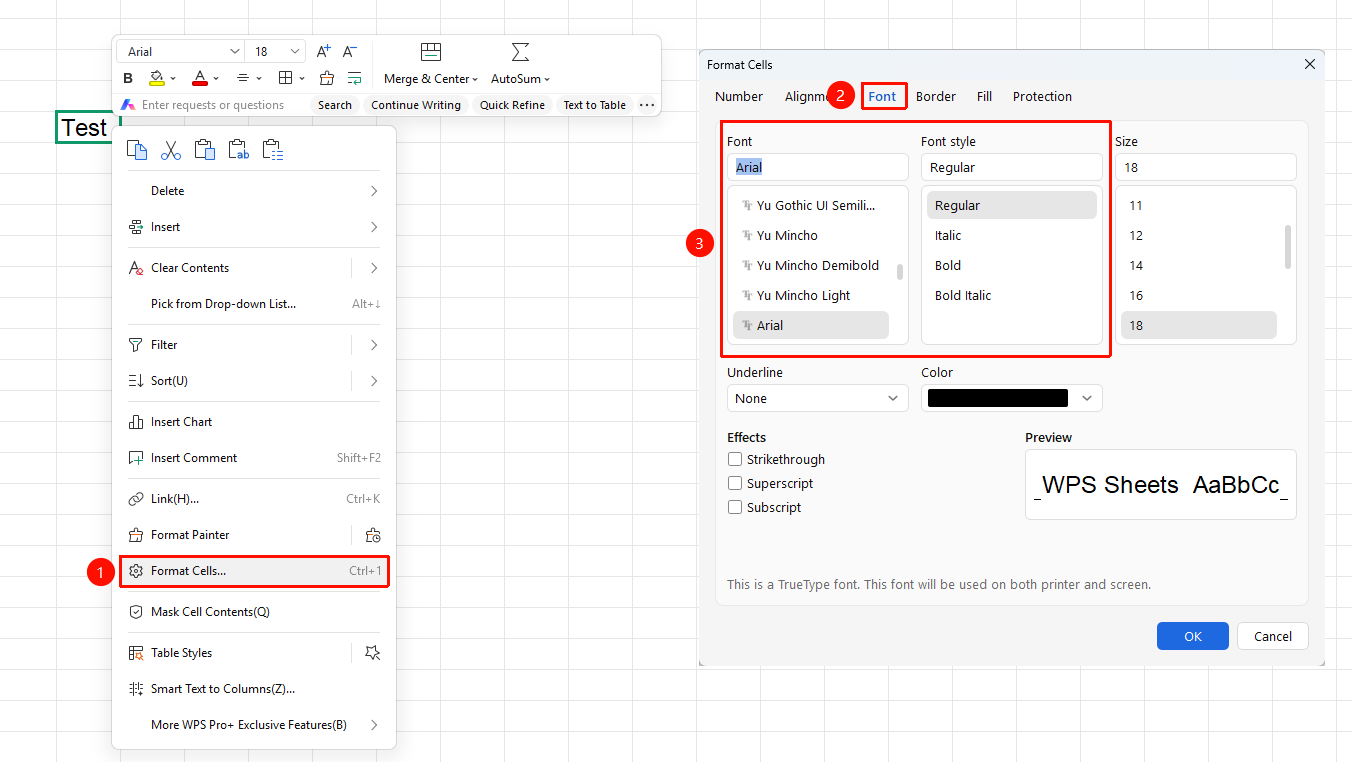
Increase Font Size Shortcut:
Ctrl + Shift + >
Decrease Font Size Shortcut:
Ctrl + Shift + <
FAQ
Q1: How to set an extra-large font size?
- Solution: Directly enter the desired value (e.g., 200, 400) in the font size box and press Enter to confirm, without being limited by the preset list.
Q2: What are the font sources for WPS Sheets?
- Solution: Fonts used in WPS Sheets are divided into two categories: system fonts (located in C:\Windows\Fonts, free of charge) and cloud fonts (require payment for use, some are free).
Notes- WPS software does not come with its own fonts; it uses system fonts and cloud fonts
- Using shortcut keys allows you to quickly adjust font size, improving operational efficiency