Feature Summary
Macro security is used to set the macro execution permission policy for WPS Sheets, striking a balance between security and ease of use.
Feature Description
| Feature Dimension | Description |
|---|---|
| Membership Restriction | No membership restriction |
| Version Restriction | No version restriction; VBA plugin installation required |
Operation Steps
Setting Macro Security Level
Feature Entry
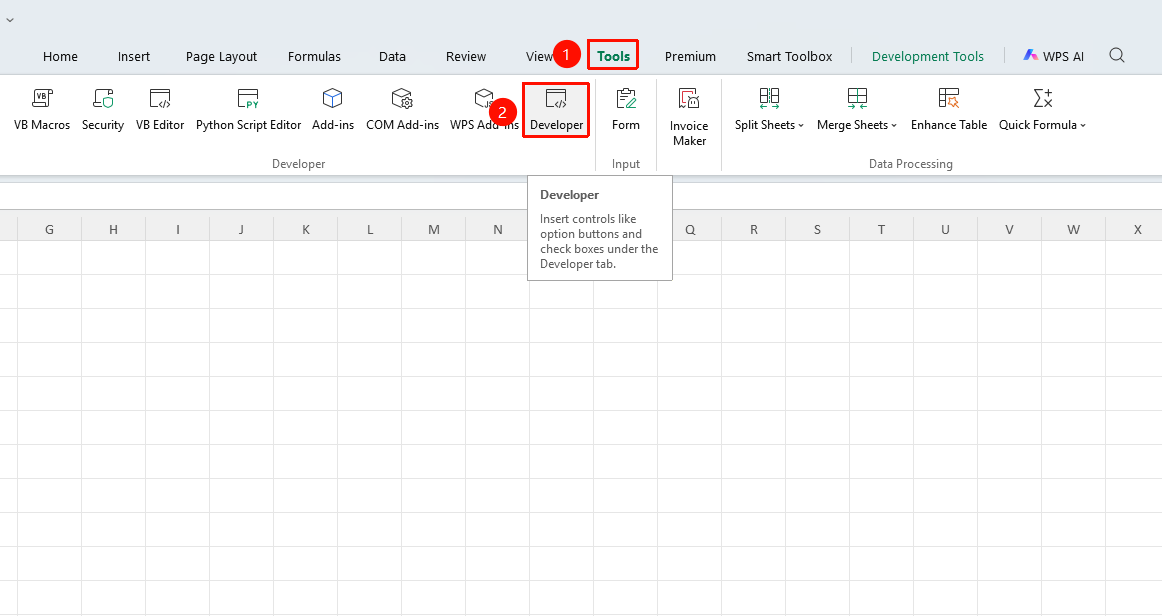
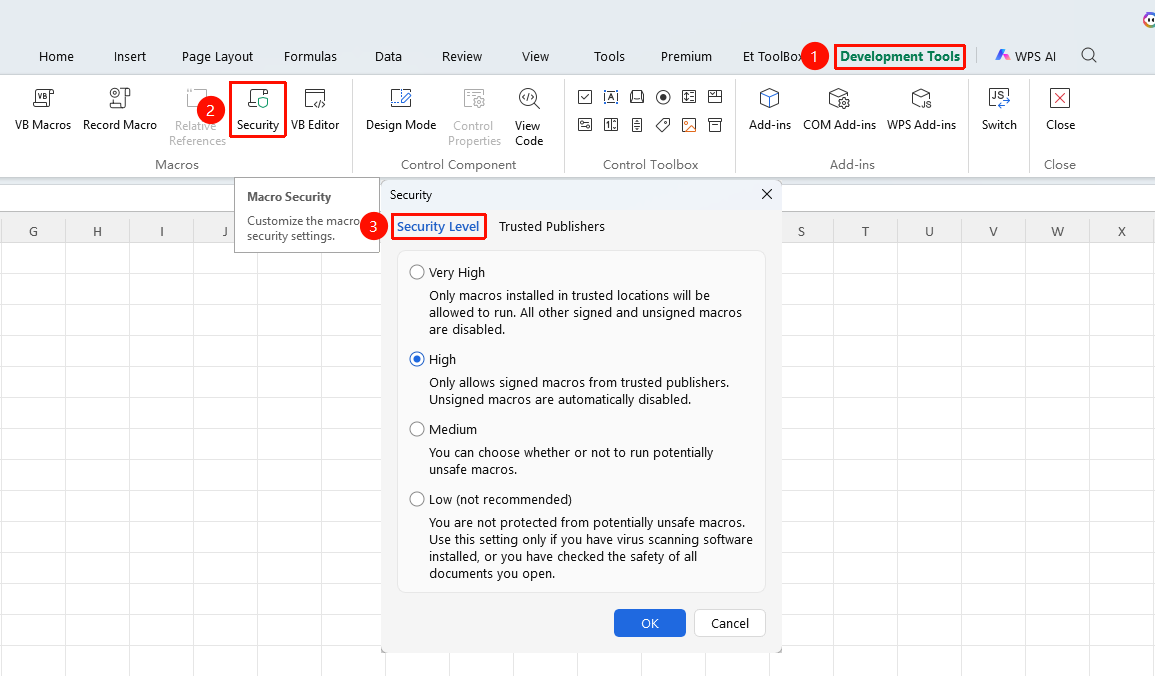
"Tools" tab → "Developer Tools" button → "Developer Tools" tab → "Macro Security" button → "Security Level" tab
- Click the "Tools" tab at the top, locate and click the "Developer Tools" button to bring up the "Developer Tools" tab at the top
- Click the Macro Security button in the Developer Tools tab
- Select the security level under "Security Level" in the Trust Center:
| Security Level | Description |
|---|---|
| Very High | Only allows macros installed in trusted locations to run. All other signed and unsigned macros will be disabled |
| High | Only allows macros signed by a trusted source to run. Unsigned macros are automatically disabled |
| Medium | Allows you to choose whether to run potentially unsafe macros |
| Low | All macros are allowed to run without protection |
- Click OK, save the settings, and restart WPS for them to take effect
Trusted Publishers
Feature Entry
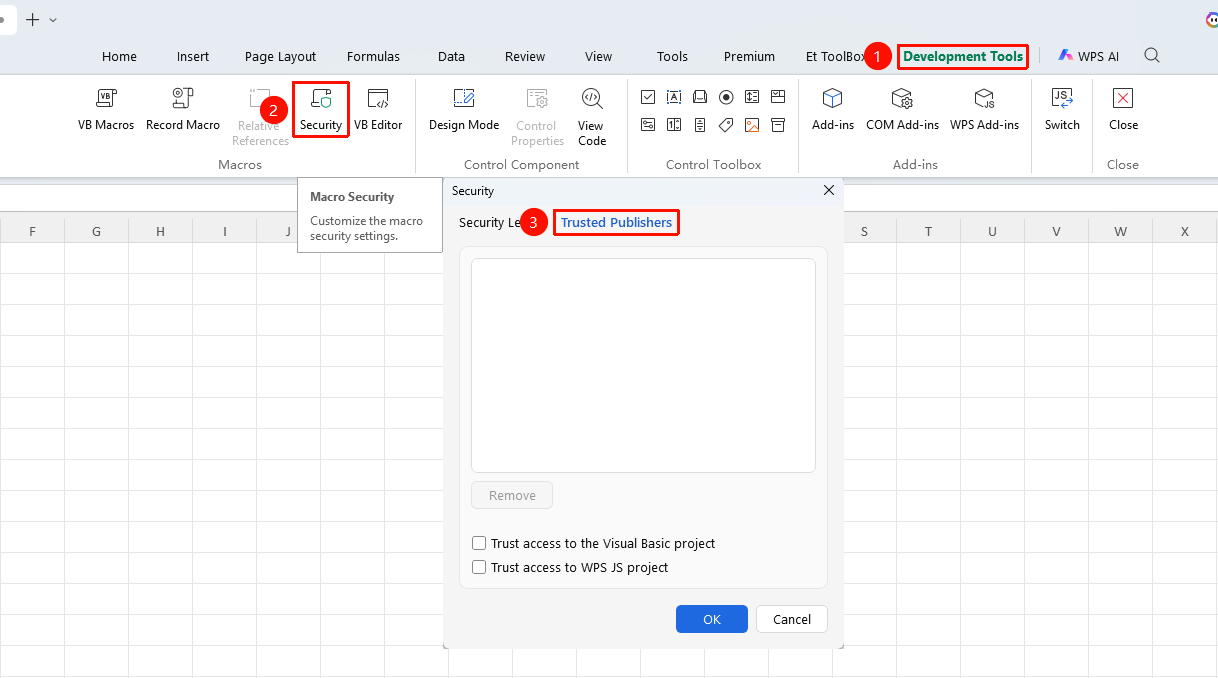
"Developer Tools" tab → "Macro Security" button → "Trusted Publishers" tab
- Click the Macro Security button in the Developer Tools tab
- In the "Trusted Publishers" tab of the Trust Center, check:
- Trust access to the VBA project object model
- Trust access to the WPS JS project
- Click OK, save the settings, and restart WPS for them to take effect
FAQ
Q1: Why didn't the changes to macro security take effect?
- Solution: After making changes, you need to close all WPS documents and restart the WPS program for the changes to take effect.
Q2: When opening a file, it prompts that macros are disabled. How do I enable them?
- Solution: When the file opens, a security warning bar will appear at the top. Click the "Enable Content" button to enable macros for that file. Alternatively, adjust the security level in Macro Security settings.
Q3: How do I set a specific folder as a trusted location?
- Solution: Go to the top-left "File" → "Options" → "Trust Center" → "Trusted Locations", add the folder path, and macros in files stored under that path will be automatically enabled.