Feature Summary
The alignment and indentation feature is used to control the horizontal and vertical alignment of cell content, as well as text indentation, making the spreadsheet layout neater and more visually appealing.
Feature Description
| Feature Dimension | Description |
|---|---|
| Membership Restriction | No membership restriction |
| Version Restriction | No version restriction |
Steps
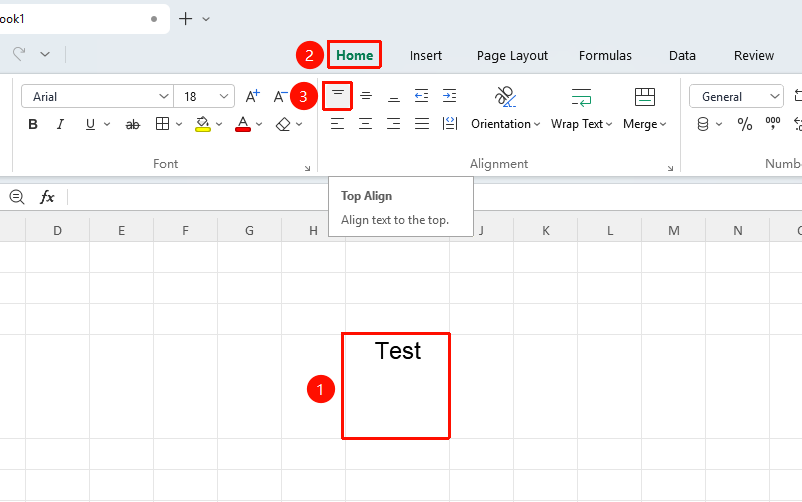
Align Top
Feature Entry
"Home" tab → "Align Top" option
- Select the cell or part of the text within the cell that needs alignment
- Click the "Align Top" button in the Home tab
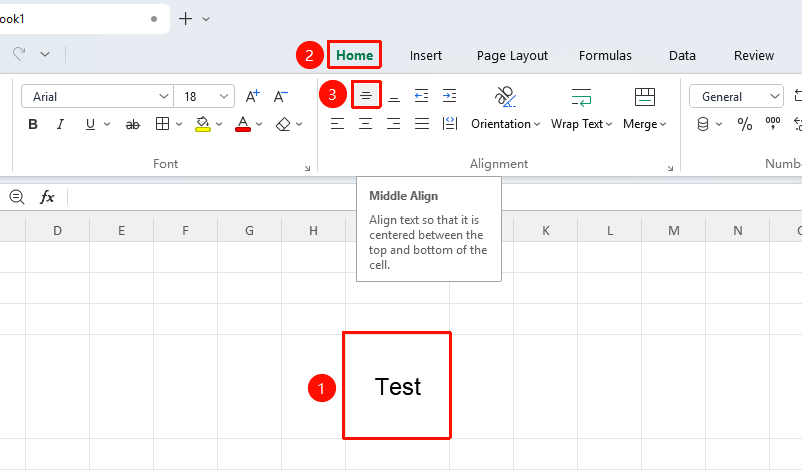
Align Middle
Feature Entry
"Home" tab → "Align Middle" option
- Select the cell or part of the text within the cell that needs alignment
- Click the "Align Middle" button in the Home tab
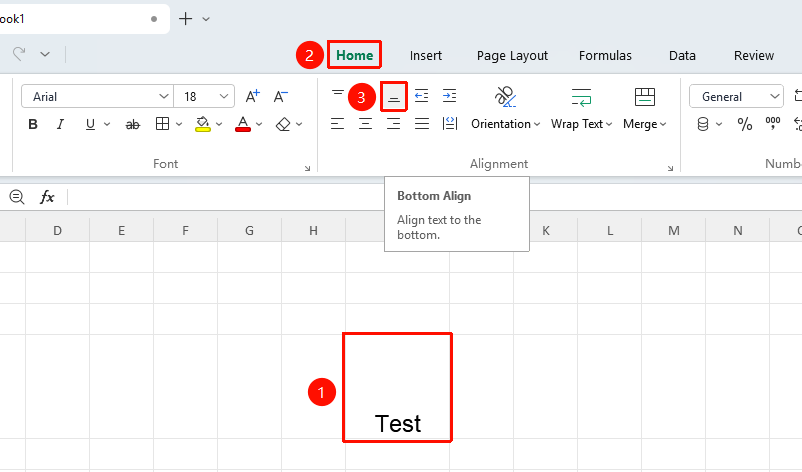
Align Bottom
Feature Entry
"Home" tab → "Align Bottom" option
- Select the cell or part of the text within the cell that needs alignment
- Click the "Align Bottom" button in the Home tab
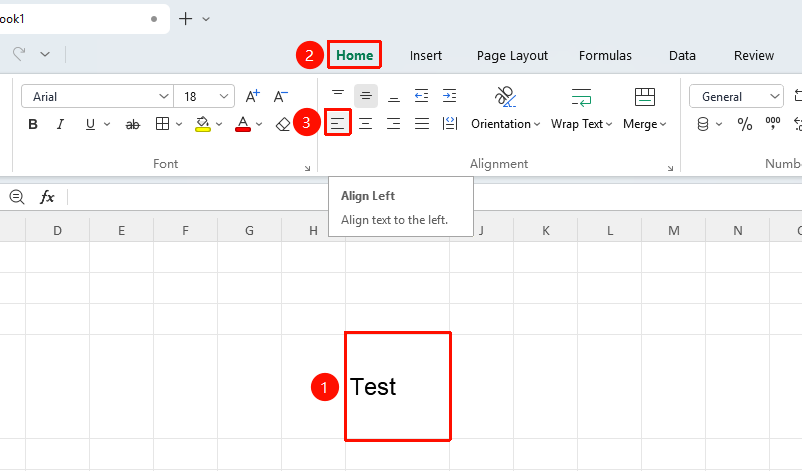
Align Left
Feature Entry
"Home" tab → "Align Left" option
- Select the cell or part of the text within the cell that needs alignment
- Click the "Align Left" button in the Home tab
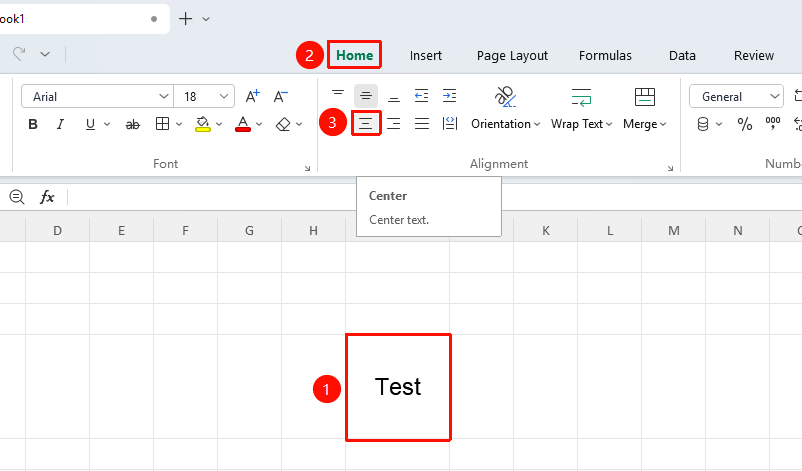
Center
Feature Entry
"Home" tab → "Center" option
- Select the cell or part of the text within the cell that needs alignment
- Click the "Center" button in the Home tab
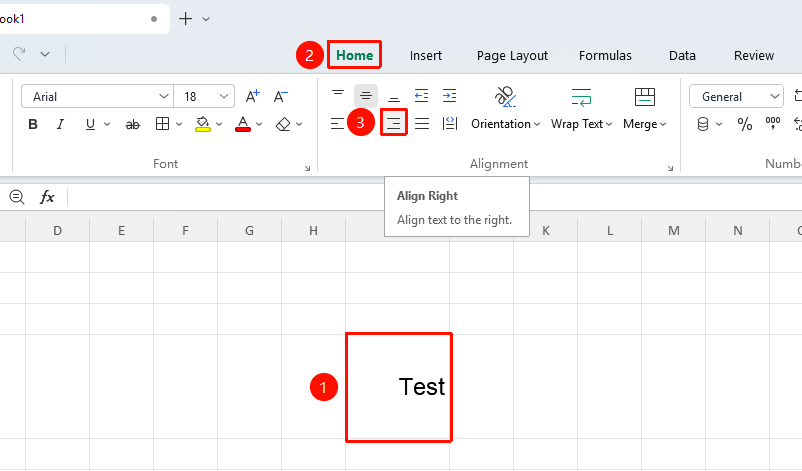
Align Right
Feature Entry
"Home" tab → "Align Right" option
- Select the cell or part of the text within the cell that needs alignment
- Click the "Align Right" button in the Home tab
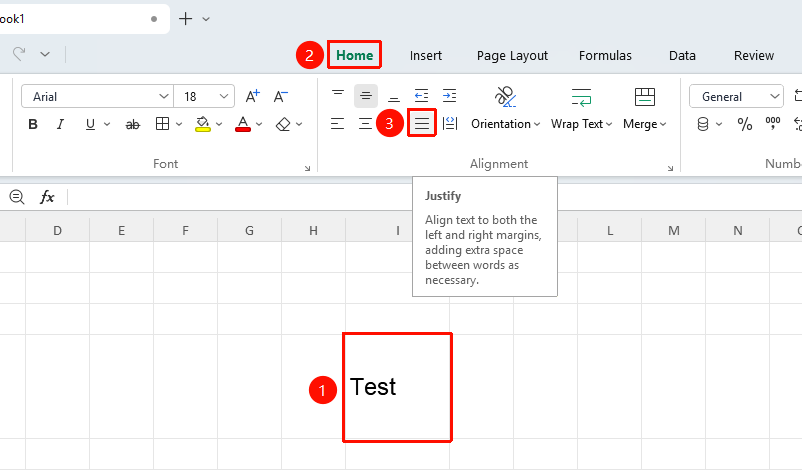
Justify
Feature Entry
"Home" tab → "Justify" option
- Select the cell or part of the text within the cell that needs alignment
- Click the "Justify" button in the Home tab
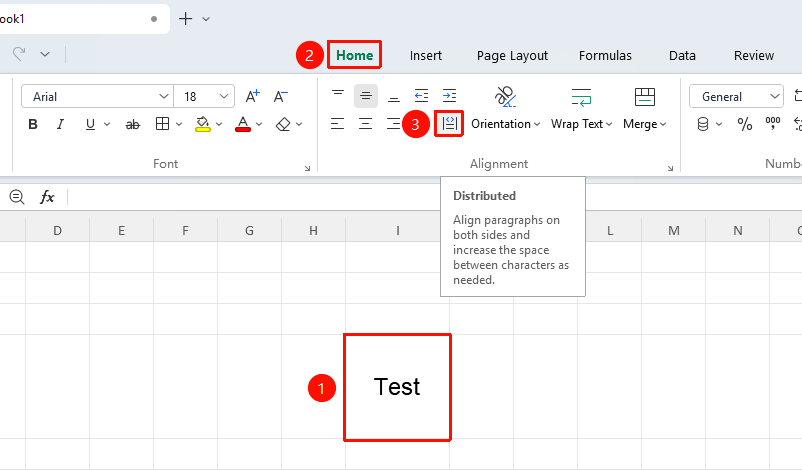
Distributed
Feature Entry
"Home" tab → "Distributed" option
- Select the cell or part of the text within the cell that needs alignment
- Click the "Distributed" button in the Home tab
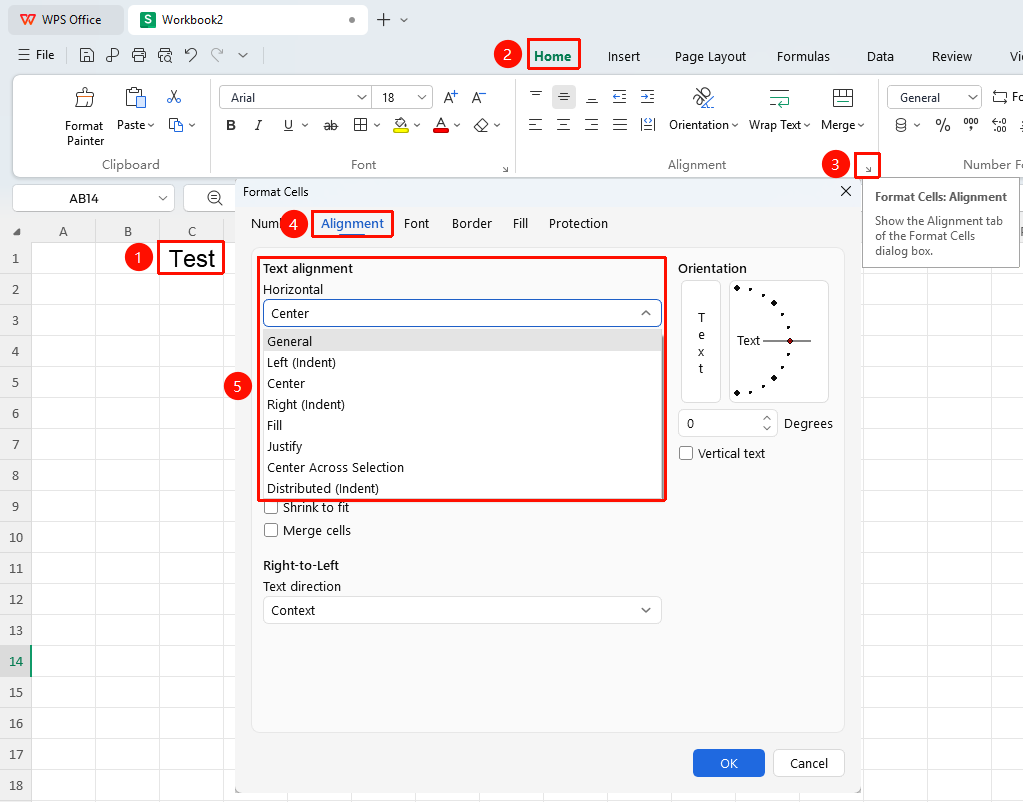
Set Horizontal Alignment via Format Cells Dialog
Feature Entry
"Home" tab → "Format Cells: Alignment" arrow icon → "Horizontal" drop-down menu
- Select the cell or part of the text within the cell that needs alignment
- Click the Format Cells: Alignment arrow icon in the Home tab
- In the pop-up dialog, click the "Horizontal" drop-down menu
- After selecting the alignment, click OK
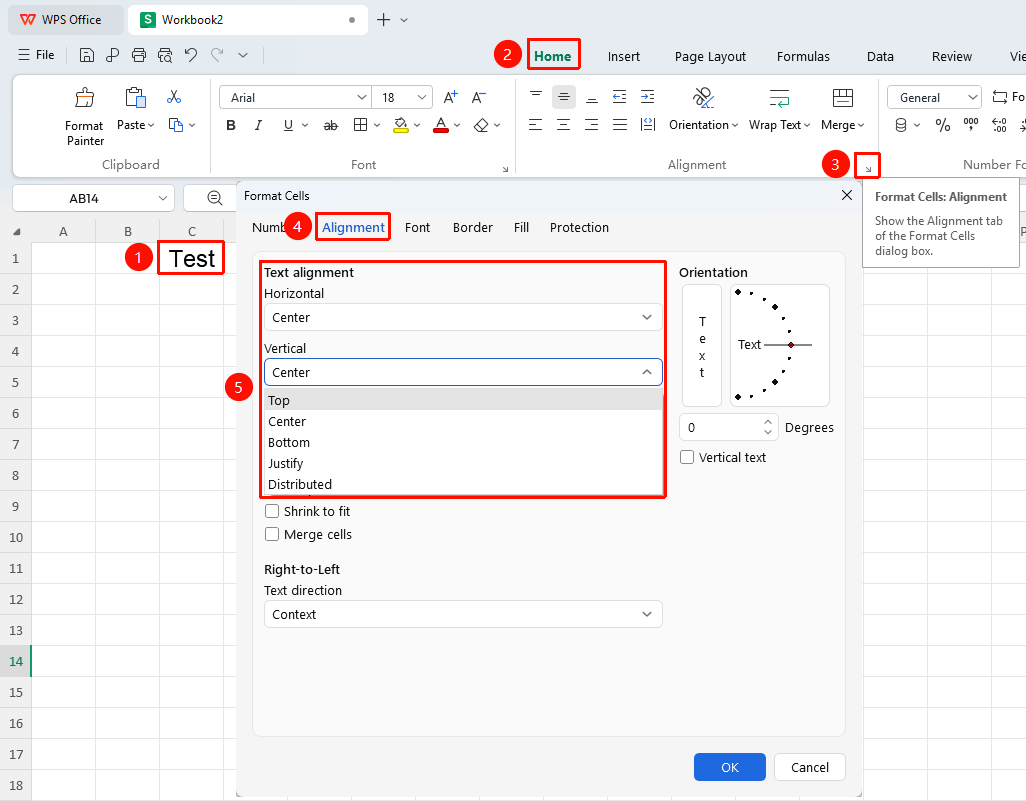
Set Vertical Alignment via Format Cells Dialog
Feature Entry
"Home" tab → "Format Cells: Alignment" arrow icon → "Vertical" drop-down menu
- Select the cell or part of the text within the cell that needs alignment
- Click the Format Cells: Alignment arrow icon in the Home tab
- In the pop-up dialog, click the "Vertical" drop-down menu
- After selecting the alignment, click OK
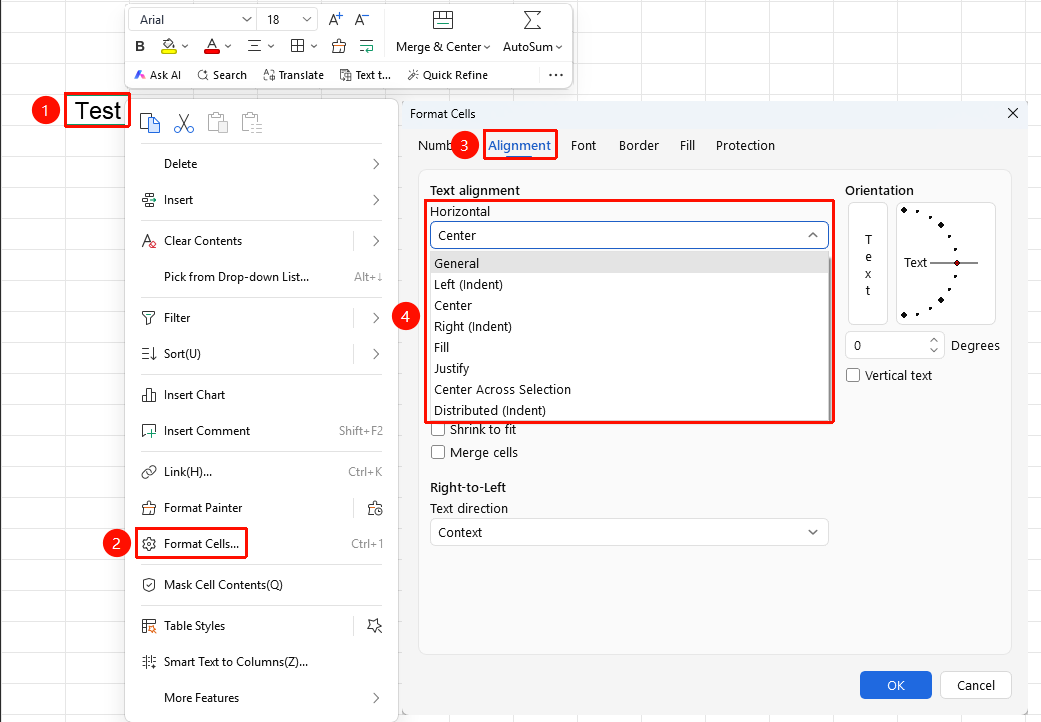
Set Horizontal Alignment via Right-Click Format Cells
Feature Entry
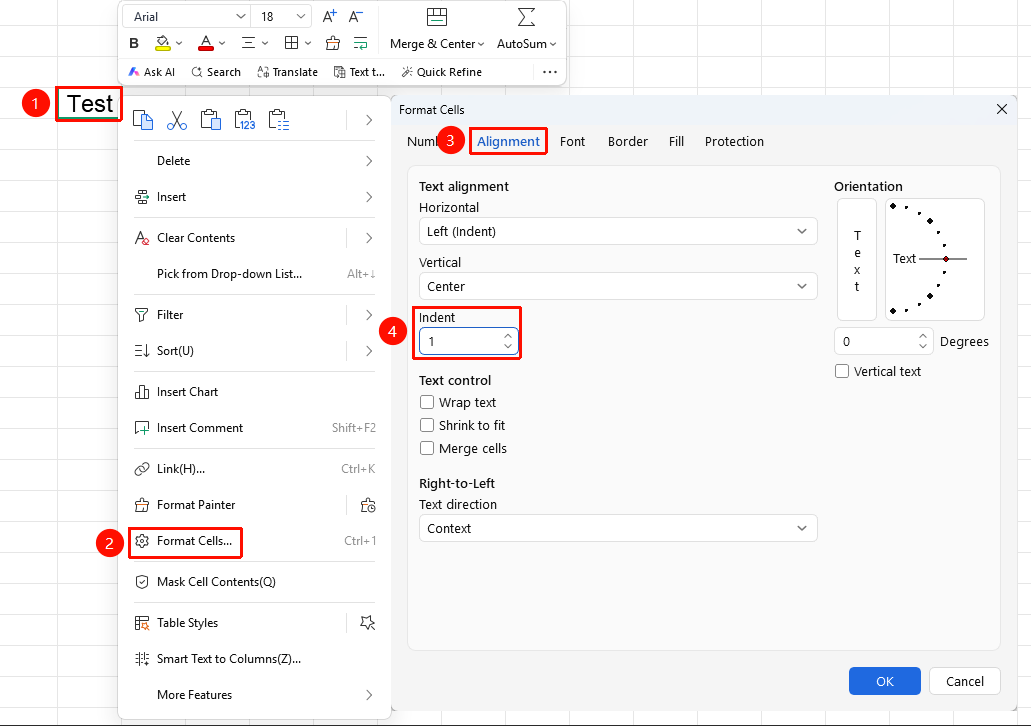
Right-click menu → "Format Cells" button → "Alignment" tab1. Select the target cell, right-click and choose the Format Cells button
- Switch to the "Alignment" tab
- Click the "Horizontal Alignment" drop-down menu
- After selecting the alignment method, click OK
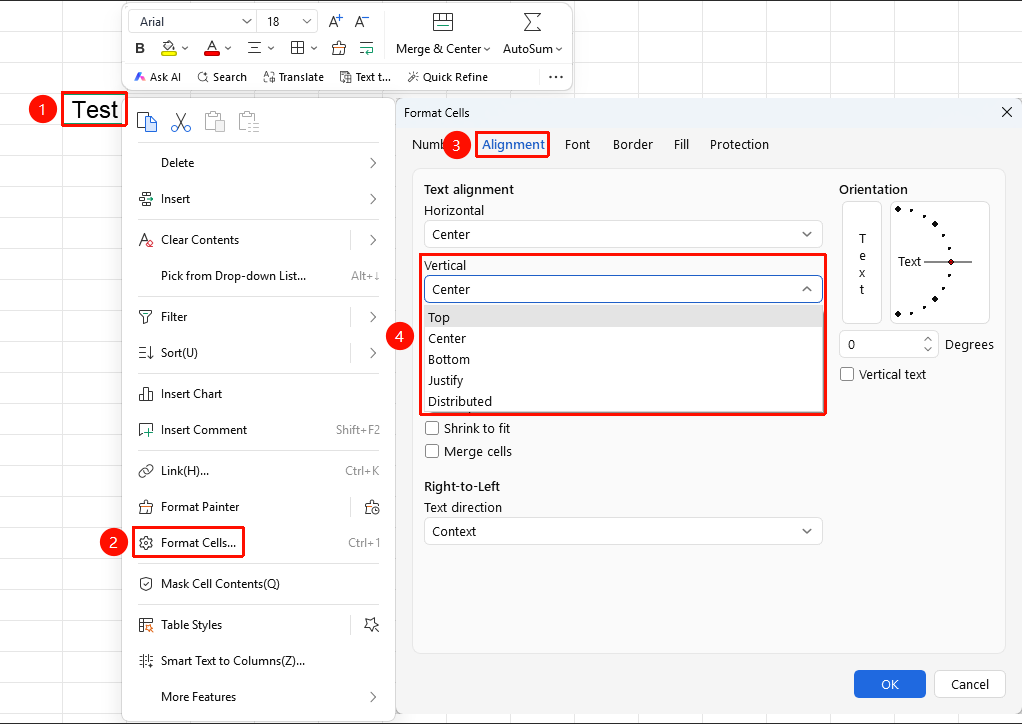
Right-click Format Cells to set vertical alignment
Feature Entry
Right-click menu → "Format Cells" button → "Alignment" tab
- Select the target cell, right-click and choose the Format Cells button
- Switch to the "Alignment" tab
- Click the "Vertical Alignment" drop-down menu
- After selecting the alignment method, click OK
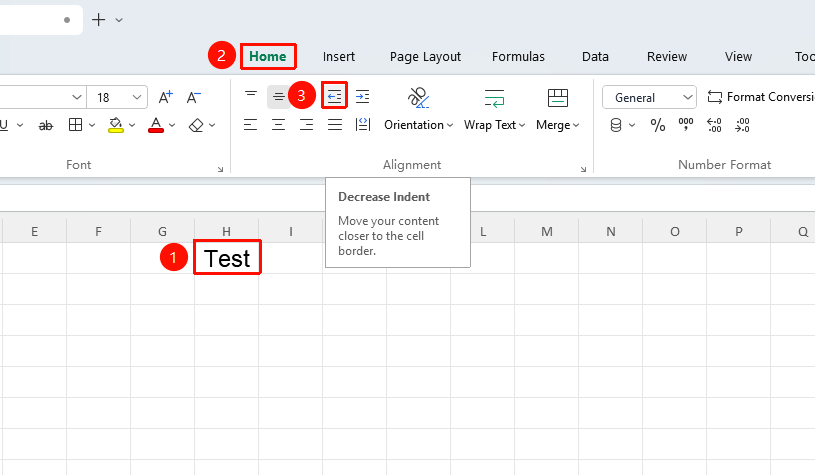
Decrease Indent
Feature Entry
"Home" tab → "Decrease Indent"
- Select the cell(s) for which you want to set indentation
- Click the "Decrease Indent" button in the Home tab to adjust the indent level
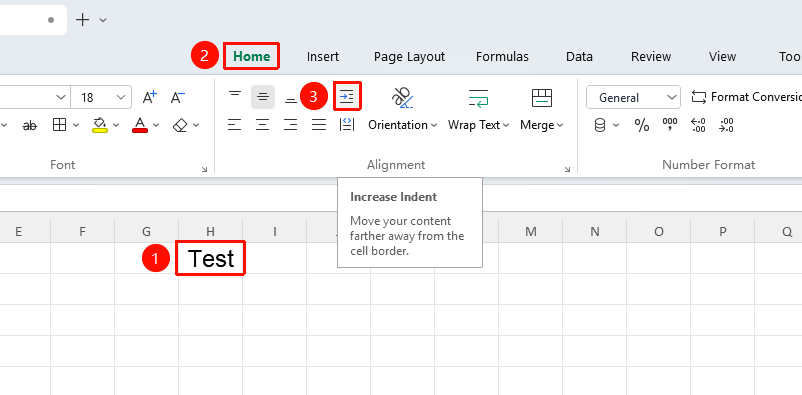
Increase Indent
Feature Entry
"Home" tab → "Increase Indent"
- Select the cell(s) for which you want to set indentation
- Click the "Increase Indent" button in the Home tab to adjust the indent level
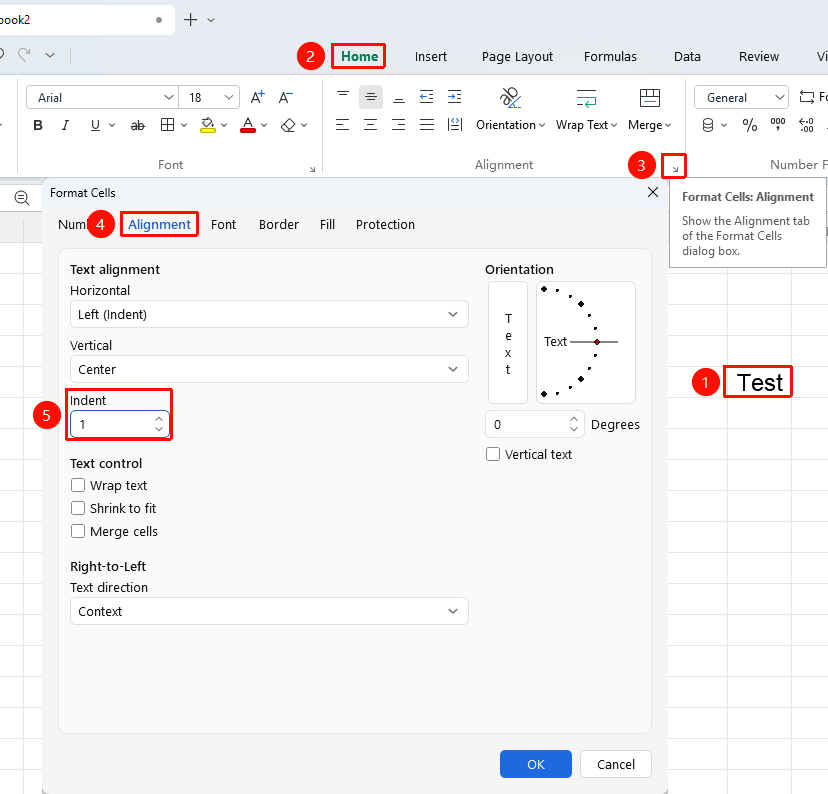
Set indent level via the Format Cells dialog
Feature Entry
"Home" tab → "Format Cells: Alignment" arrow icon → "Indent" text box
- Select the cell(s) for which you want to set indentation
- Click the Format Cells: Alignment arrow icon in the Home tab
- In the pop-up dialog, locate the "Indent" text box
- Enter the indent value, or click the arrows on the right to decrease or increase the indent, then click OK to complete the setting
Right-click Format Cells to set indent level
Feature Entry
Right-click menu → "Format Cells" button → "Alignment" tab
- Select the target cell, right-click and choose the Format Cells button
- Switch to the Alignment tab
- Locate the "Indent" text box
- Enter the indent value, or click the arrows on the right to decrease or increase the indent, then click OK to complete the setting