Feature Summary
The sheet tab color feature is used to set different colors for sheet tabs, making it easy to quickly identify and categorize worksheets.
Feature Description
| Feature Dimension | Description |
|---|---|
| Membership Restriction | No membership restriction |
| Version Restriction | No version restriction |
Operation Steps
Set Tab Color via Right-Click Menu
Feature Entry
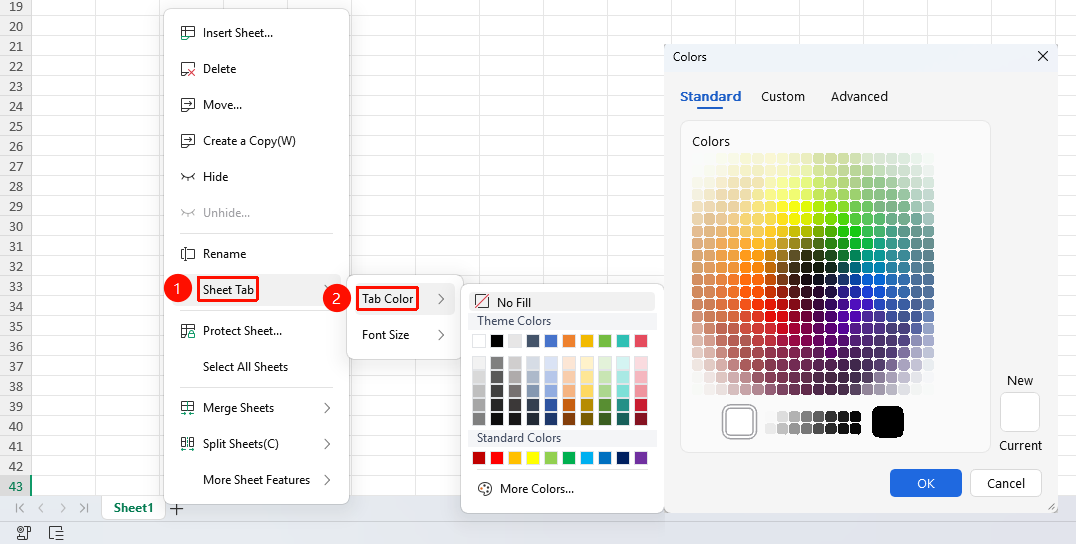
Right-click sheet tab → "Sheet Tab" dropdown menu → "Tab Color" option
- Right-click the sheet tab you want to color
- Select the Sheet Tab dropdown menu
- Click the "Tab Color" option
- Choose your preferred color from the color panel
Set Tab Color via Ribbon
Feature Entry
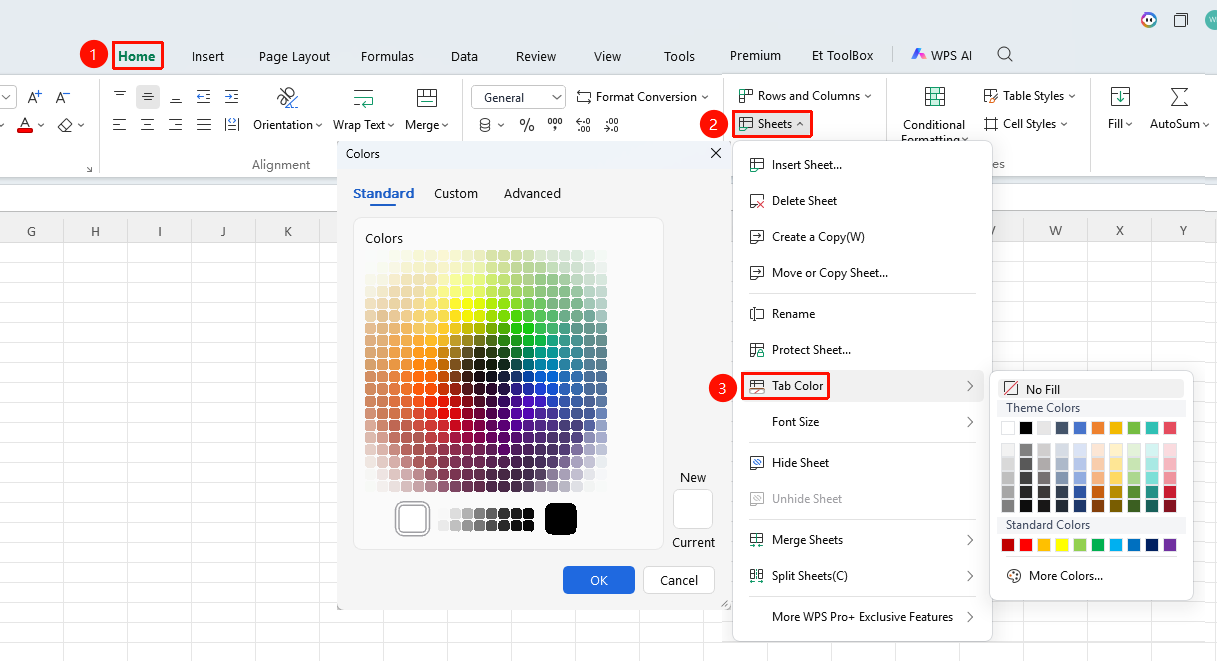
"Home" tab → "Sheet" dropdown menu → "Sheet Tab Color" option
- Click the Home tab
- Select the Sheet dropdown menu
- Click the "Tab Color" option
- Choose your preferred color from the color panel
Remove Tab Color via Right-Click
Feature Entry
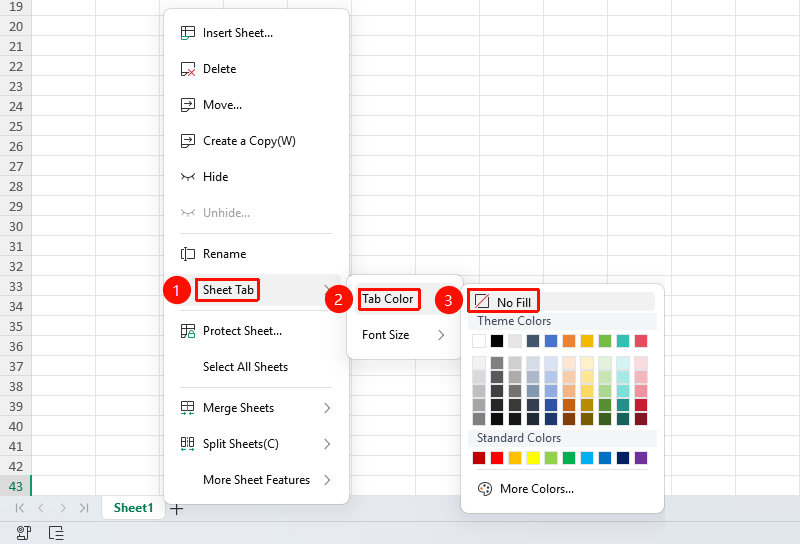
Right-click sheet tab → "Sheet Tab" dropdown menu → "Tab Color" option → "No Fill"
- Right-click the sheet tab that has a color set
- Select the Sheet Tab dropdown menu
- Click the Tab Color option
- Click the "No Fill" option
Remove Tab Color via Ribbon
Feature Entry
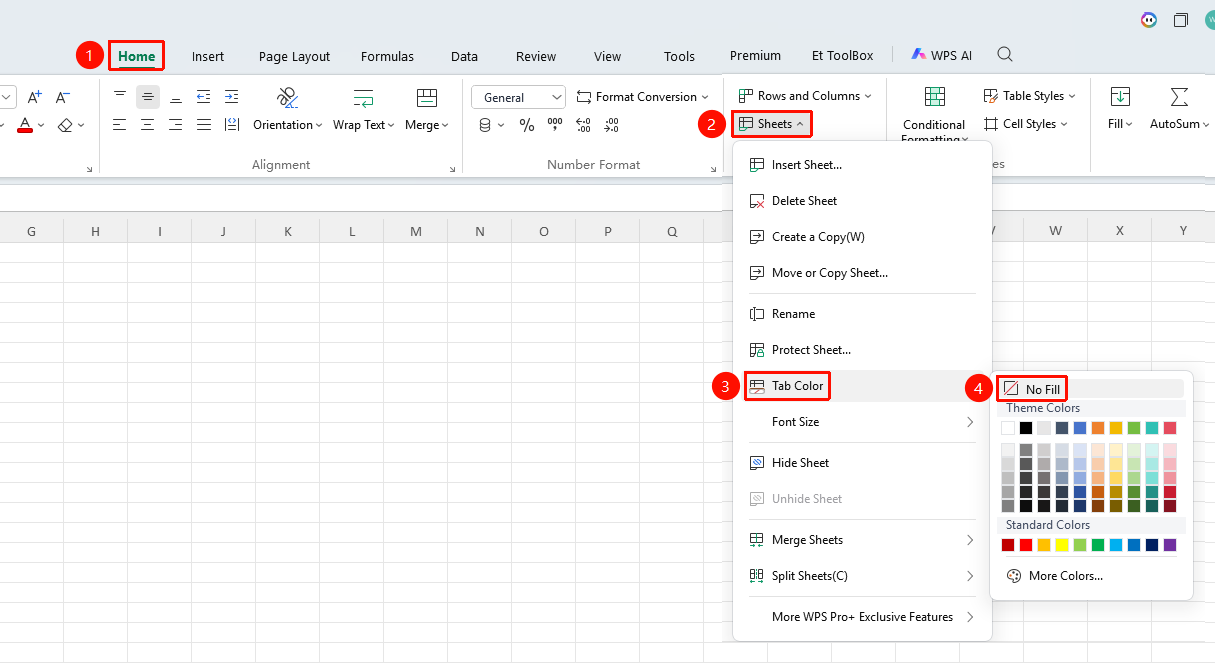
"Home" tab → "Sheet" dropdown menu → "Sheet Tab Color" option → "No Fill"
- Click the Home tab
- Select the Sheet dropdown menu
- Click the Tab Color option
- Click the "No Fill" option
FAQ
Q1: What is the purpose of tab colors?
- Solution: Tab colors help quickly distinguish different types of worksheets, such as using red to mark important sheets and green to mark completed sheets.
Notes
- Tab colors are for visual distinction only and do not affect data
- Different colors can be set for different worksheets
- The selected sheet tab color display will appear slightly different