Feature Summary
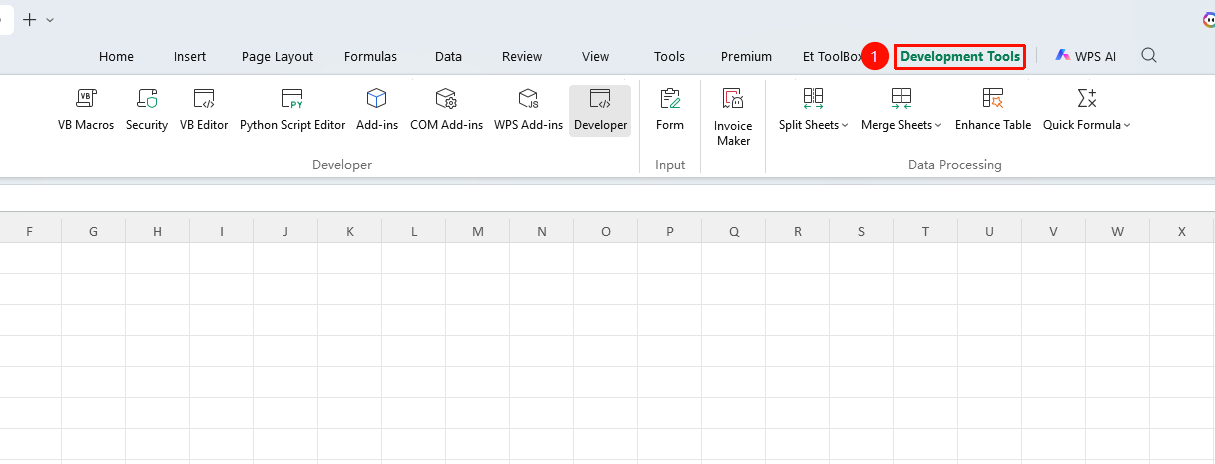
The Developer tab integrates functions such as running macros, recording macros, the VB Editor, and add-in management, serving as the advanced feature control center of WPS Sheets.
Feature Description
| Feature Dimension | Description |
|---|---|
| Membership Restriction | No membership restriction |
| Version Restriction | No version restriction; the VB environment requires installation of the VBA plug-in |
Steps
Display the Developer Tab
Function Entry
"Tools" tab → "Developer" button → "Developer" tab
- Click the "Tools" tab at the top
- Click the "Developer" button
- After clicking, the "Developer" tab will appear in the top ribbon
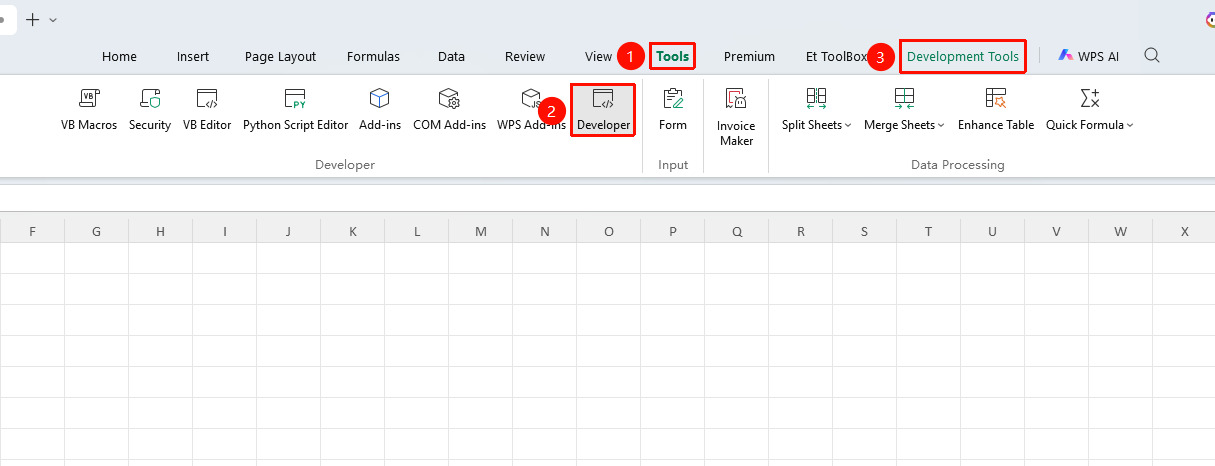
Overview of Main Developer Tab Functions
| Function | Entry | Description |
|---|---|---|
| Run Macro | Developer → "Run Macro" button | View and run existing macros |
| Record New Macro | Developer → "Record New Macro" button | Record user actions and automatically generate code |
| Macro Security | Developer → "Macro Security" button | Set macro execution permission policies |
| VB Editor | Developer → "VB Editor" button | Open the VBA editor to edit macro code |
| Add-ins | Developer → "Add-ins" button | Manage and load external plug-ins |
| COM Add-ins | Developer → "COM Add-ins" button | Manage COM component extensions |
| WPS Add-ins | Developer → "WPS Add-ins" button | Manage native WPS add-ins |
| Switch to JS Environment | Developer → "Switch to JS Environment" button | Switch to the JavaScript macro development environment |
FAQ
Q1: Cannot find the "Developer" tab?
- Solution: The Developer tab is not displayed by default. You can bring it up via "Tools" → "Developer".
Q2: Do regular users need to use the Developer tab?
- Solution: Functions in the Developer tab, such as running macros and add-ins, can improve efficiency. Users who do not work with macros and VBA can meet their daily needs using the basic tabs.
Q3: What is the difference between the Developer tab and the Tools tab?
- Solution: The Developer tab focuses on advanced features such as macros, VBA, and add-ins. Some functions may also be integrated under the "Tools" tab.
Notes
- Do not run macro files from unknown sources